

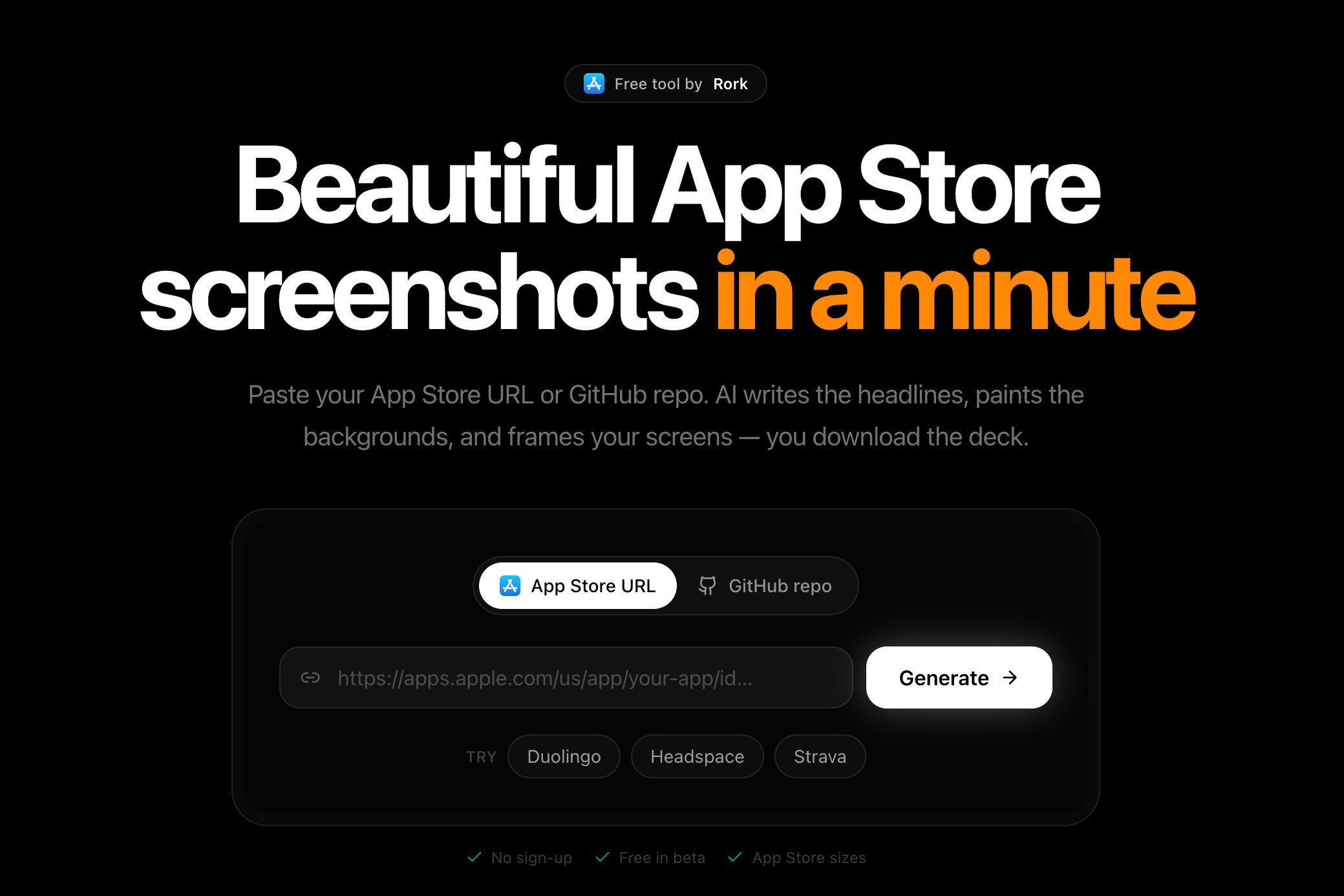
Paste an App Store URL, or point it at a GitHub repo.
Use it
1
Give it a source
App Store URL works best, because Rork reads your app’s name, its description, and your existing screenshots. GitHub repo works for an app that is not published yet. If neither fits, skip ahead and upload your screens by hand.
2
Check the app details
Rork fills in the app name, the category, and a summary. Correct them if the store listing is out of date, because the headlines are written from this text.
3
Pick up to six screens
Choose the screens that carry your story. Use Upload your own for screens Rork could not find, straight from your simulator or phone.
4
Choose a look, or describe one
Layout and Style are both optional. Pick a preset like dark premium or gradient dreamy, or write your own direction in a sentence and the whole deck follows it.
5
Generate, then download
It takes about a minute. Download all gives you the deck, and any slide you dislike has its own Retry.
What you get
- PNG files at 1284×2778, the iPhone 6.5-inch size App Store Connect accepts for every modern iPhone
- A written headline per slide, short and specific to your app
- Background art per slide, tied together by one palette
- Your screen inside an iPhone frame, composited to the pixel
The output is sized for the App Store. For Google Play, generate your Play listing images separately, since Play asks for different sizes. See How to publish your Rork app to Google Play Store.
Write better headlines
The studio writes the copy, but it writes from what you give it. Two habits improve the result:- Fix the summary before you generate. One clear sentence about who the app is for beats a paragraph of store keywords.
- Order the screens like a pitch. The first slide earns the second. Lead with the thing people came for, not with your settings screen.
How it relates to the rest of Rork
The studio also works for apps that were never built in Rork. If you are shipping something from another tool, you can still use it.
FAQ
Is it really free?
Is it really free?
Yes, free while in beta, and no account is needed. It does not spend your Rork credits.
My app is not on the App Store yet.
My app is not on the App Store yet.
Import a GitHub repo, or upload raw screenshots from your simulator. The studio takes it from there.
Can I control the style?
Can I control the style?
Yes. Pick a preset, or describe the look you want in a sentence and the whole deck follows it.
How many screenshots can one deck hold?
How many screenshots can one deck hold?
Up to six, which matches what a store listing shows before people stop swiping.
Are these screenshots enough to pass review?
Are these screenshots enough to pass review?
Screenshots have to show your real app, not a mockup of features you do not have. The studio frames your real screens, which is what Apple asks for. See the App Store Checklist.
Next steps
App Store screenshots
Required sizes and what to put on each slide.
AI App Store Reviewer
Check your app against the guidelines before you submit.
Publish to the App Store
Take the finished app to review.
Generate media
Images, video, audio, and 3D inside your app.