

Convert an Android app to iOS (with AI)
Have an Android app (in Rork, or imported from a repository) and want it on iPhone?- If the app isn’t in Rork yet, import its repository first, Kotlin/Java source included. The agent reads it even though the new iOS app will be Swift.
- In the project, ask in chat:
- Confirm the “Add iOS app?” widget. The agent rebuilds the screens with native iOS UI, reusing the same backend, data model, and business rules.
- Preview it in the iOS cloud simulator, then publish to the App Store.
iOS app → native Android app
The mirror path. In your iOS project, click + (Add preview platform) → Android (Kotlin), or ask in chat: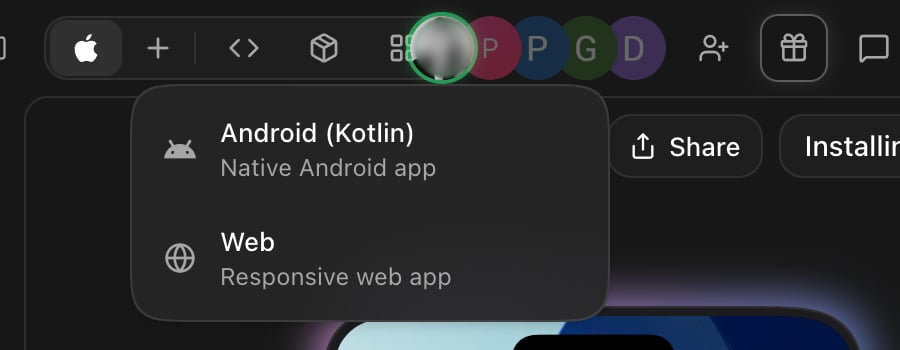
React Native / Expo codebase → native app
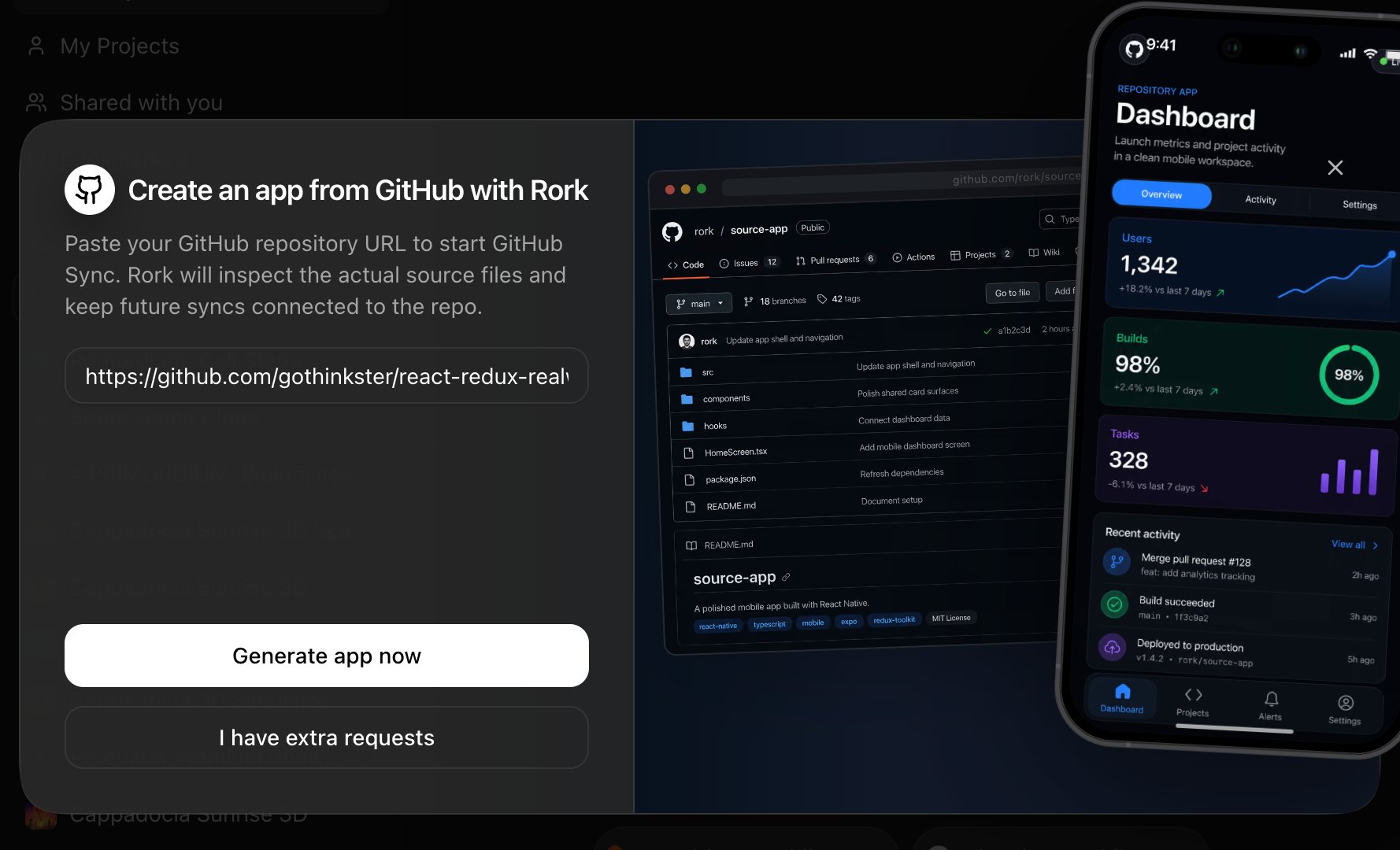
Already have a React Native or Expo codebase (from Bolt, a contractor, or your own work)? Rork rebuilds it as native code.- Push it to GitHub if it isn’t there already.
- Import it: GitHub to Mobile App on rork.com → paste the repo URL → Generate app now.
Not sure which platform to pick? See iPhone, Android, or web: what’s the difference.
Mobile app → web app
Any mobile project can grow a web version: Project Settings → Add new app → Web, or ask:your-app.rork.app URL from the Publish menu (you can attach a custom domain later). Great for landing pages, admin panels, or a desktop companion.
Every combination at a glance
“Add platform / chat” = click + in the project header, use Project Settings → Add new app, or just ask the agent.
Per-app settings
Each app in the project has its own icon, home screen name, and bundle identifier / package name. Configure them in Project Settings before publishing: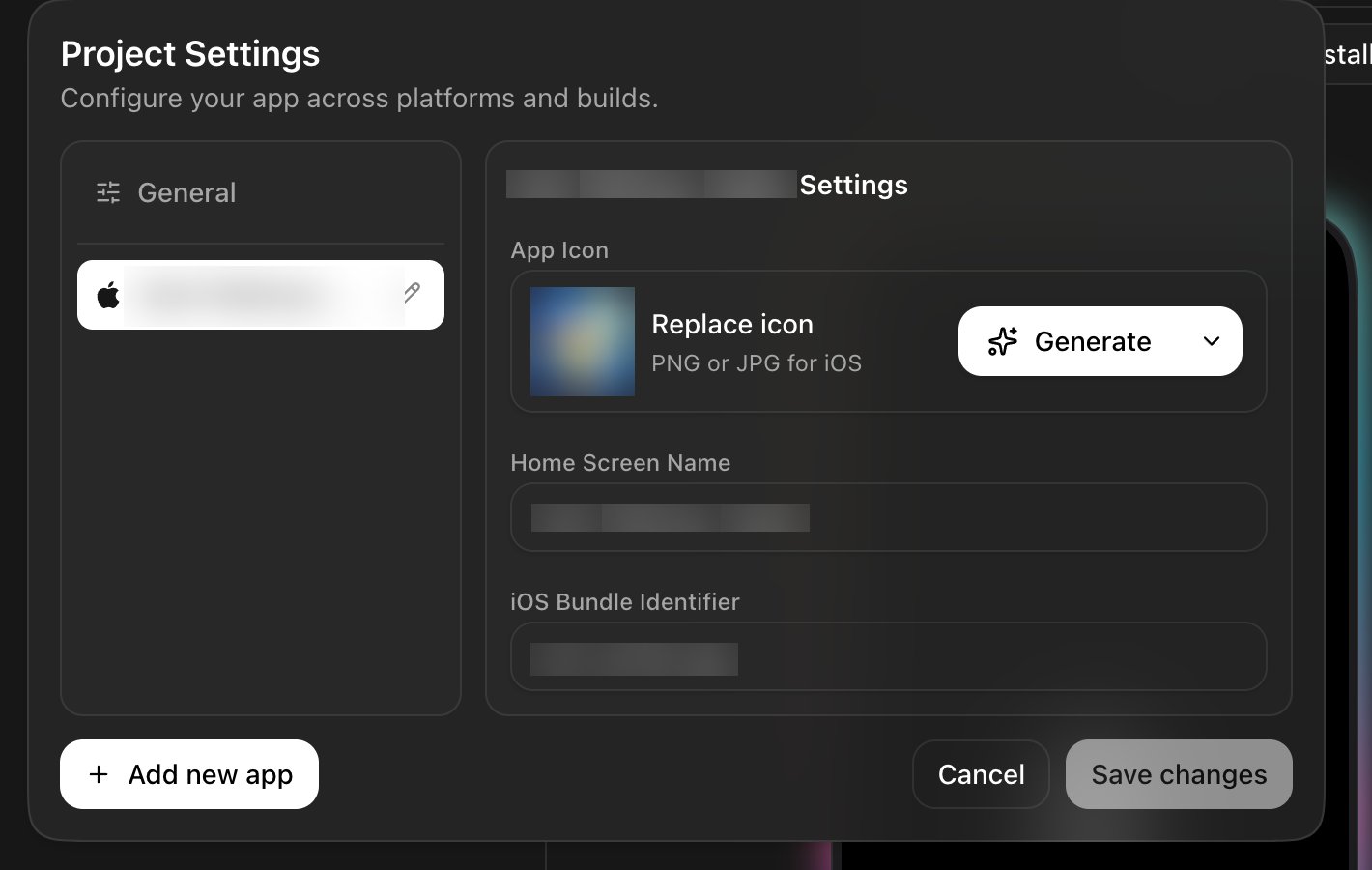
Publishing each platform
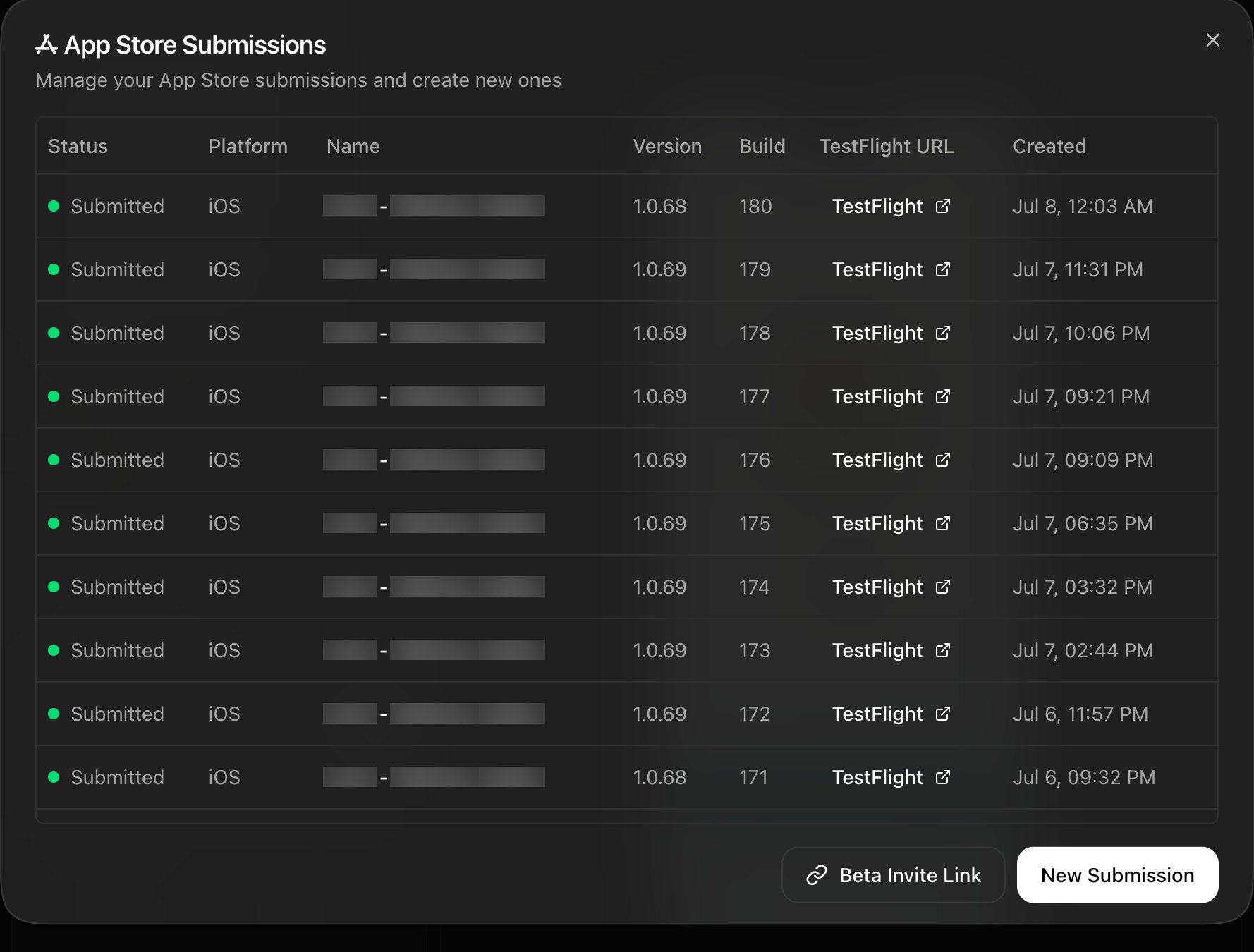
- iOS: Publish to the App Store directly from Rork:
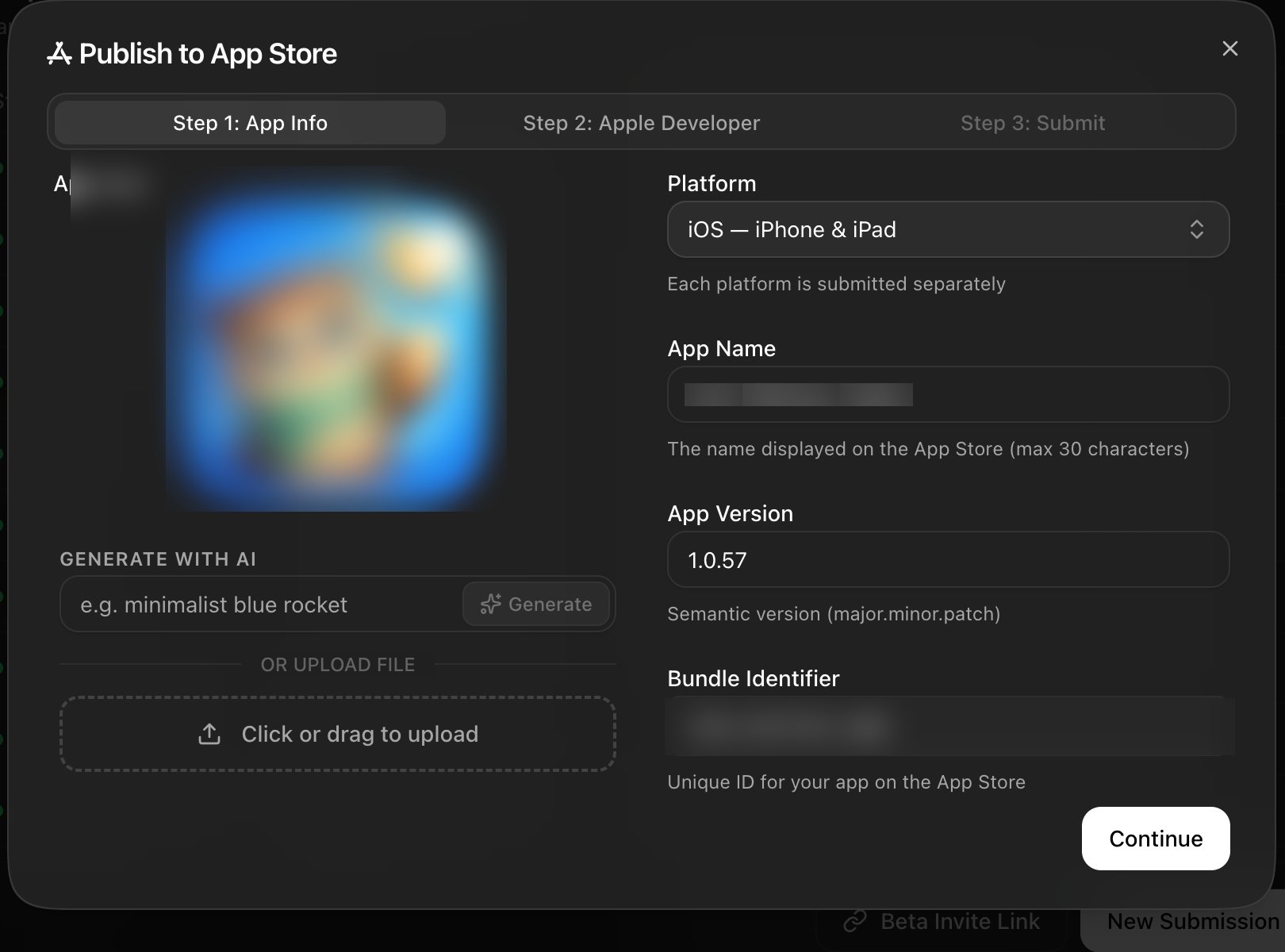
- Android: generate the AAB and upload to Google Play.
- Web: one click in the project’s Publish menu.