Rork writes native Android apps in Kotlin with Jetpack Compose, runs them on a cloud Android emulator next to the chat, signs the App Bundle for you, and sends the release to Google Play.
The chat on the left, the running Android app on the right.
An Android app in Rork is a native Android app. Rork writes it in Kotlin with Jetpack Compose, the stack a native Android team would use by hand. It is not a website in a shell, and it is not an iPhone app converted at runtime.You describe the app, Rork builds it, and you watch it run on a cloud Android emulator next to the chat. When it is ready, Rork signs the Android App Bundle and sends the release to Google Play.
Follow an existing iPhone project through Android generation, preview it in the emulator, and open the Google Play setup. For the release steps after the video, see Publish to Google Play.
Pick the platform before you send your first message. On rork.com, open the platform picker under the prompt box and choose For Android. The picker describes it as Native Android with Kotlin + Compose.
The platform picker: For Android is Kotlin + Compose.
The picker says it plainly: you can add another platform later. One project can hold an Android app, an iPhone app, and a web app at the same time. See Convert your app between iOS, Android, and web.Then describe the product, not the technology:
A plant care app that reminds me to water each plant and tracks how each one is doing
Rork does not start writing Kotlin straight away. It asks a few short questions first, and each answer is a picture, not a word. You can also type your own answer in Other.
Three questions before any code, each answer a picture.
Answer them, then press Submit. Skip this step by writing the look into your first prompt instead.
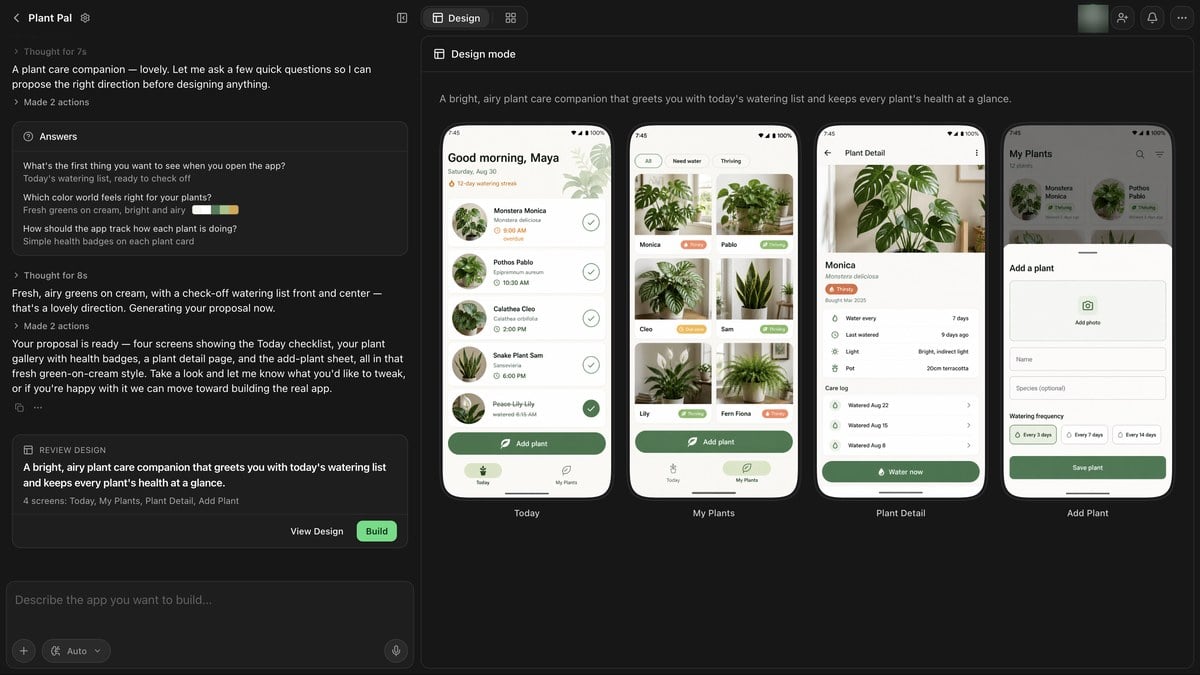
Next Rork draws the screens and shows them in Design mode. Nothing is built yet, so this is the cheap moment to change your mind. Ask for a different screen in chat, or press Build to turn the design into a working Android app. See Design mode.
Design mode: the proposed screens, and Build in the chat.
Rork runs your Kotlin app on a cloud Android emulator in your browser. It is the real app on a real Android system, not a picture, so you tap through it while you build.
Recorded in the emulator with the Record button.
Android’s own permission dialogs show up, which is the clearest sign that the app is native:
Android’s own permission dialog, on first launch.
The emulator does not run all the time. It waits behind a Turn on emulator button, and it tells you what it costs while it runs:
The emulator waits until you start it.
The panel says 0.1 build credits/min while running, so press Stop emulator when you finish a testing round. It also tells you how much emulator time this project has used so far. See Build credits vs cloud credits.
The controls above the emulator do this:
The emulator controls, and the running state on the right.
Control
What it does
Record
Records the preview and attaches it to the chat. This is how you show the agent a bug that only happens in motion.
Screenshot
Attaches a screenshot to the chat.
Home
Presses the Android home button.
Emulator settings
Switches the system between Light and Dark, and changes Text size.
Select an element
Point at a part of the screen, then write what to change about it. The agent gets the exact element.
Share
Takes a screenshot and wraps it in a phone mockup you can post.
Restart
Restarts the emulator, which is what you press when the instance is gone.
Stop emulator
Shuts it down and stops the per-minute cost.
Emulator settings: dark mode and text size.
Use Emulator settings before you publish. Dark mode and large text are where Android layouts break, and both are one click here. Changing the text size reloads the current screen.
An emulator instance does not live forever. If the connection is gone, press Restart. Your app and your project are untouched. Only the running machine is gone.
The emulator has no physical camera. Camera code still builds, and the camera works on a real phone. See Test on your own phone.
Rork builds and signs the release for you. What Rork cannot do is be you: the developer account and the store listing belong to your Google account.Open Publish in the project. The Google Play section says what it does, and shows whether a release build exists yet:
Google’s API cannot create the first app record for you, so the listing has to exist in Play Console before Rork can publish to it. When Rork needs it, the panel says Create Play Console app: “Create the app listing, then Rork can check access again.” Use Copy package name so the listing matches your build.
3
Connect Google Play
Press Upload to Google Play. The dialog names the app it will build for, one app per bundle: “This AAB contains this Kotlin app only.” It also names the account it will publish with. Until you connect one it says Connect Google Play: “Connect the Google account that manages this Play Console app.”
Upload to Google Play: the app, the build, and the account.
4
Build the bundle
Press Build AAB for Play. Rork builds a release Android App Bundle and signs it with a persistent upload key that belongs to your project. The dialog reads “Building Android App Bundle. This can take a few minutes. You can close this window.”
5
Send the release, or take the file
When the bundle is ready the button becomes Send to Google Play, and Rork uploads it to your internal testing track. Download AAB for Play Console gives you the signed file to upload by hand instead. Download APK gives you a file you can install on your own phone.
A release lands in internal testing first, which is visible only to the testers you list. Rork says so plainly when the upload finishes: “Version 1 is in internal testing. It isn’t public yet.”
Google Play work is not limited to the buttons. The agent can drive the Play tracks from chat:
Promote this release to closed testing
Promote this to production at 5% of users
It handles internal testing, closed testing, open testing, production, and a staged rollout you can increase, halt, resume, or complete. Two limits are worth knowing: there is no rollback, so a bad release is halted or replaced by a corrective one, and custom testing tracks are not supported yet.Internal testing does not satisfy Google’s 12-testers-for-14-days rule. That has to be a closed test. See Create your Google Play developer account.
Do not ask the agent to add signing keys, keystores, or SHA-1 fingerprints to the project. Google Play ties your app to the key used for the first upload. Rork manages that key for you, and changing signing files can make Google Play reject every later upload. If Play Console reports a signing key mismatch, contact support with your project link instead of regenerating anything.
For app updates, make the change in Rork and press Rebuild AAB, then send the new build to Google Play.The step-by-step version, with the Play Console screens, is in How to publish your Rork app to Google Play Store.
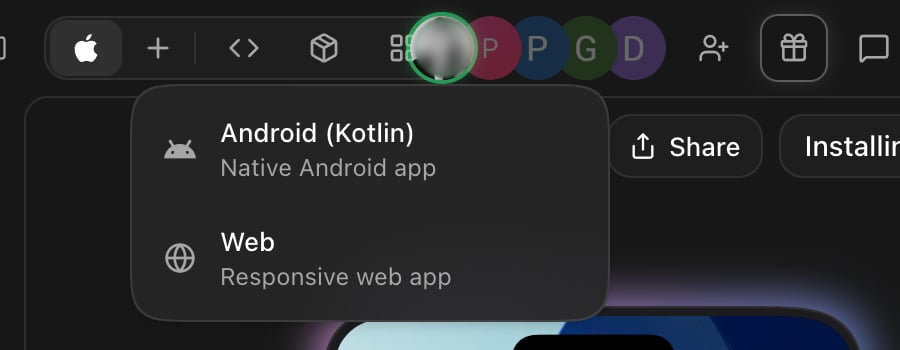
Any project can grow an Android app. Click + above the preview and pick Android (Kotlin):
The + menu above the preview adds a platform.
You can also use Project Settings → Add new app, or just ask:
Add a native Android app to this project
The agent recreates your screens, navigation, data flows, and design as an Android app. Both apps then live in one project, with two codebases: Swift for iPhone, Kotlin for Android. They share the chat and the backend, and they publish from the same Publish menu.
No. A Rork Android app is a Kotlin codebase built with Jetpack Compose. It is not a browser app in a shell, and it is not an iOS app.
Do I need a keystore or a signing key?
No. Rork signs the bundle with a persistent upload key for the project. There is no .jks file, no key alias, and no keystore password for you to store, rotate, or lose.
Which plan builds Android apps?
Any paid plan. The Free plan designs an Android app but does not build one. See Plans & Subscriptions.
What does the emulator cost?
0.1 build credits per minute while it runs, and nothing when it is off. The panel shows how much this project has used. See Build credits vs cloud credits.
Can I upload the bundle myself?
Yes. Download AAB for Play Console gives you the signed file, and you upload it in Play Console as usual.
Why can my new account not go straight to production?
Google requires it. A personal developer account created after 13 November 2023 needs a closed test with at least 12 testers opted in continuously for 14 days before it gets production access. See Create your Google Play developer account.
Can the same project also have an iPhone app?
Yes. An Android app is Android only, but you can add an iPhone app or a web app to the same project and share one backend between them. See Convert your app between iOS, Android, and web.
I have an Expo project. Can it become a native Android app?
Yes. Add a native Android app to the same project and the agent rebuilds your screens in Kotlin. Your Expo app stays where it is. See What happened to Expo?.