Google Play requires an AAB (Android App Bundle) file for distribution. This guide shows how to get the AAB for your Rork project and upload it to the Play Console, starting with an internal testing release.
A desktop or laptop. You cannot do this from a phone.
Rork builds the AAB for you. Android apps in Rork are native Android (Kotlin) apps, and the Publish button does the whole build. For the whole picture, from the first prompt to the release, see Build a native Android app with Rork.
The video starts with adding Android to an iPhone project, then shows the Google Play connection and build dialog. Continue below for the full build and upload instructions.
Open your project and click Publish at the top of the page, then open the Google Play section.
Click Connect Google Play and sign in with the Google account that manages this Play Console app.
Click Build AAB for Play. Rork builds a release AAB signed with a persistent upload key that is unique to your project.
When the build finishes, choose how to deliver it:
Send to Google Play uploads the AAB to your internal testing track for you. This appears once Rork verifies that your Google account can manage the Play Console app.
Download AAB for Play Console downloads the signed .aab file so you can upload it by hand.
Rork needs the app to already exist in Play Console before it can send a build. If Rork says Create Play Console app, create the app listing first, then let Rork check access again.
Do not ask the Rork agent to add its own signing keys, keystores, or SHA1 fingerprints to the project. Google Play permanently associates your app with the key used for the first upload. Rork manages this key for you, and changing signing files in the project can make Google Play reject future uploads. If Play Console reports a signing key or SHA1 mismatch, contact support with your project link instead of regenerating anything.For app updates, make your changes in Rork and click Rebuild AAB. Then send the new build to Google Play, or download it and upload it as a new release in Play Console.
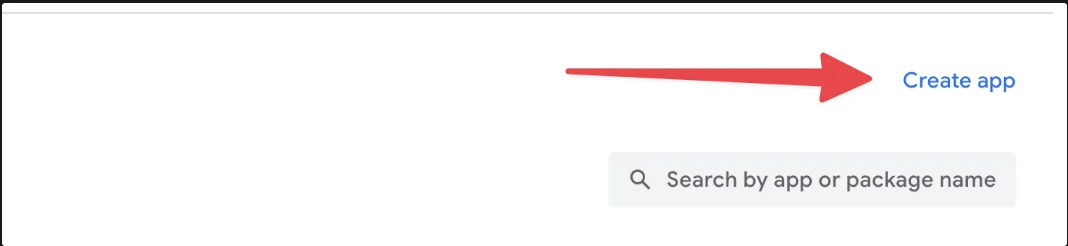
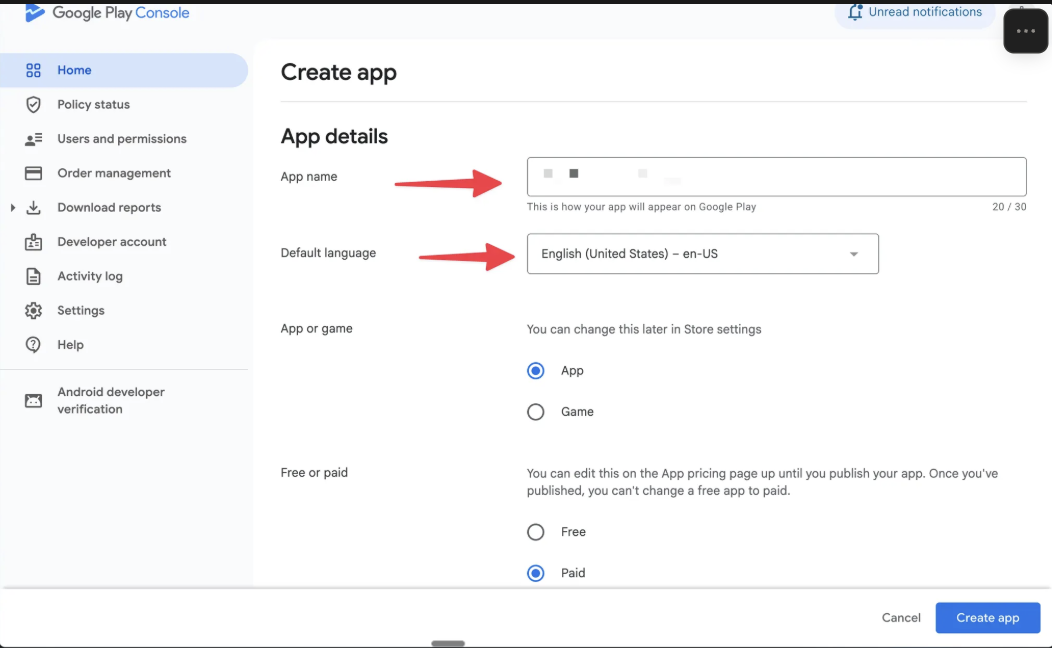
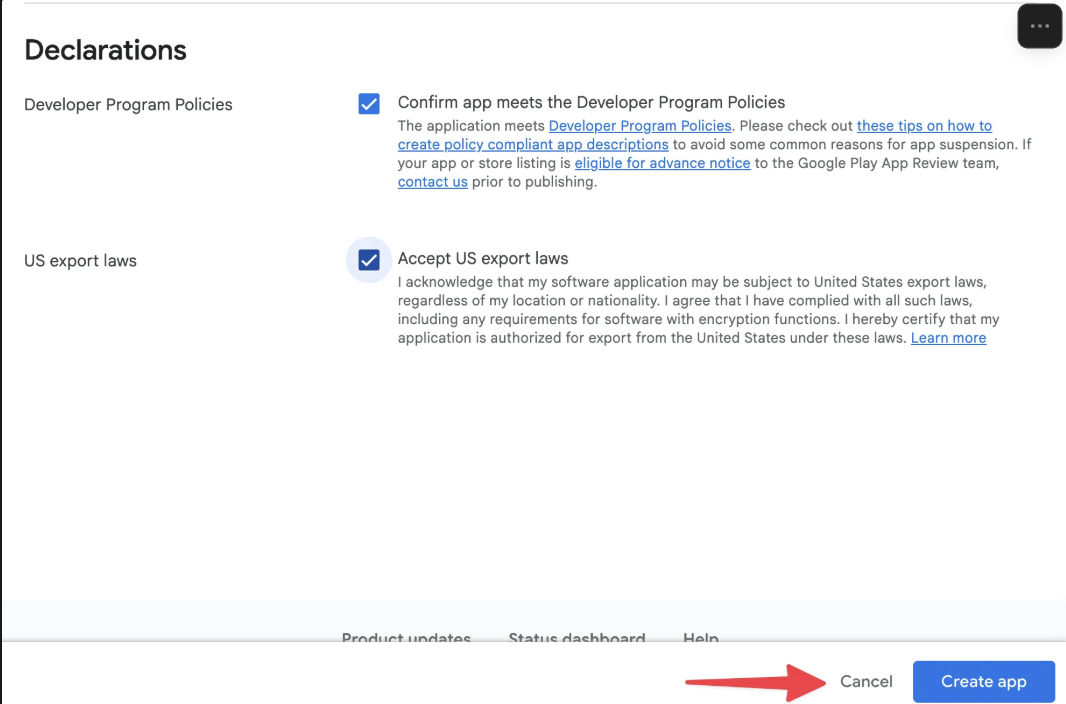
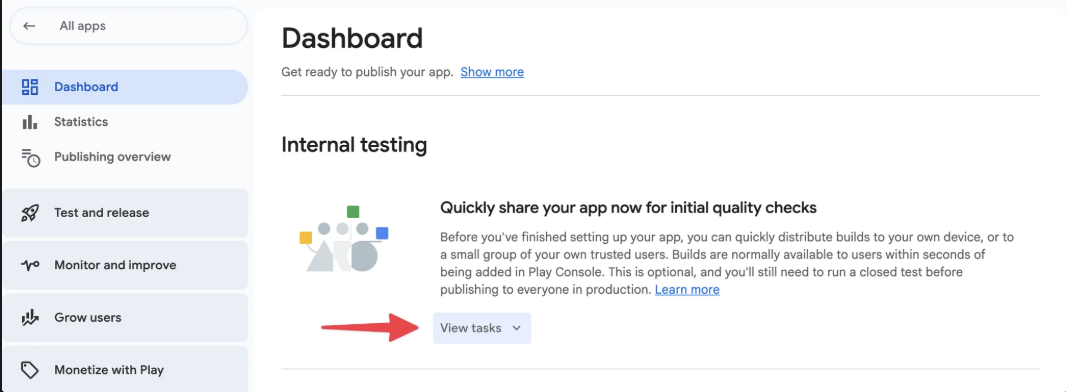
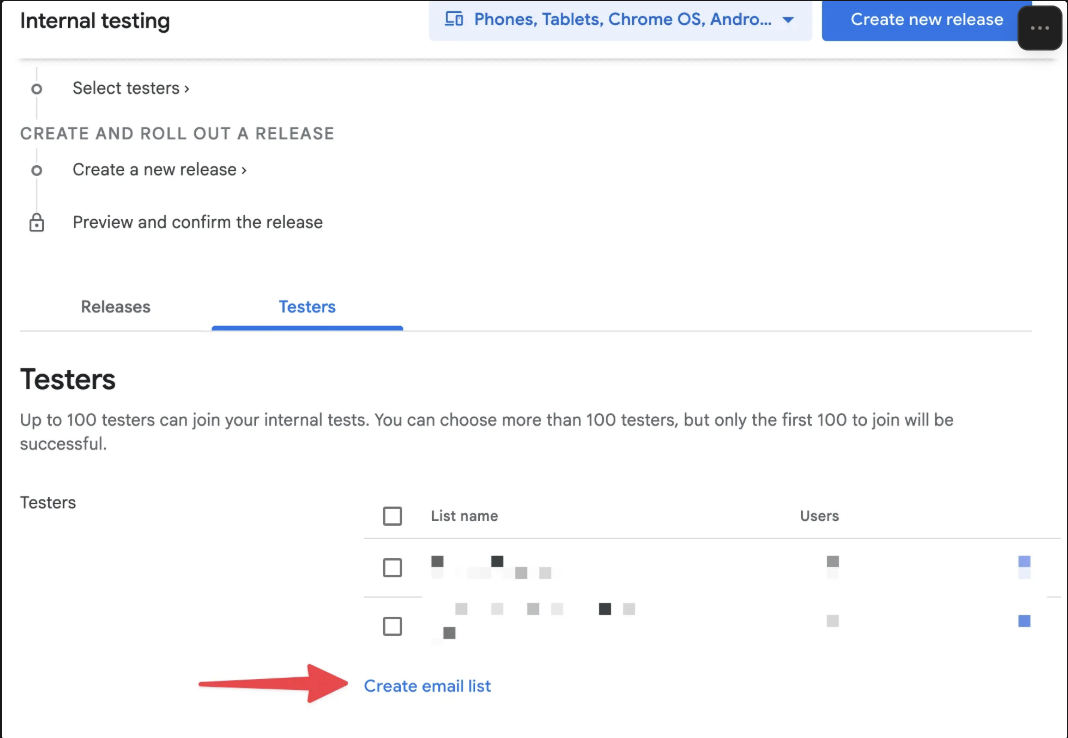
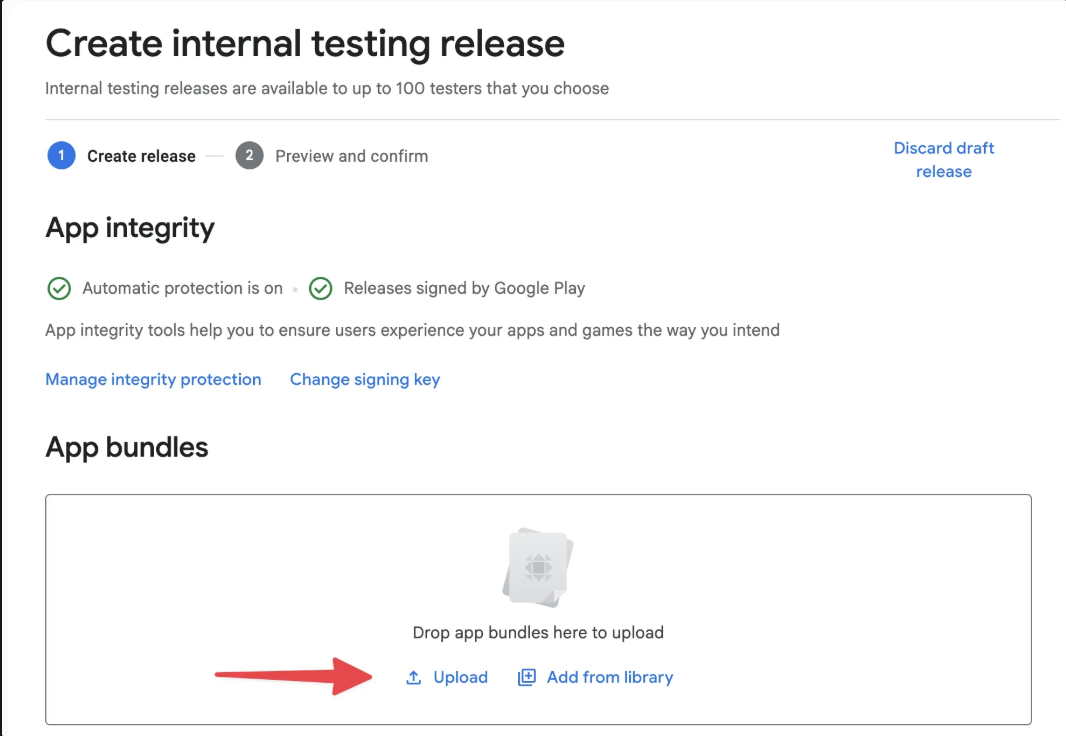
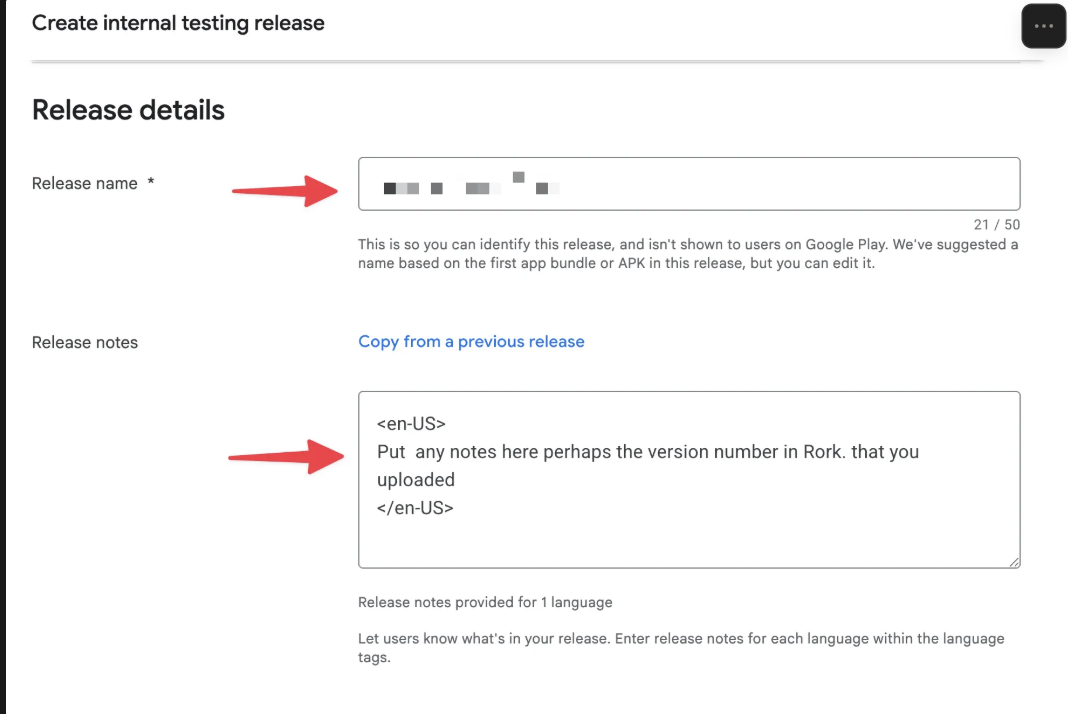
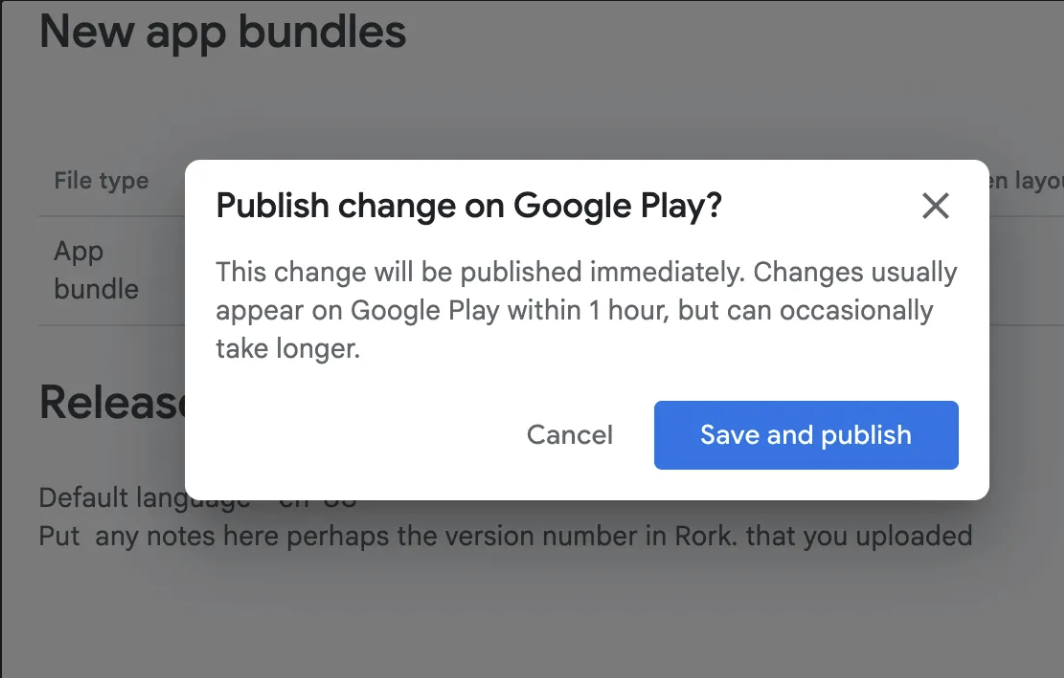
Log in to the Play Console at https://play.google.com/console/developers and click the Create App button on the right side.Fill out the app name, the default language, whether or not this is an app or a game, and if you want to make it free or paid. VERY IMPORTANT: If you intend for this to be a paid app, make sure that it’s marked paid now. You can make a paid app free later, but you can’t make a free app paid at any point. Agree to the developer program policy of Google and the export laws. Press Create App.Now select View Tasks under internal testing.Click on Select Testers.Scroll down to the Testers tab and select Create email list. This is where you’ll create a distribution list of emails for people you want testing your app. For now, just add your own email so you can test the app yourself.Just create a list with your email address and hit save.Scroll back up and click on Create a new releaseUpload the AAB file you downloaded from Rork earlier.Enter the name of your app and any release notes that you may want to add. Perhaps the version from Rork that you uploaded so that you can remember.Click next at the bottom of the screen.This brings you to a summary screen. Click Save and Publish at the bottom.If you get a pop-up, select “Save and Publish.”Once that is completed, go back to the internal testing page and scroll down to the bottom under the testers tab. Copy the link that says testers can join you on the web. They must join on the web first before they try to download the app.Send the link to yourself and accept the invitation. Now you can install the app from the Google Play Store and test it. Once internal testing looks good, promote the release to a broader track in Play Console when you are ready to launch.
Assistant
Responses are generated using AI and may contain mistakes.