

Step-by-Step Tutorial: RevenueCat in a Rork App (End-to-End)
1) Build your app in Rork
- Write your prompt (example from video: “note-taking calorie tracker with AI calorie estimate”).
- Submit prompt → Rork builds the app.
- If you think of additional features mid-build (e.g., “scan your meal”), add them to the queue so Rork can handle them after the first prompt.
2) Connect RevenueCat inside Rork
- In Rork, go to Integrations.
- Click Connect with RevenueCat.
- Log in / sign up in RevenueCat.
- Authorize Rork to access your RevenueCat account.
- Click Create new project in RevenueCat.
- Name it whatever you want (e.g., “Calorie Tracker”).
- Go back to Rork chatbot and say:
“Set up RevenueCat.” - Rork will set up:
- Offerings
- Products
- Entitlements
- Environment variables / API keys
- When Rork asks to set environment variables → click Yes.
3) Test purchases in RevenueCat Test Store (sandbox inside RC)
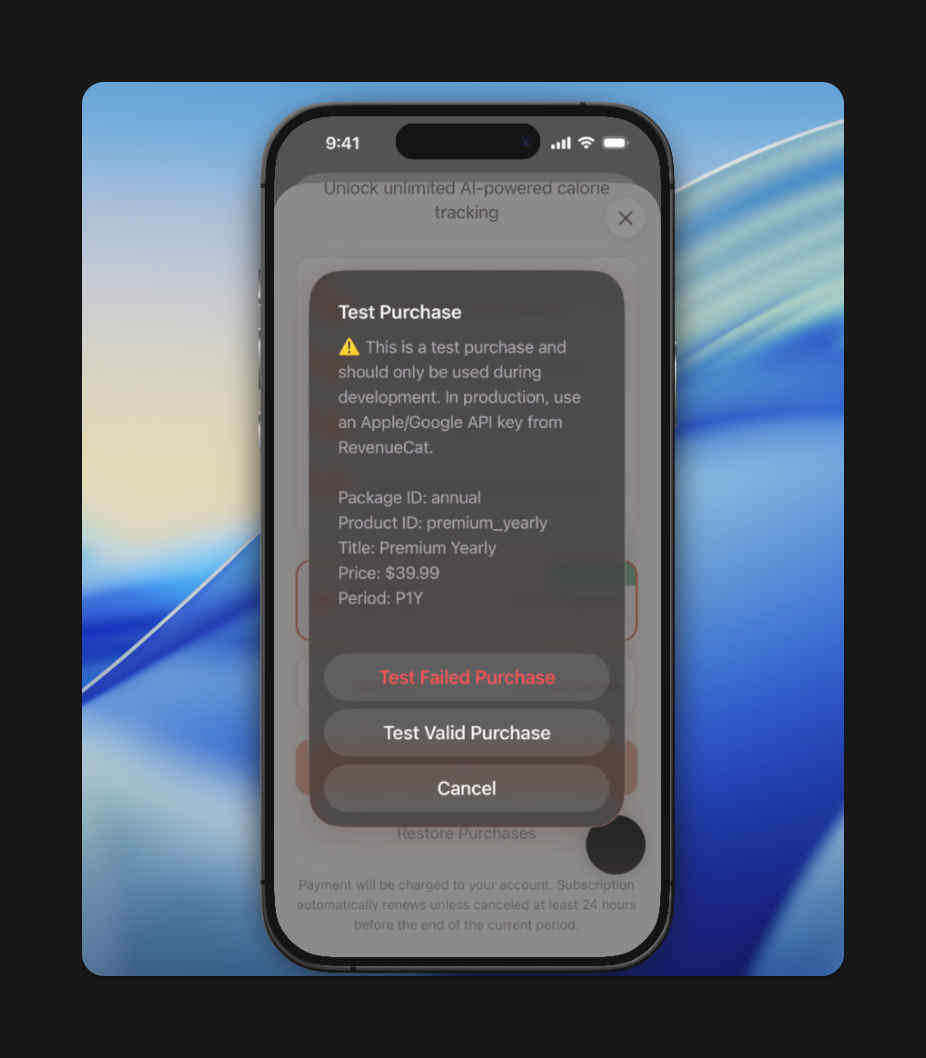
- In the Rork app, tap the subscription (example: $40/year).
- You’ll see options like:
- Test a valid purchase
- Test failed purchase
- Tap Test valid purchase.
- In the RevenueCat dashboard → Overview → toggle Sandbox data.
- If you see sandbox MRR / the subscription (ex: $40/year), then:
✅ Rork + RevenueCat Test Store are connected.
Note: These are NOT real App Store subscriptions yet.
4) Push the app to TestFlight (required for real Apple IAP)
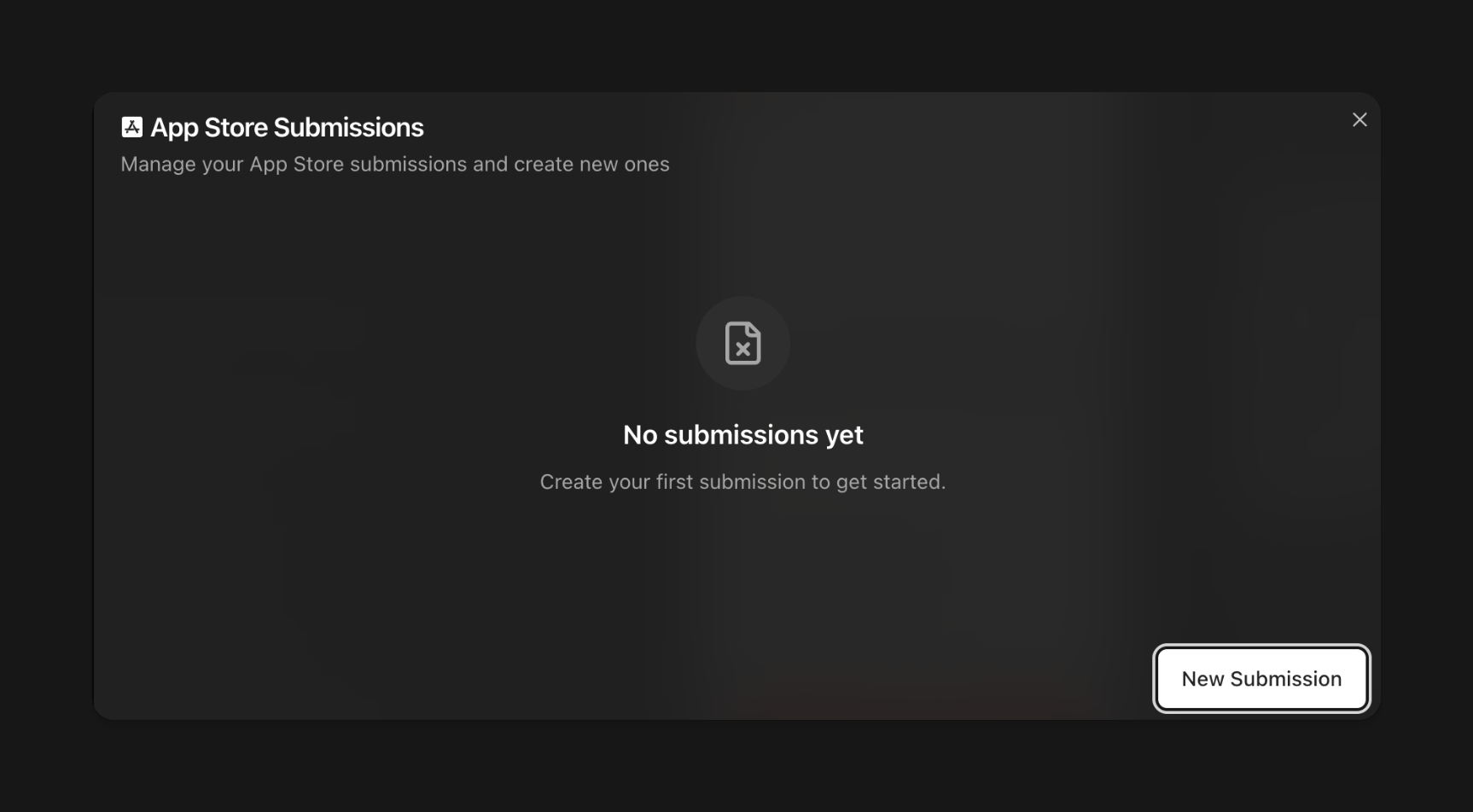
- In Rork, go to Get users → Submit to TestFlight.
- Click New submission.
- (Optional but recommended) Generate an app icon using Rork.
- Fill out Apple Developer information when prompted.
- Submit and wait for the build/upload to complete.
- Go to App Store Connect. Complete the required compliance info so the build is testable.
5) Create subscriptions in App Store Connect (real products)
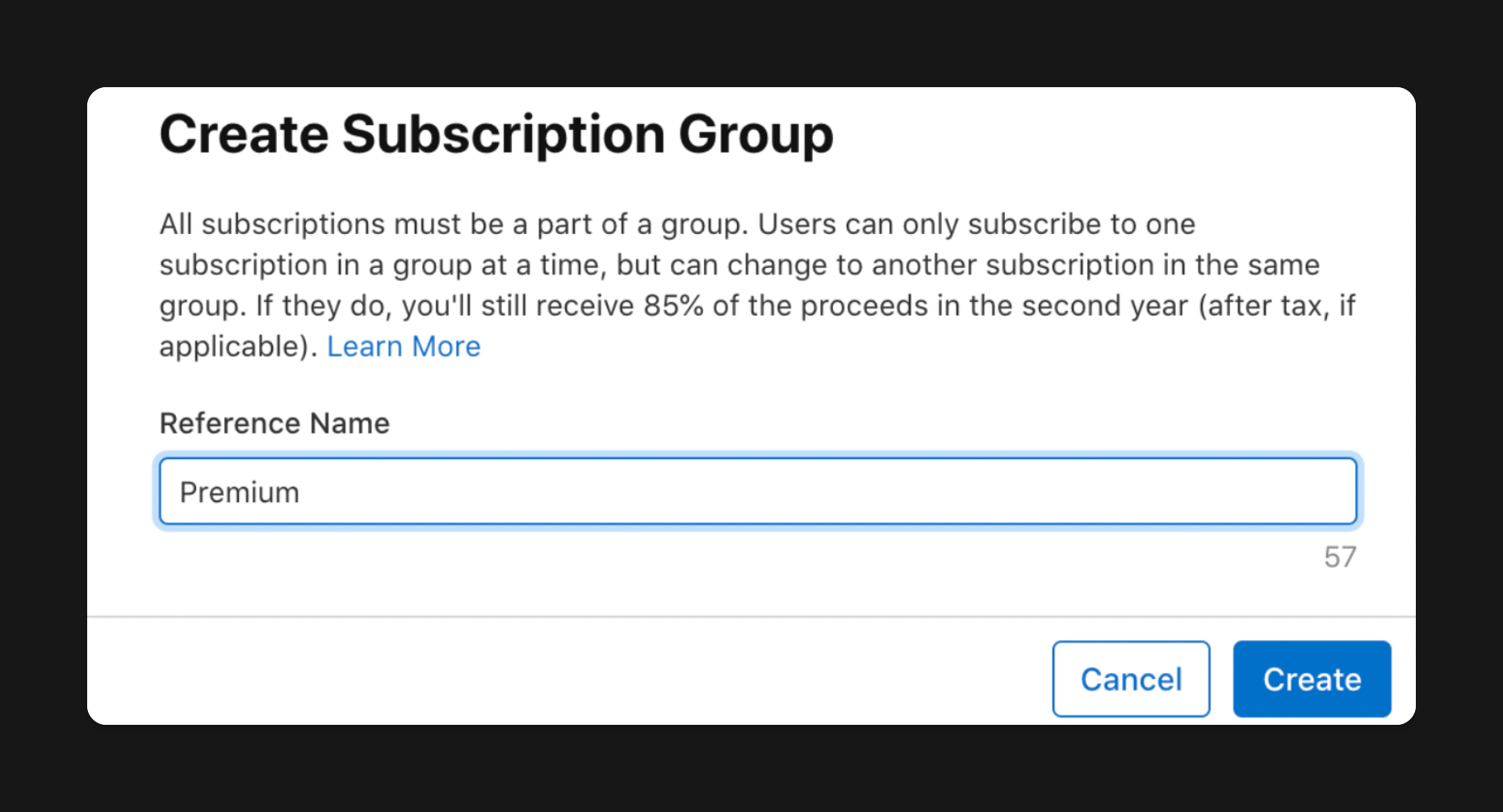
Create a Subscription Group
- App Store Connect → Subscriptions
- Create Subscription Group
- Name it something simple (example: “Subscriptions”)
Create monthly subscription (repeat for yearly)
- Create Subscription
- Set:
- Reference name: “Monthly subscription.”
- Product ID: “monthly_subscription” (or same name)
- Configure required metadata:
- Duration: 1 month
- Availability: Everywhere
- Price: example $4.99/month
- Add localization:
- Display name: “Monthly subscription.”
- Add a screenshot/image of your paywall (required for submission readiness)
- Submit / Save
- Repeat the same steps for Yearly.
6) Connect App Store Connect to RevenueCat (so products sync)
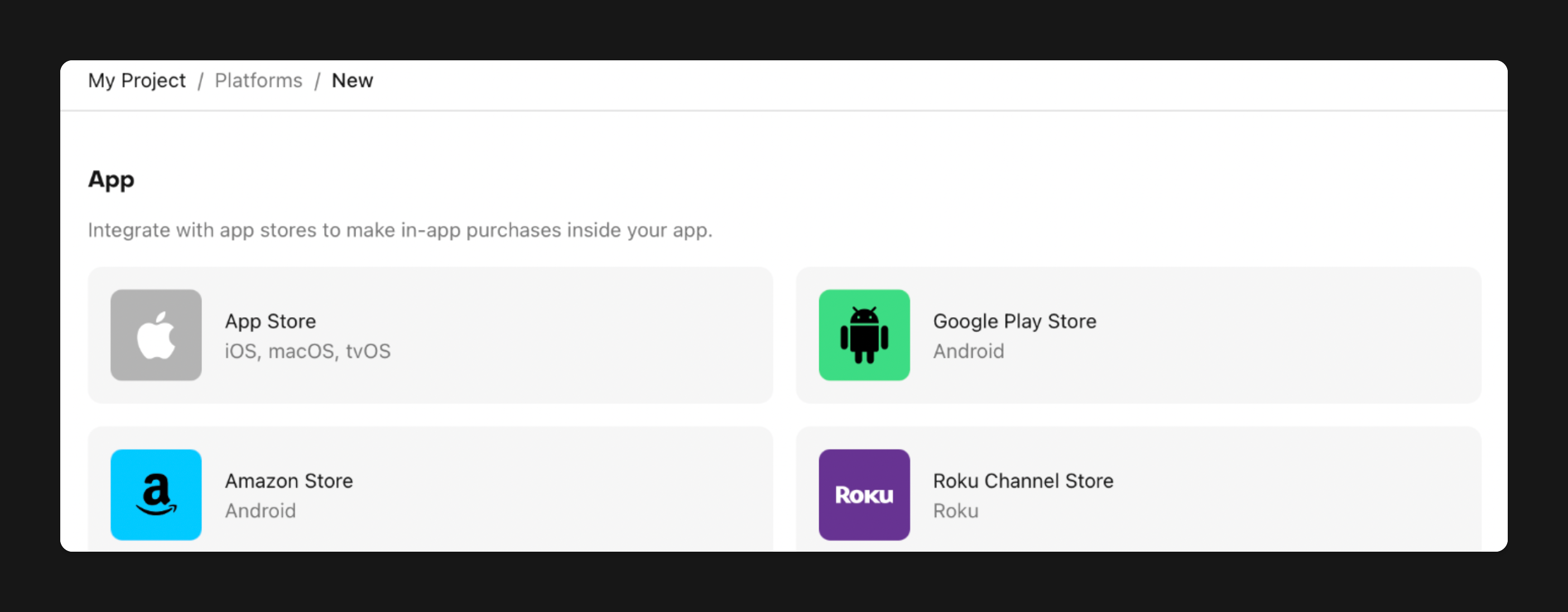
RevenueCat → Apps → iOS appAdd App Info
- Copy your Bundle ID from App Store Connect into RevenueCat.
Add In-App Purchase Key
- App Store Connect → Users and Access → Integrations
- Under In-App Purchase, click the +
- Name it (example: “RevenueCat Calorie Tracker”)
- Download the key file
- Upload/drag into RevenueCat
- Copy Issuer ID (above the integration keys list) → paste into RevenueCat
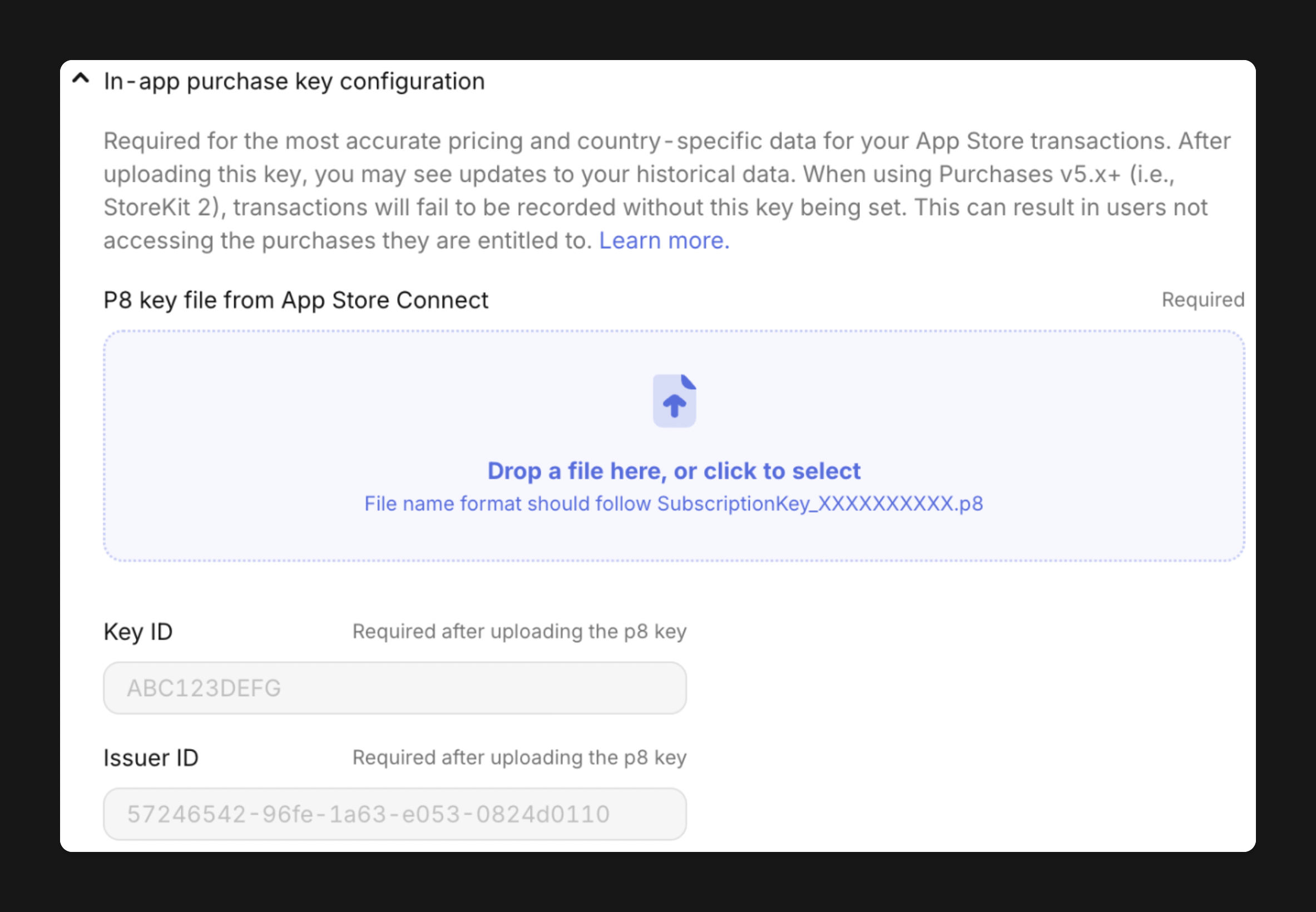
Add App Store Connect API Key
- Still in Users and Access → Integrations
- Create App Store Connect API key
- Download it → upload into RevenueCat
- Enter Issuer ID again
Add Vendor Number
- App Store Connect → Reports (Business section)
- The top left shows the Vendor Number
- Copy → paste into RevenueCat
Enable server-to-server notifications (recommended)
- Toggle: Track new purchases from server-to-server notifications
Add App-Specific Shared Secret
- App Store Connect → Apps → Your app → App Information
- Scroll to App-Specific Shared Secret
- Click Manage → Generate
- Copy secret → paste into RevenueCat
- Click Save changes in RevenueCat
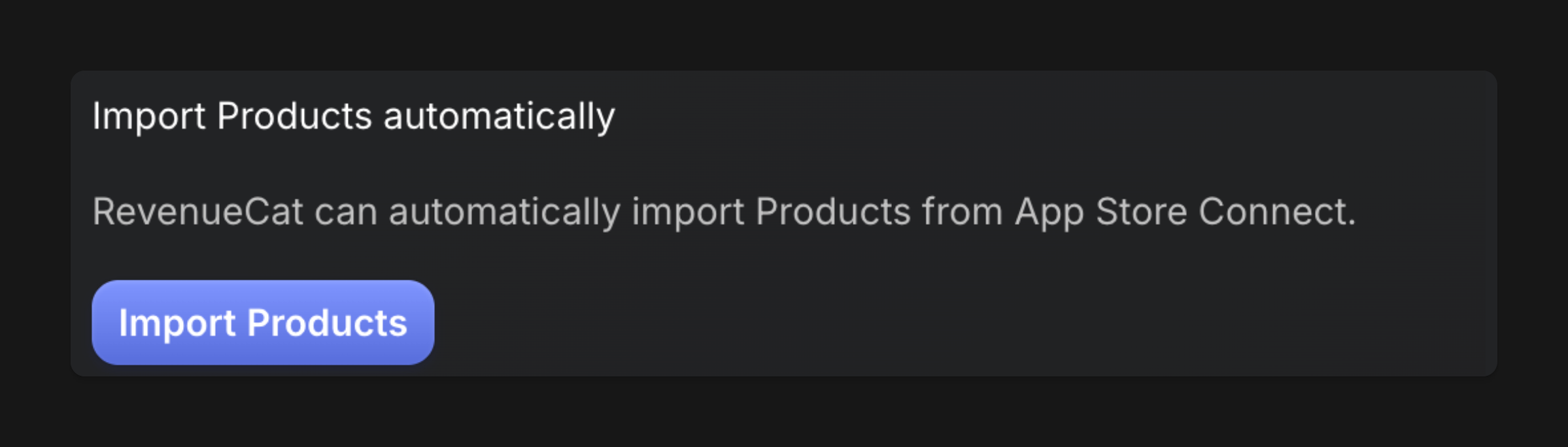
7) Import your App Store products into RevenueCat
- RevenueCat → Product Catalog
- Choose Default (or your active catalog)
- Click Add new product → Import products
- Select the monthly + yearly products → Import
- For each imported product:
- Attach an Entitlement (same entitlement for both is common)
8) Attach products to your RevenueCat Offering
- RevenueCat → Offerings → Default
- Click Edit
- Attach each App Store product to the correct package
- Click Save
9) Final test: TestFlight purchase
- Install your app via TestFlight
- Open your paywall in-app
- Your subscriptions should now be purchasable via TestFlight and in production after release.
Common Issues:
- Make sure all of your Agreements/Bank information is active. (Your subscriptions will not work if this isn’t set up
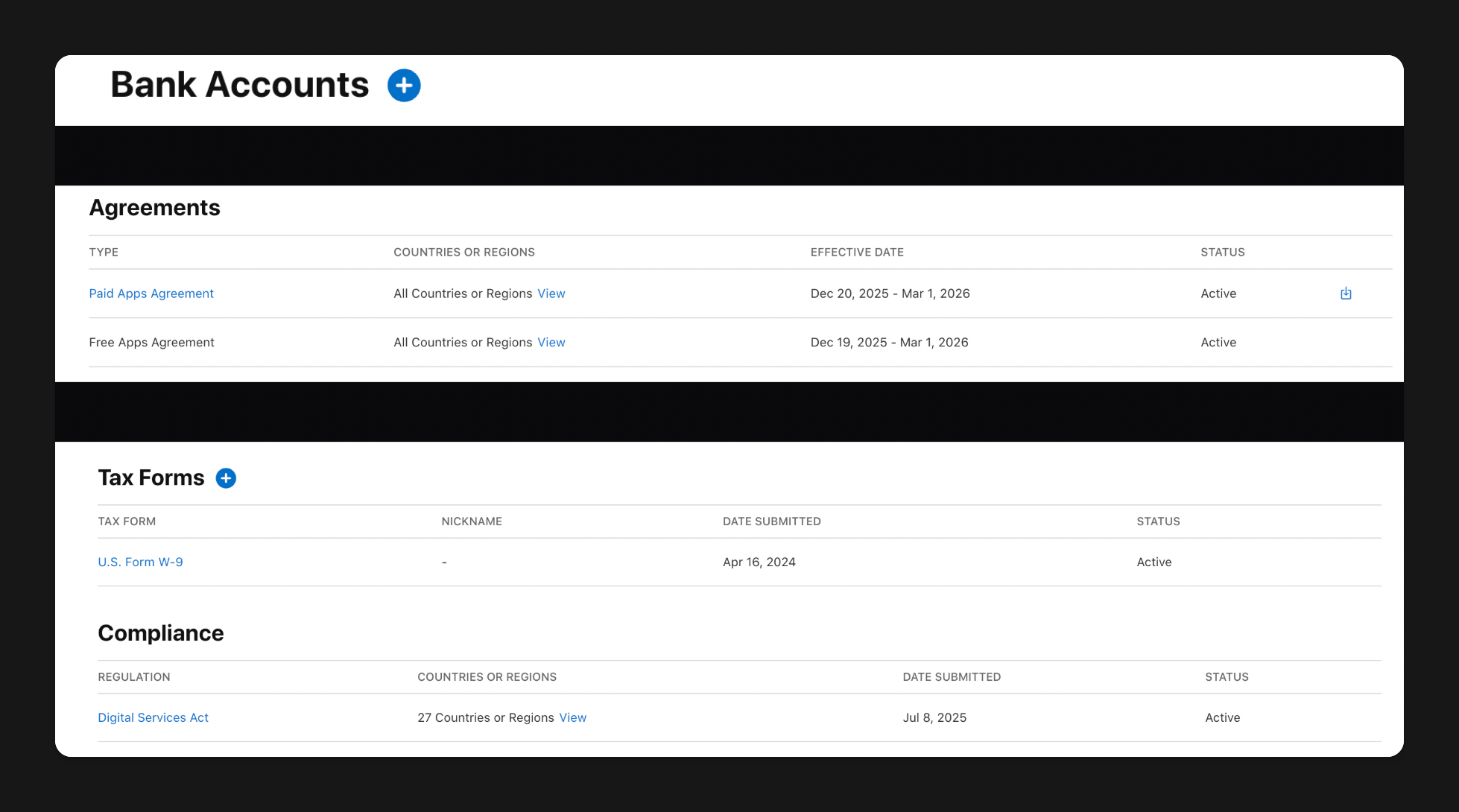
- App store public api key isn’t set properly.
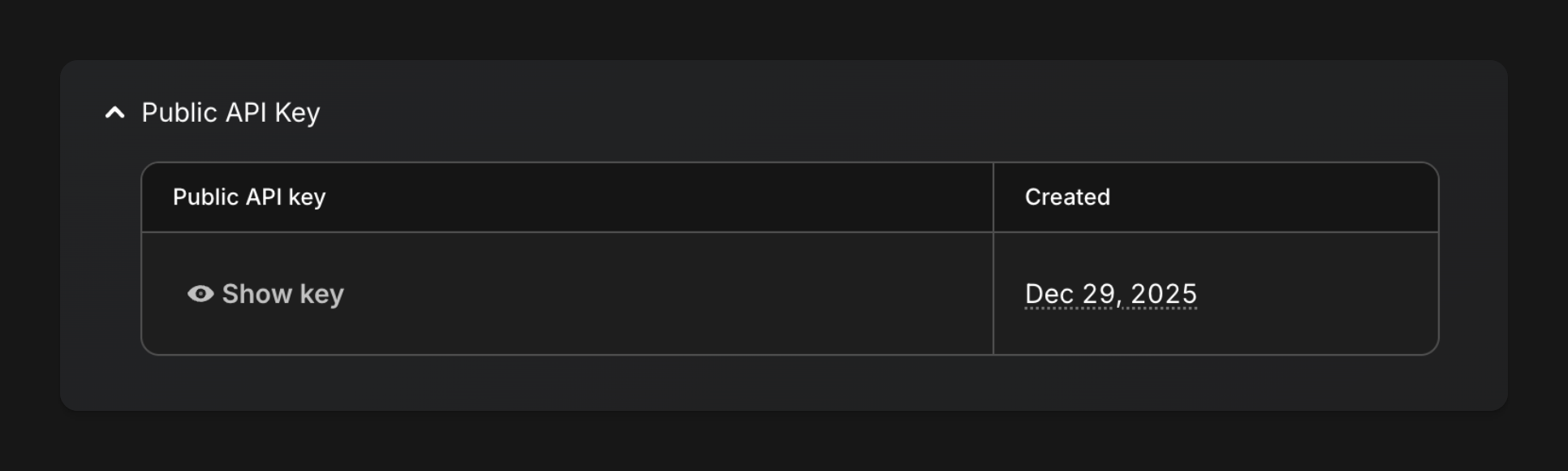
- Just give this key to Rork and say, “Make sure Apple and RevenueCat are connected”.
What to do next:
After adding a paywall, you will still be rejected from the App Store if you do not have a privacy policy, terms and conditions, and a visible EULA.In your App Store description, make sure to mention that every feature requires a paid subscription if you are hard paywalling your app. If you do not, Apple will reject you. How to create policies?