

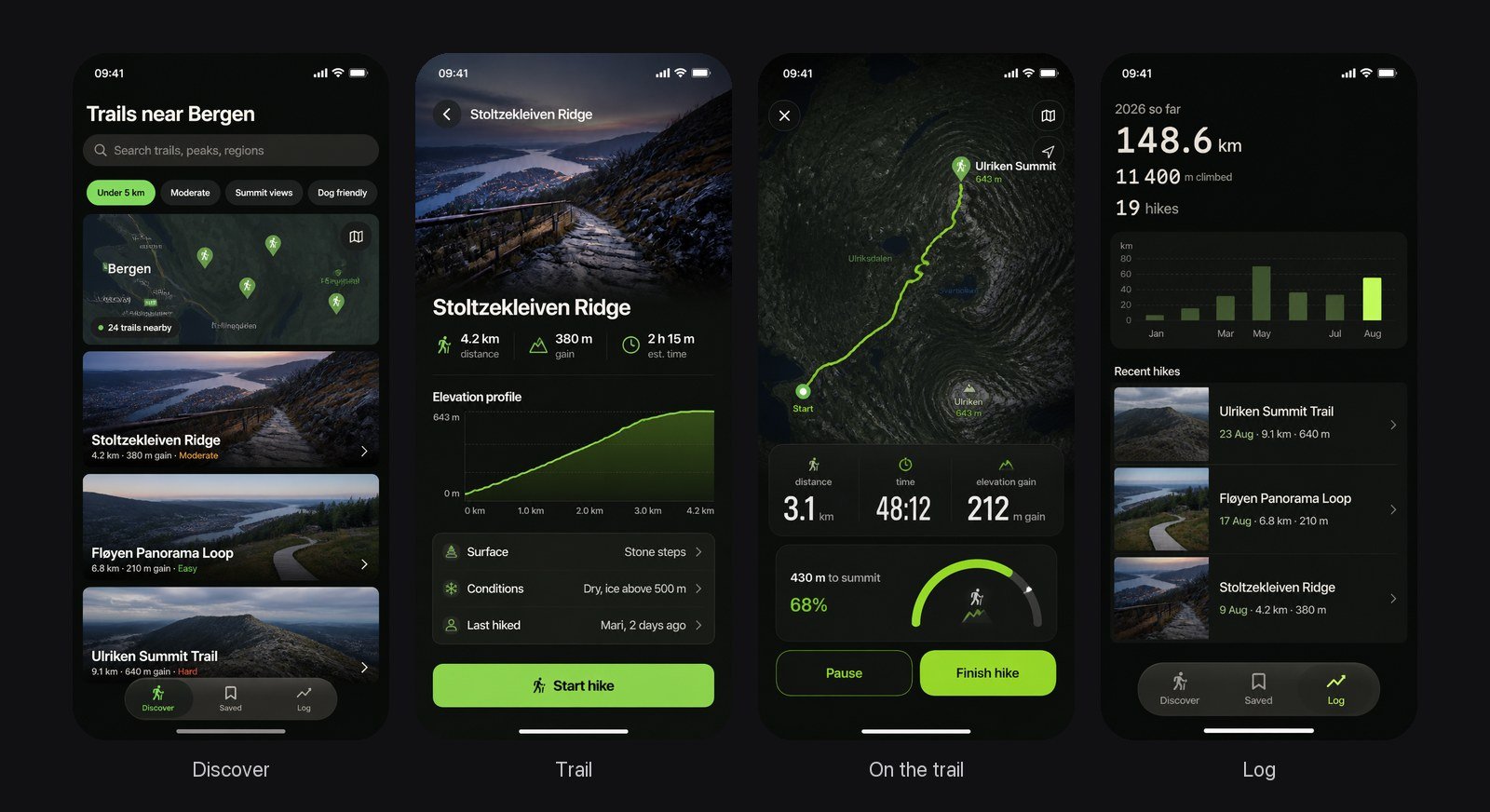
A real Design mode proposal: “A dark, photo-led hiking companion that finds the best trails near you, then walks with you to the summit.” No code exists yet.
Design mode turns Rork into an AI app designer: it designs your mobile app with AI before any code exists. Rork asks a few questions about the style, then draws three or four screens of your iPhone, Android, or web app. It writes no code until you press Build. It is the cheap way to decide how your app looks. Changing a picture costs far less than rebuilding a working app. So you can try another palette, another layout, or another first screen while you have design credits, before anything is built.Turn on Design mode
The mode menu sits next to the model picker in the composer. It shows the current mode, Build by default. Open it and pick Design.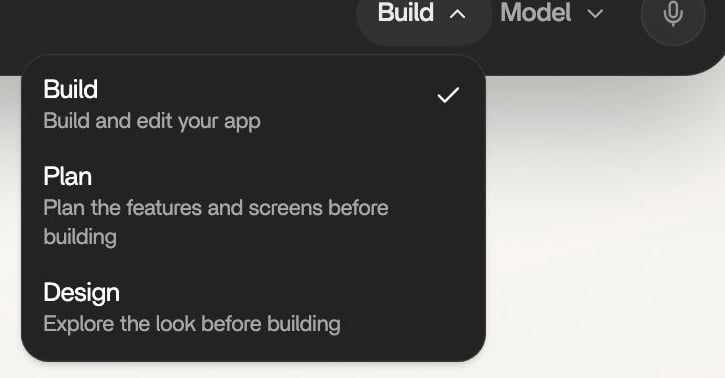
Design reads “Explore the look before building”.
Only one mode is on at a time: picking Design turns Plan off.How a design comes together
Describe the app
Answer the questions
Watch the screens arrive
Change what you do not like
Press Build
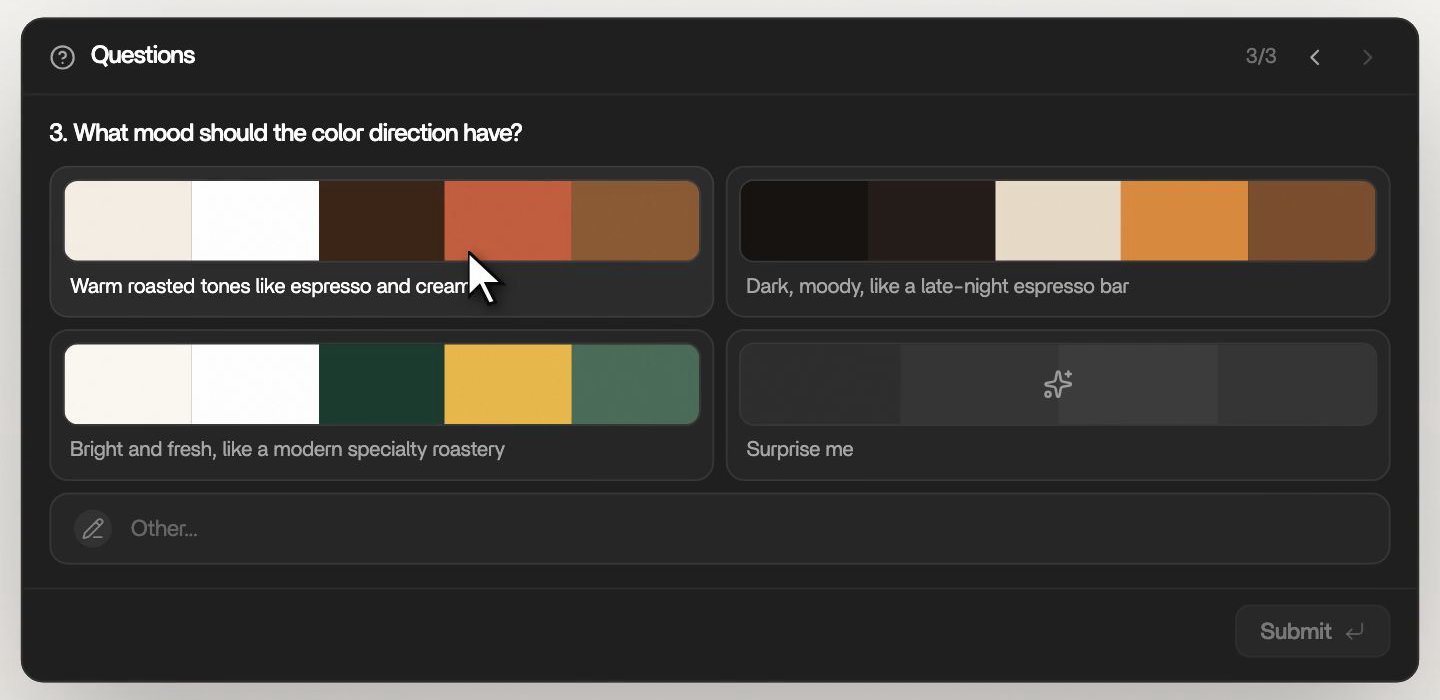
A color question. Each answer shows its palette, and Surprise me leaves the choice to Rork.
After you answer, Rork does not ask again before it draws. Anything your answers leave open, Rork decides, and you correct it after you see the screens.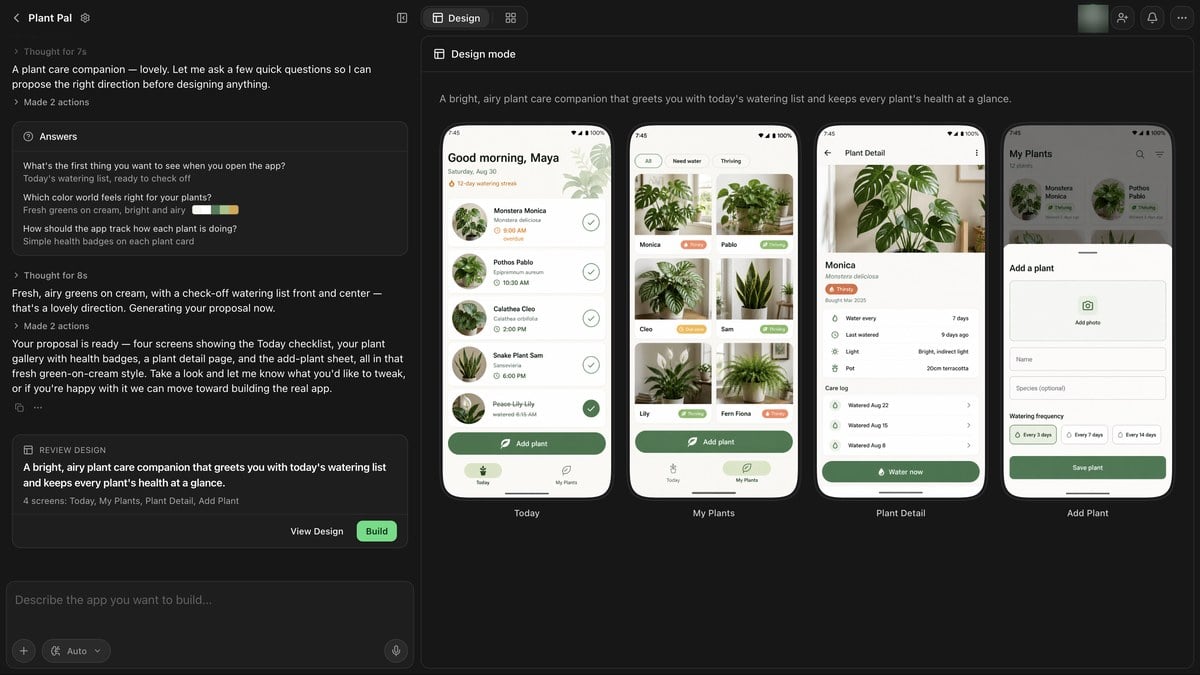
Design mode in Rork: your answers and the Review Design card in the chat, the drawn screens in the Design mode panel.
What a design includes
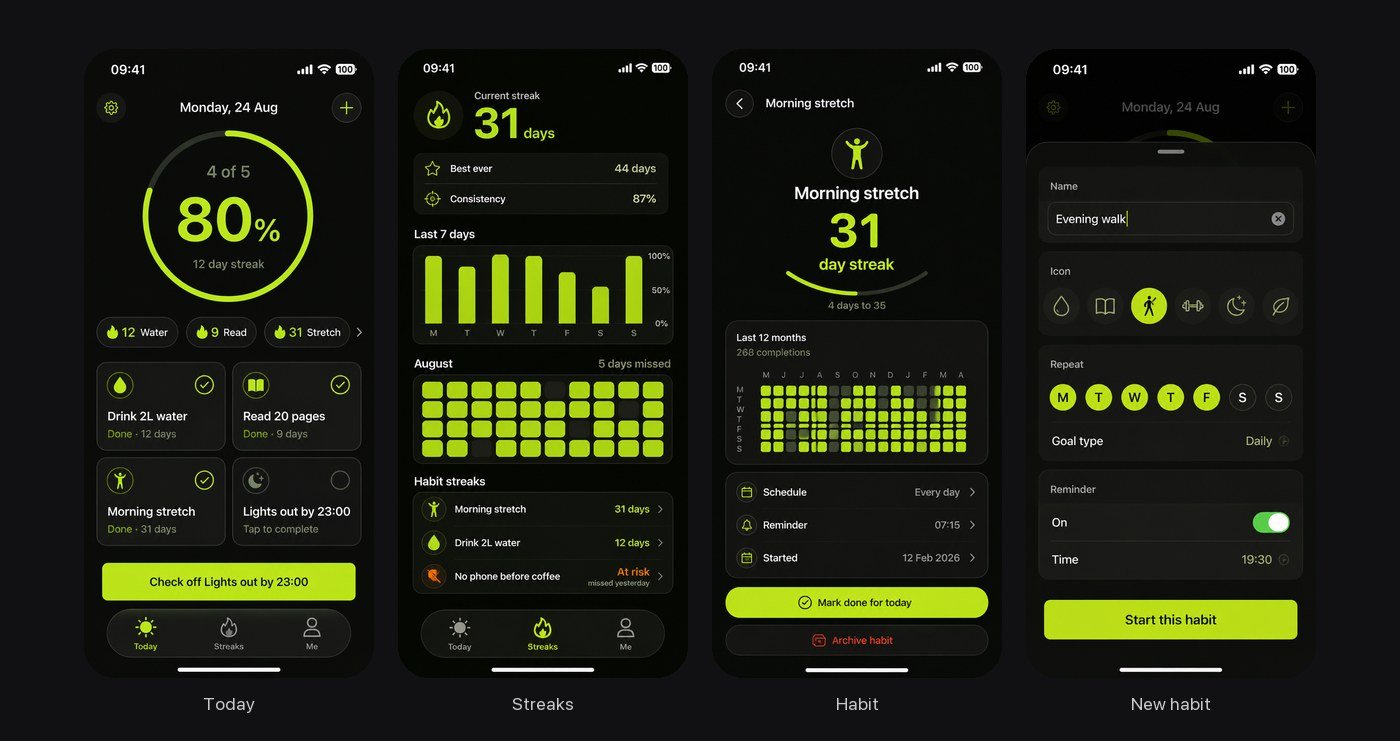
A habit tracker: the main moment (Today), a list (Streaks), one item in full (Habit), and adding one (New habit).
- 3 or 4 screens, each with a different job: the main moment of the app, a list or feed, one item opened in full, progress, or a first-run screen. Never two screens that say the same thing, and never a settings screen.
- One look across all screens. The same colors, type, and icons on every screen, so the set reads as one app.
- Real content in your language: real names, amounts, and times, not placeholder text.
- Your platform’s own controls. An iPhone design uses iPhone controls and navigation, an Android design uses Android ones, and a web design uses full-width desktop layouts.
Examples of mobile app designs made with AI
Every proposal gets its own look. These are real Design mode proposals, shown as Rork drew them.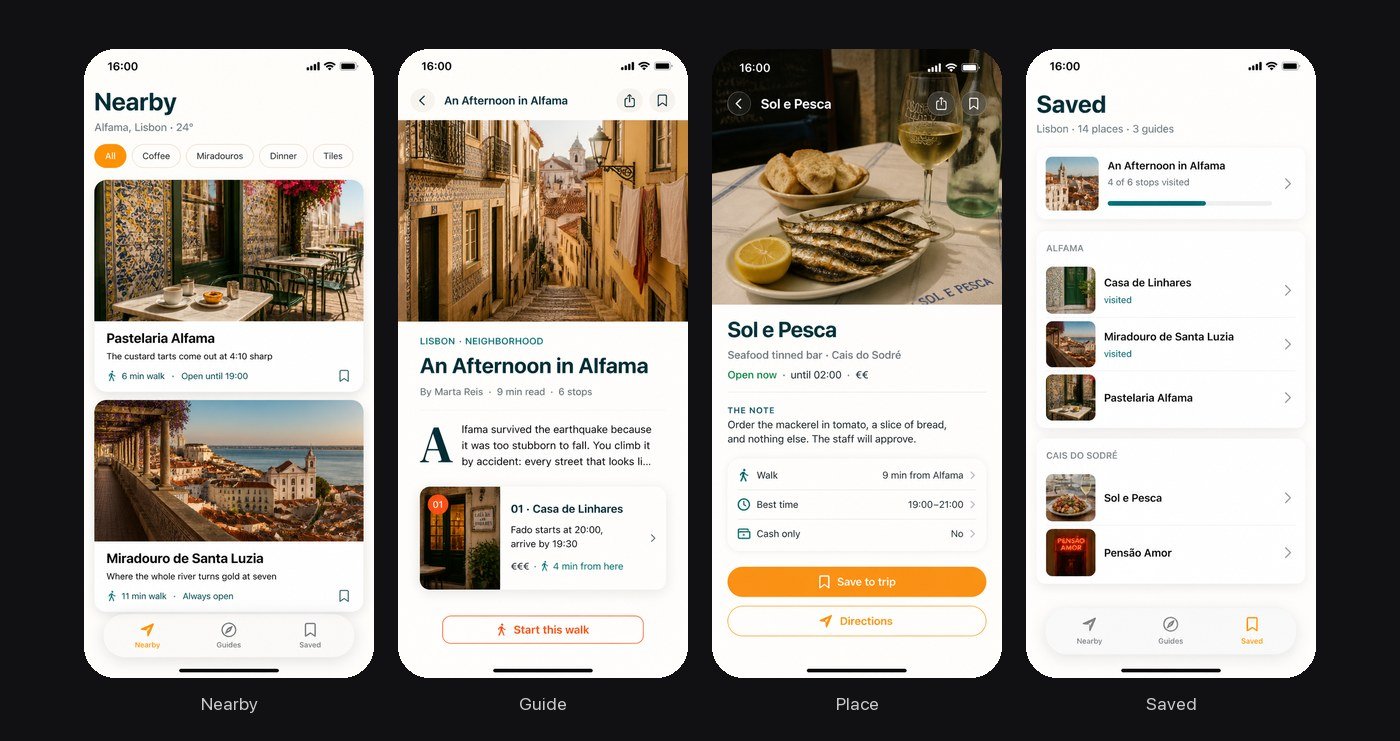
“A bright, sun-bleached city companion where every place comes with a short story worth reading before you go.”
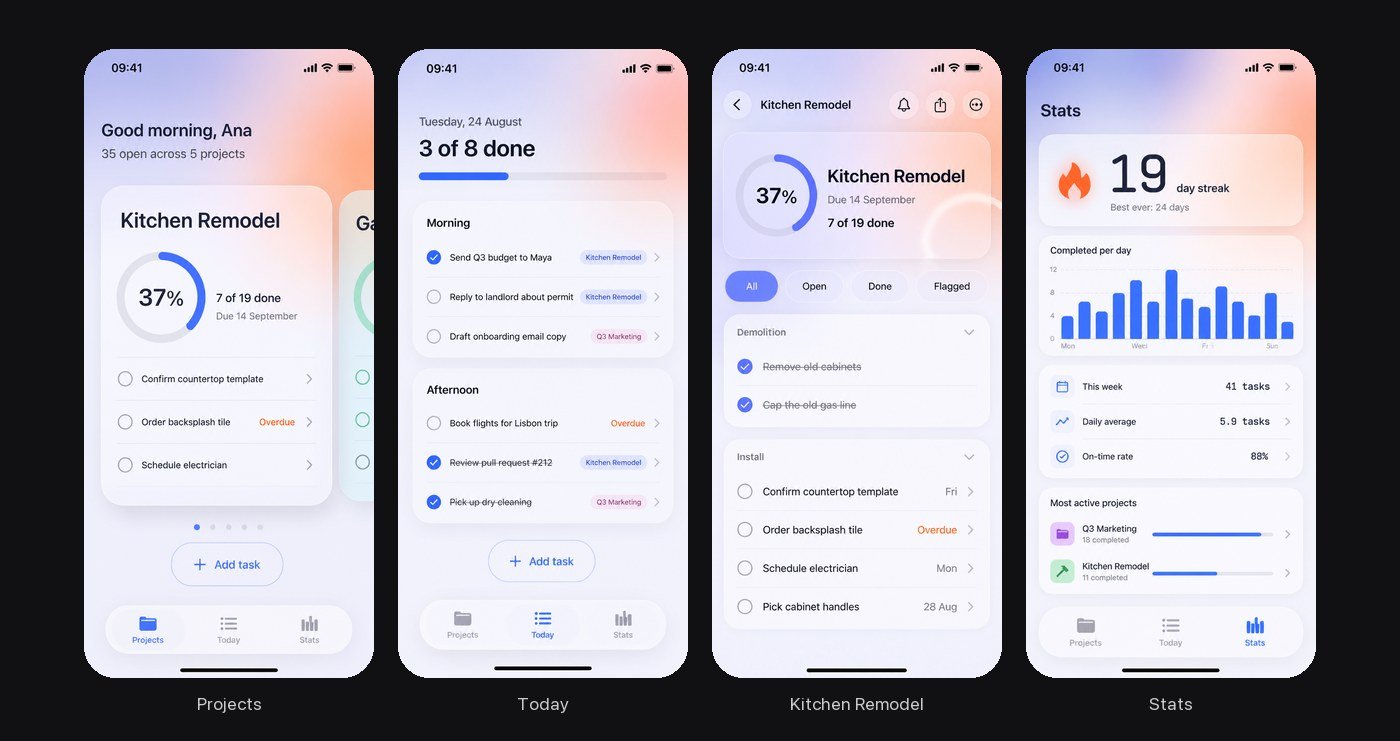
“A bright, glassy task tracker where you flick through your projects like cards and every layer floats over a soft color wash.”
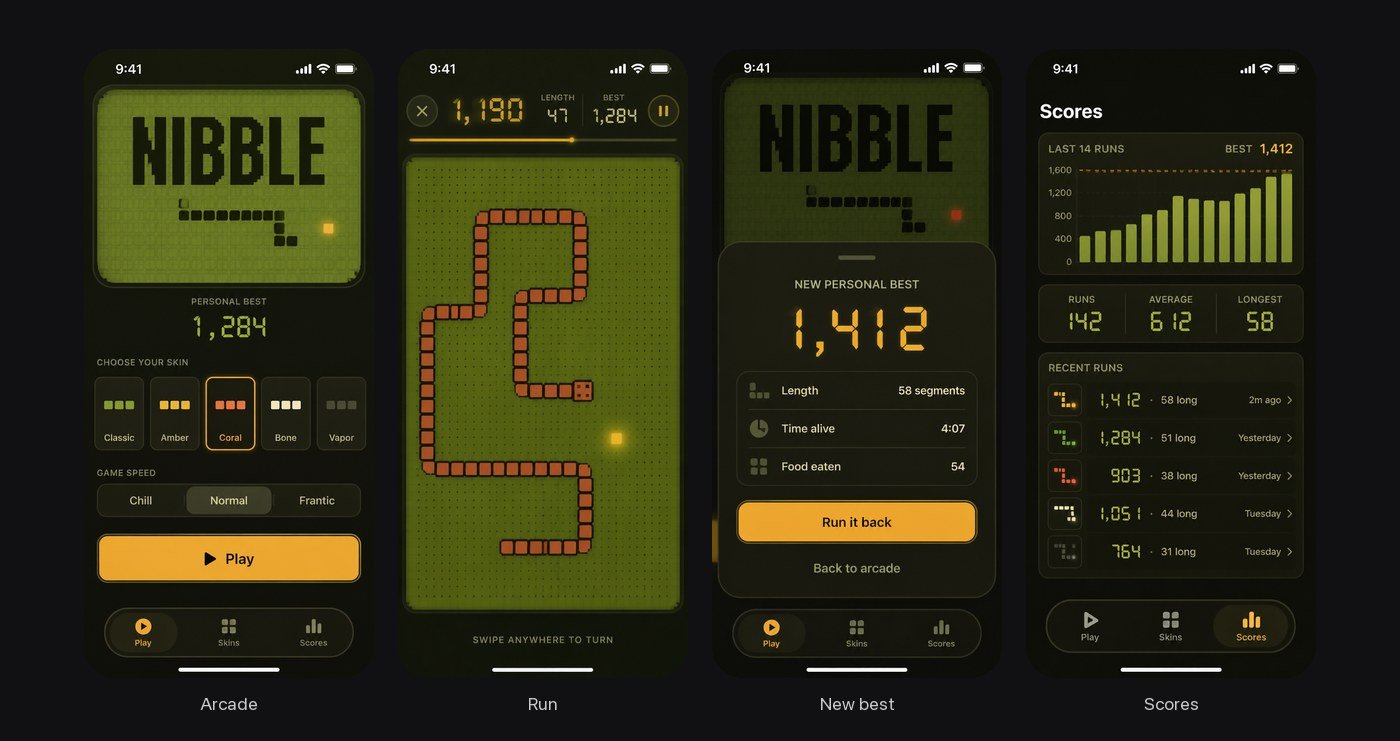
“An endless Snake that feels like a beloved 90s handheld.” Games get a design too.
Choose one of four designs
Some Design mode sessions start with a choice instead of a full set. Rork tests this with some accounts, so you may not see it. Rork draws your app’s Home screen four different ways and shows Choose a design for your app, with the line “One screen, four directions. Select your favorite to design the remaining screens.”- Click a design to select it. The expand button under each design opens it large, and Select this design there marks it.
- The chat card reads Choose a design direction until you pick, then Design 2 selected (or whichever number you chose). View designs reopens all four.
- Confirm with Use this design on the chat card. Rork keeps that Home screen and draws three more screens in the same look.
- To change one design before you choose, say so in chat, for example “Make Design 2 cleaner”. Only that design is redrawn. If the change fails, press Retry changes.
- None of the four fit? Generate other designs asks what to change in chat, then draws four new designs.
Tutorial 1: design a new app
This walkthrough takes a few minutes. You end with approved screens and a running app.Pick Design and send your idea
Answer the questions
Look at the screens
Ask for one change
Press Build
Build a working app from the approved design. for you and writes the app.Tutorial 2: design a website
Design mode works for web apps too. A web design uses wide desktop sections instead of phone screens.Pick Design and describe the site
Answer the questions and watch the sections arrive
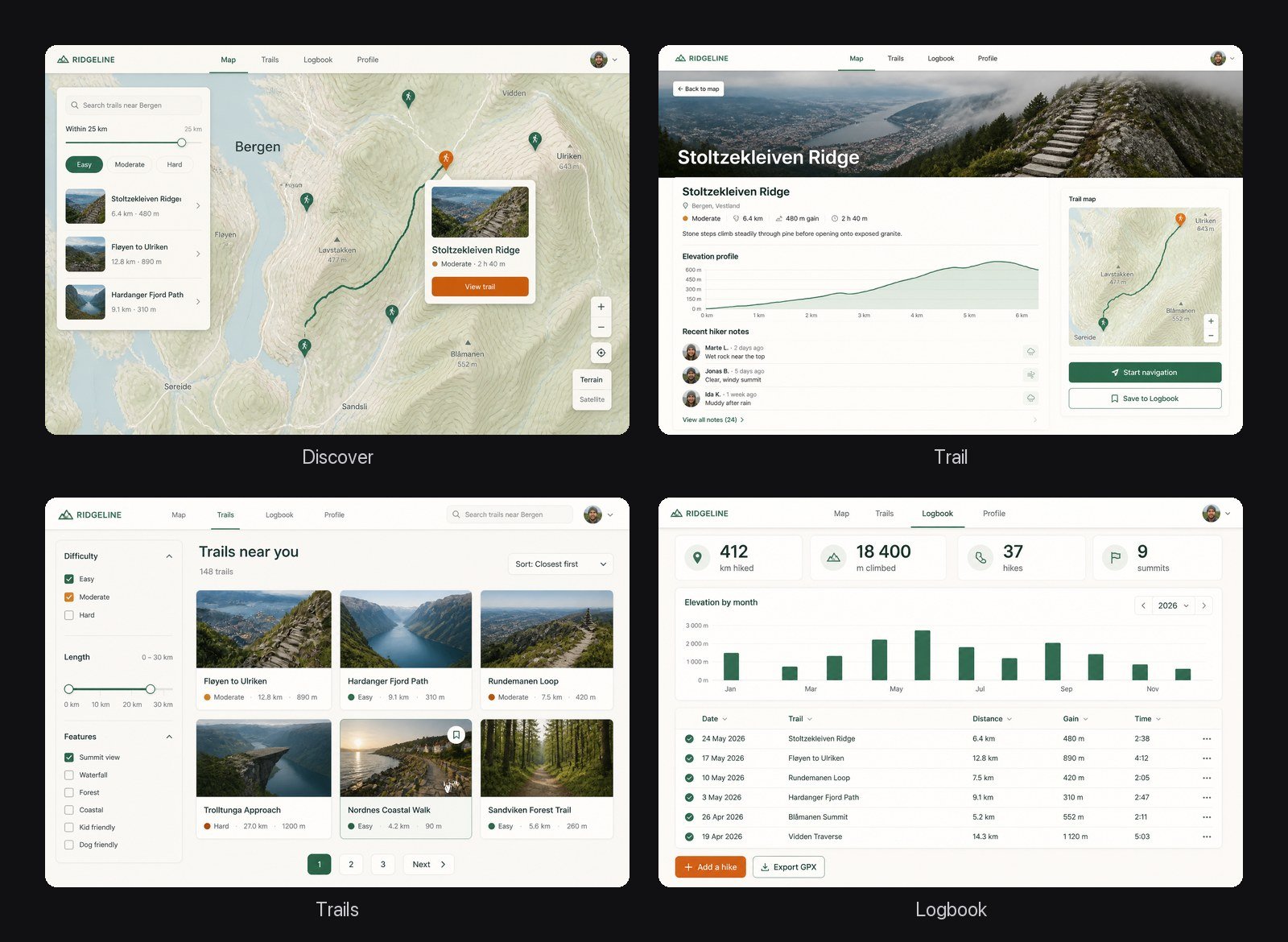
A real web design: four full-width pages of a trail finder, drawn before any code.
Change it and build
Tutorial 3: change a design for very little
Short, specific requests work best. Each of these redraws one or two screens, not the whole set:After you press Build
On a paid plan, Build sendsBuild a working app from the approved design. and Rork writes the app. On the free plan, Build opens the plan picker under the title Turn your design into a real app. Pick a plan and the build continues.
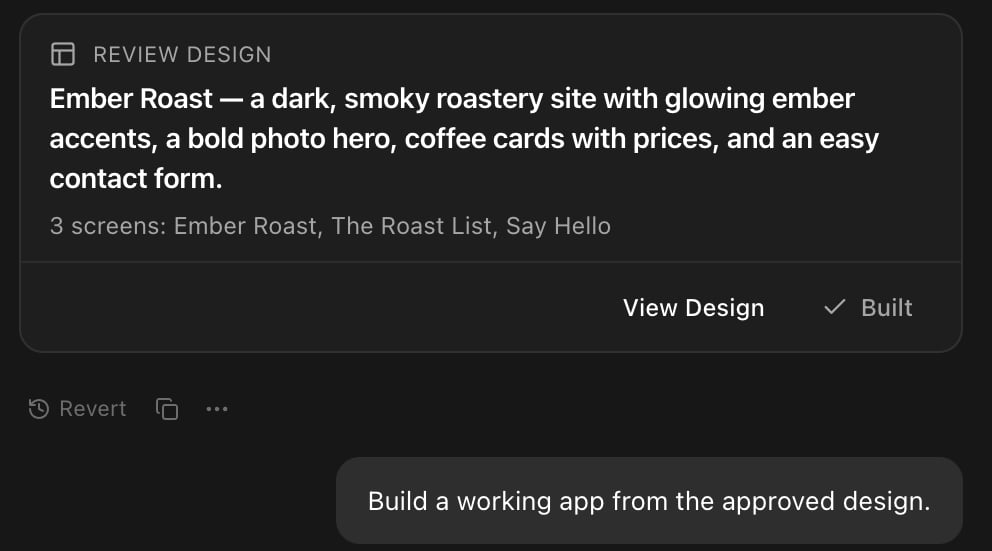
The Review Design card after the build: it shows Built and keeps View Design.
- Rork saves the chosen look to
.rork/DESIGN.md: the direction, colors, type, and screen decisions. Rork reads that file on later changes, so new screens keep the same look. Open it in More → Code, in the.rorkfolder. - The Design tab closes when the build starts. Find the proposal again in More → Design.
- On a phone, the Design tab also has a floating Build button.
What Design mode cannot do
- It does not write code. A design turn only asks, draws, and waits for you.
- The screens are pictures. You cannot tap through them like a prototype.
- The first proposal has 3 or 4 screens. Ask for more screens after the build, in chat.
- While a design session is open, the mode menu hides. Build is the way forward.
- The built app follows the design closely, but it is real code, not a copy of the pictures. Check the preview and ask for fixes as usual.
FAQ
Does Design mode cost credits?
Does Design mode cost credits?
Can I design an app for free?
Can I design an app for free?
Does the design stay the same across all screens?
Does the design stay the same across all screens?
.rork/DESIGN.md, so new screens match the ones you approved.Can I skip Design mode?
Can I skip Design mode?
Can I use a screenshot as a reference?
Can I use a screenshot as a reference?
Design mode or Plan mode?
Design mode or Plan mode?
I closed the design. How do I get it back?
I closed the design. How do I get it back?