

Undo the last change
The last answer in the chat has an Undo button under it. Press it and Rork rolls the files back, then removes that exchange from the chat. There is no dialog, because there is nothing to lose: the version you land on is the one you had a minute ago.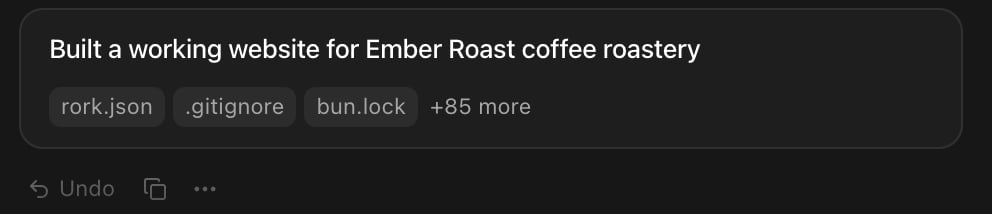
The action row under an answer: Undo, copy, and the ⋯ menu.
Go back several versions
Earlier answers show Revert instead of Undo. It puts your project back to how it looked right after that answer.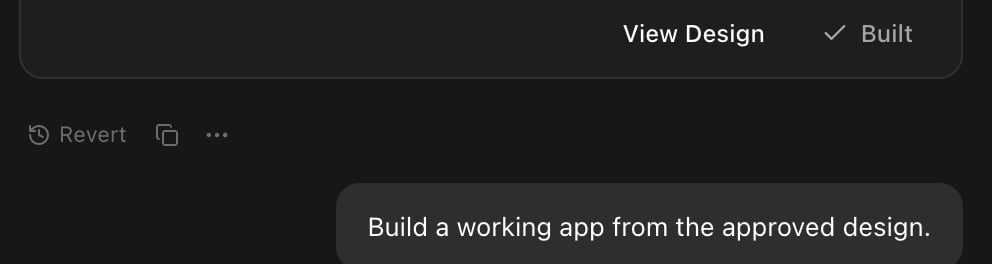
Revert sits under every earlier answer in the chat.
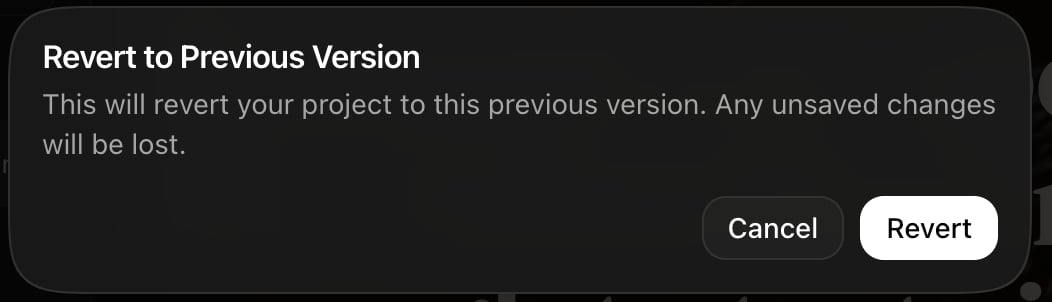
The confirmation. Cancel leaves everything as it is.
Edit a message and try again
Sometimes the answer was fine and the question was wrong. Hover an earlier message of yours and press Edit message. Fix the wording and press Send. Rork puts the project back to the state before that message, drops everything that followed it, and answers your new wording. It is a revert and a retry in one step, and it is the cleanest way out of a conversation that went sideways.See exactly what changed
Every answer can show its own diff. Open the ⋯ menu under the answer and choose Review changes.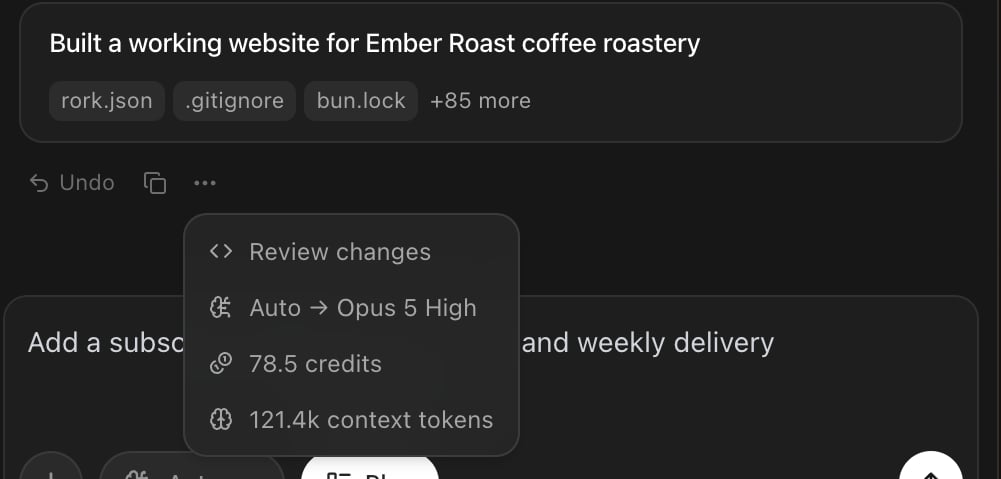
The ⋯ menu: Review changes, the model that ran, the credits it used, and the size of the context.
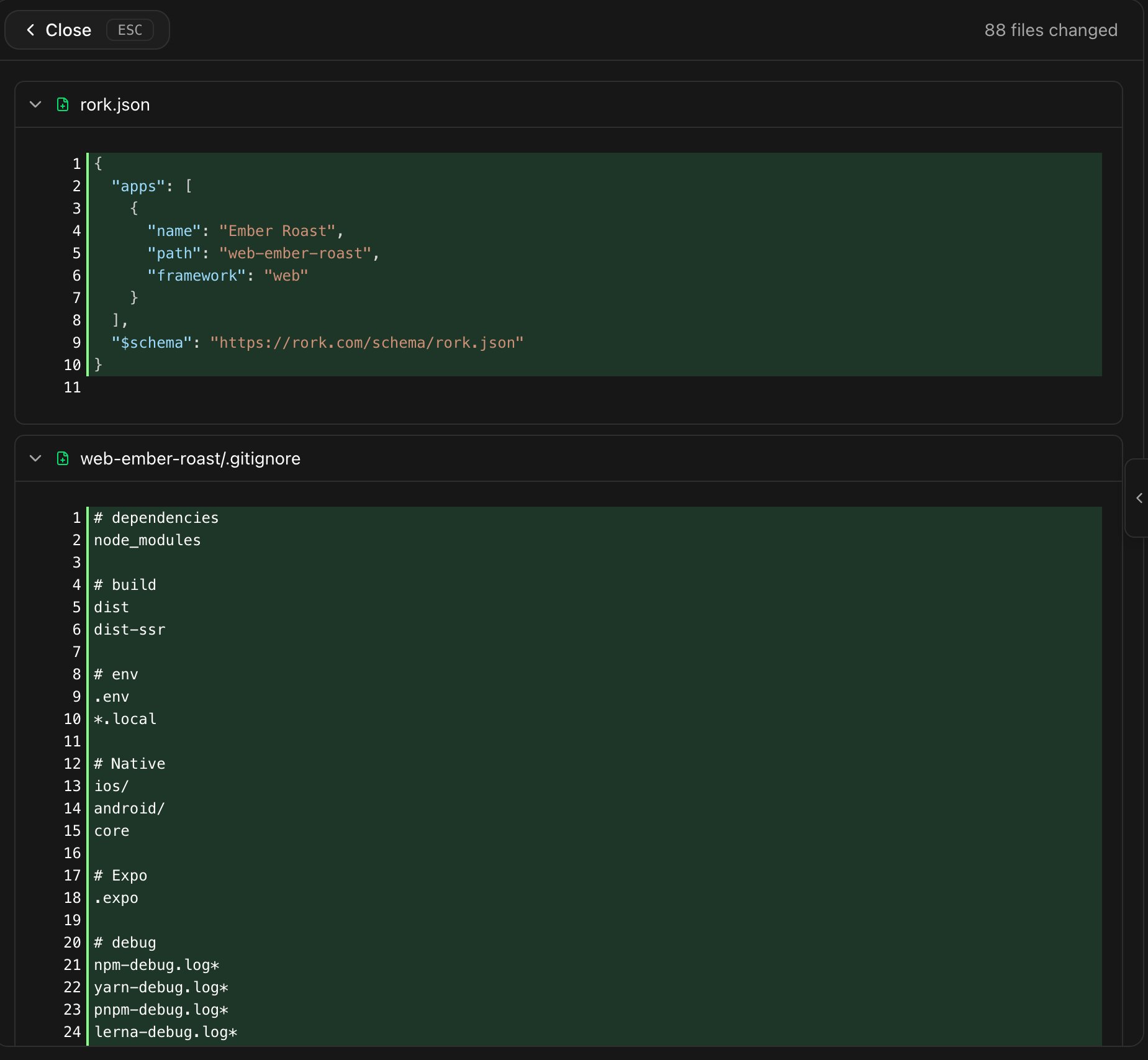
The diff view. Green is added, and the header counts the files that changed.
Stop a message that is going wrong
While the agent works, the send button becomes a stop button. Press it and Rork finishes the step it is on, saves what it already did, and stops. Stopping is safe and cheap:- The partial work stays in the chat, marked Stopped, with the progress saved.
- Your prompt comes back into the composer, so you can reword it and send it again.
- A build that never finished is not charged.
Fix an error instead of undoing
If the preview throws an error, Rork shows it and offers to fix it. The dialog is titled Runtime error and the button says Fix with Rork. With several errors you get Fix all with Rork, or a count, and Dismiss. By default, pressing that button sends the fix request straight away. You can change that in Account settings → Preferences: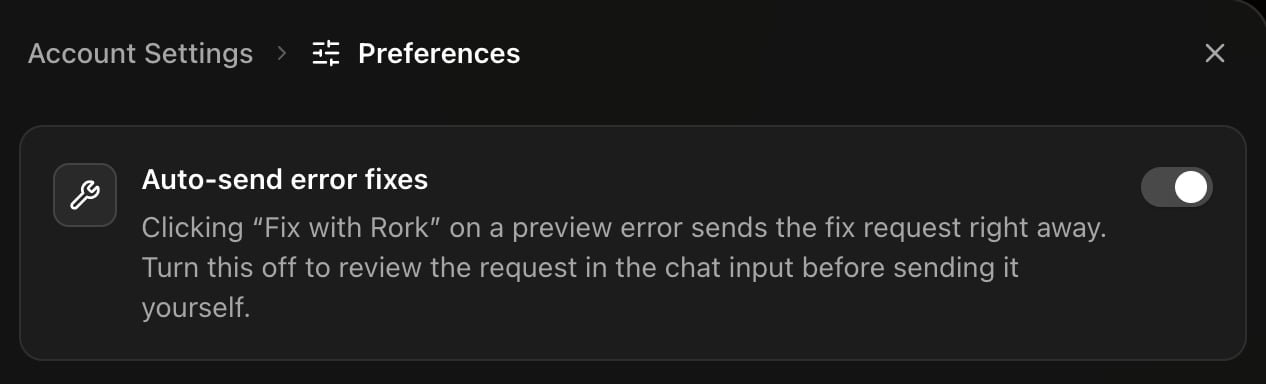
Turn Auto-send error fixes off to read the request before it goes.
What a version actually is
One answer from the agent equals one saved version of the project. Rork commits your files at the end of each turn, together with the chat history, so the chat and the code can never drift apart. That has two useful consequences:- The list of versions is the chat. There is no separate history panel to learn.
- Your project history travels with your code. Connect GitHub and you get the same commits in your own repository. See How to sync your project with GitHub.
FAQ
Does Undo or Revert cost credits?
Does Undo or Revert cost credits?
No. Going back to an earlier version is free. You only pay for messages that do work.
How far back can I go?
How far back can I go?
To any answer in the chat. Scroll up and older messages load as you go.
Can I undo a revert?
Can I undo a revert?
No. Cancel the dialog if you are unsure, and prefer Undo when you only need the last change back.
Does Revert also undo a publish?
Does Revert also undo a publish?
No. Your live web app or your submitted build stays as it is until you publish again. See Rork Web.
Does Revert bring back deleted secrets?
Does Revert bring back deleted secrets?
Environment variables are not part of the code version. Check More → Secrets after a revert. See API keys and environment variables.
The agent is stuck in a loop of failed fixes.
The agent is stuck in a loop of failed fixes.
Revert to the last good version first, then narrow the request. How to get out of an error loop walks through it.
Next steps
How the agent works
Design mode, Plan mode, and building.
Get out of an error loop
What to do when the same fix keeps failing.
Sync with GitHub
Keep the same history in your own repository.
Share the project
Who can revert, and who can only look.