

Where your media lives
Open More → Assets in a project. Everything Rork generated, and everything you attached to the chat, is collected there.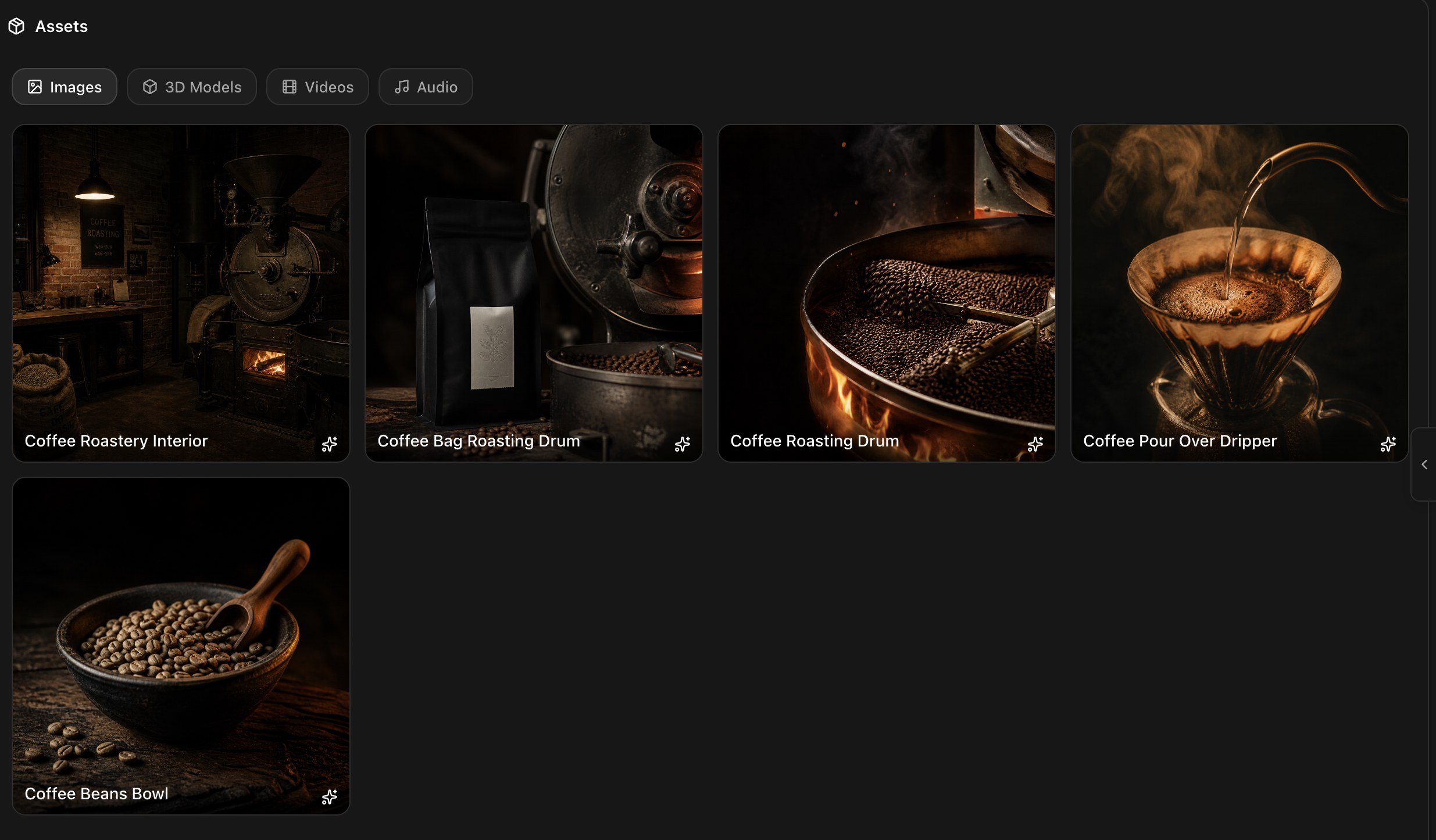
The Assets tab, split by kind. Every card can be reused in a later message.
- Use in Chat, which attaches that asset to your next message
- Remove, which deletes it from the project
- The card itself, which opens the asset full size
Images
Ask in chat and Rork generates the image, saves it to Assets, and puts it in the screen you meant.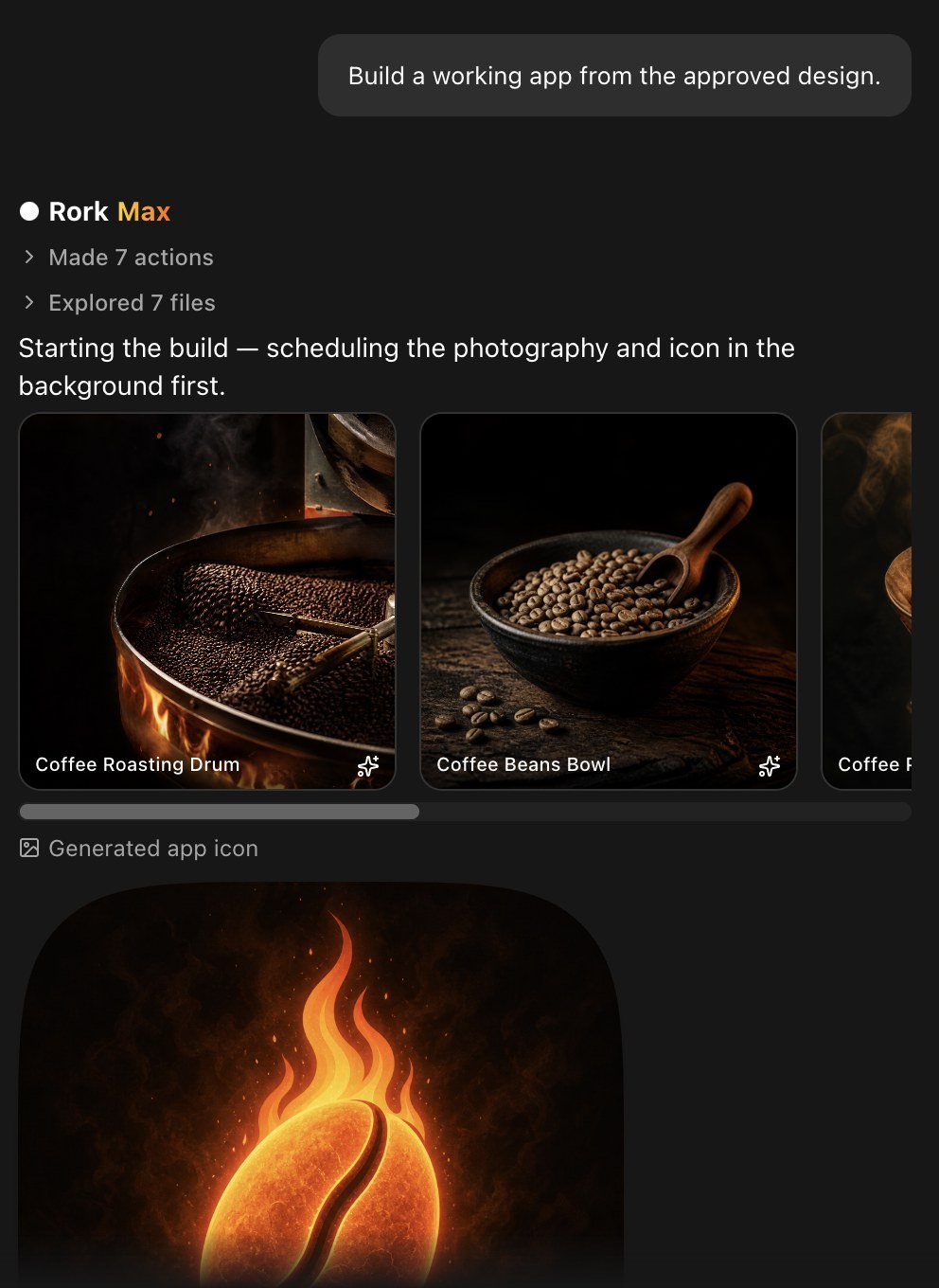
Generated photography and an app icon, produced during a normal build.
Your app icon
The app icon is generated the same way:Video
Ask for video and Rork generates it, then places it in the screen:Audio and voice
Rork generates four kinds of sound:3D models
Rork generates 3D models for games, product viewers, and playful onboarding. It asks before it spends the credits, with a card that shows what it plans to make and what it will cost:- Yes, make the 3D model starts the work
- No, and tell Rork what to do differently lets you correct the idea first
Bring your own files
You do not have to generate everything. Use + → Upload image in the composer, or drop files onto the chat. Rork reads photos, screenshots, PDFs, video, audio, and 3D models, and anything you upload lands in Assets.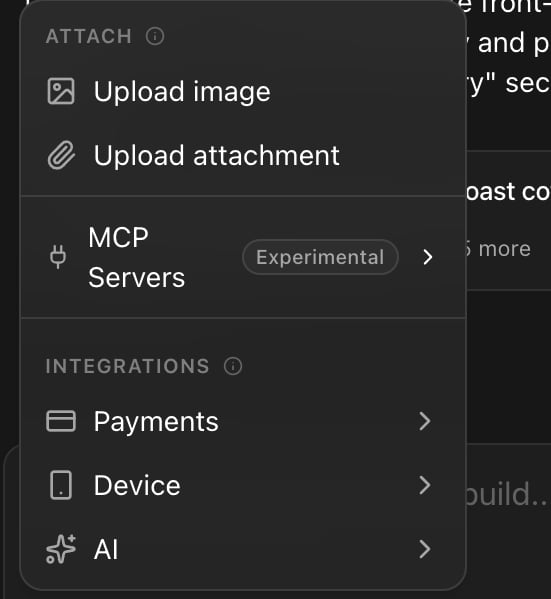
The + menu in the composer. Uploads land in the Assets tab.
What it costs
Generating media spends build credits, the same balance as your normal messages. Bigger media costs more: an image is cheap, a 3D model is a few credits, and video is the most expensive of them. Two habits keep the bill sensible:- Generate at the end, once the layout is settled. Placeholder boxes are free to move around.
- Reuse from Assets with Use in Chat instead of generating a near-duplicate.
This page is about media Rork generates for you while you build. If you want your users to generate images or audio inside your finished app, that is a Rork Cloud feature. See What is Rork Cloud.
FAQ
Can I use the generated images commercially?
Can I use the generated images commercially?
Yes, they are assets of your app. Do not ask for a real brand’s logo, a real person’s face, or copyrighted artwork, because the App Store rejects apps over exactly that. See the App Review guide.
The image is nearly right. Can I fix it instead of starting again?
The image is nearly right. Can I fix it instead of starting again?
Yes. Attach it with Use in Chat and describe the change: “same photo, but brighter and without the mug on the left”.
Can I upload my own brand photography?
Can I upload my own brand photography?
Yes. Drop the files into the chat, then tell Rork where each one goes. Uploaded files sit in Assets next to the generated ones.
Why is my Assets tab empty?
Why is my Assets tab empty?
Nothing has been generated or attached yet. The empty state says it: “Files you share in chat will show up here.”
Does a cloned project keep the assets?
Does a cloned project keep the assets?
Yes. See Share a project and work together.
Can I download an asset?
Can I download an asset?
Yes, open the card in the Assets tab. Everything is also in your repository if you connect GitHub. See How to sync your project with GitHub.
Next steps
Build an AI image app
A full walkthrough of image generation inside an app.
App Store screenshots
Turn a finished app into store artwork.
Rork Cloud
Let your users generate media inside your app.
How the agent works
Design mode, Plan mode, and building.