

- Invite them into your project. One project, one chat, everyone edits the same app.
- Clone the project. They get their own copy, and your version keeps working exactly as it did.
Invite someone to your project
Press the invite button in the project header, next to Publish.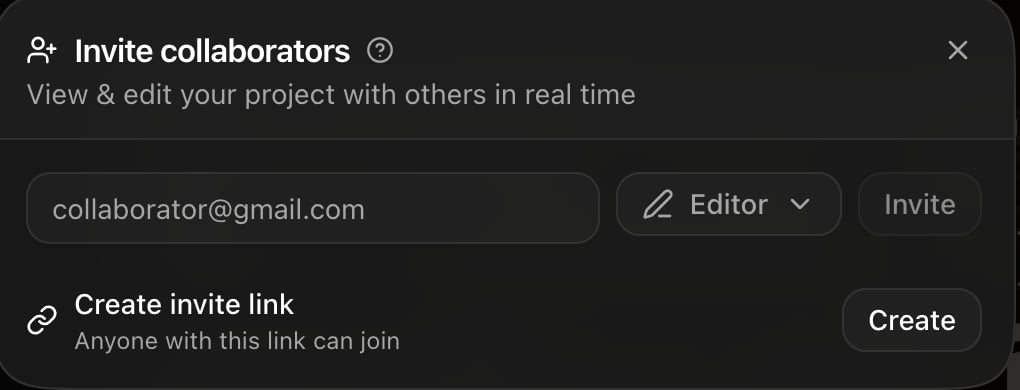
The invite dialog: an email invite on top, a shareable link below.
- By email. Type the address, choose the role, press Invite. Rork emails them a link titled “You’re invited to collaborate on a Rork project.” That invite expires after 7 days.
- By link. Press Create under Create invite link. Anyone who opens that link can join, so treat it like a password. Links last a year.
Editor or Viewer
Rork has exactly two roles.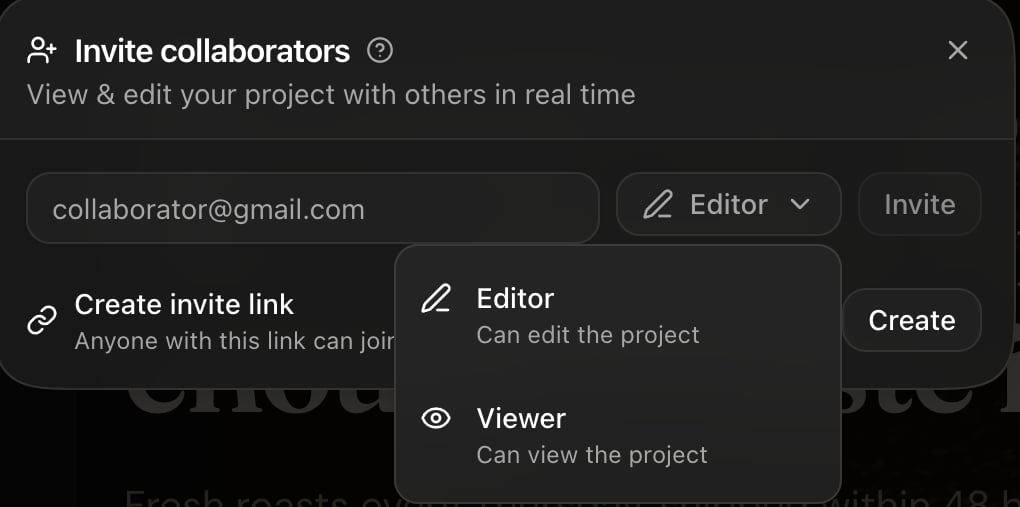
Editor can change the app. Viewer can only look at it.
A viewer sees a note in the composer instead of a send button: “You have view-only access to this project”. Give clients and stakeholders Viewer, and give teammates Editor.
To change somebody later, open the invite dialog and use their row: Set as Editor, Set as Viewer, or Remove. If you were invited and want out, the same menu offers Leave project.
See who is in the project
The project header shows a row of avatars: the owner first, then the collaborators. A green ring means that person is in the project right now, and a dimmed avatar means they are away. Hover an avatar to see who it is and whether they are the owner or a collaborator. Two people can work in the same project at the same time. Only one message runs at a time, so agree who is driving before you both start typing.Leave notes for each other
Once a project has collaborators, the header gains a Comments button. The panel is titled Comments, with the line “Leave notes for your collaborators”. Use comments for the things that are not instructions to the agent: “the price on the pricing card is wrong”, “client approved the hero”. Comments live beside the project, not inside the chat, so they do not confuse the agent.Comments do not send an email or a push notification. Tell your teammate where to look, or check the panel when you open the project.
Clone a project
Cloning makes an independent copy. Use it to try a risky direction, to start a second app from a good base, or to hand someone a version they can break. Open the ⋯ menu in the project header and choose Clone project.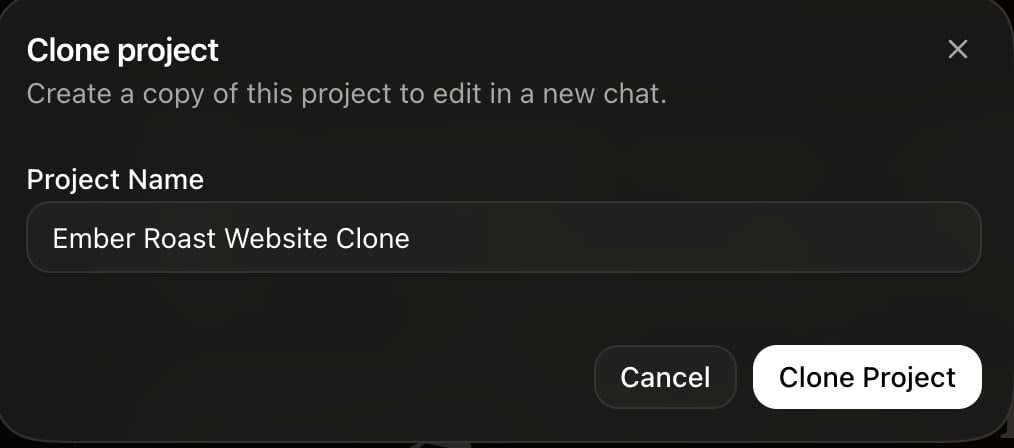
Name the copy, then press Clone Project. Rork opens it in a new chat.
- All the code, and the chat history behind it
- The assets: generated images, video, audio, and 3D models
- Your environment variables, except the keys Rork manages itself, which it mints fresh
- Nothing you do in the copy touches the original, and nothing in the original reaches the copy
- A published web address stays with the original project. Publish the copy separately to give it one
Find projects other people shared with you
Open the sidebar on rork.com and use Shared with you. It lists the projects you were invited to, separately from My Projects.Are my projects private?
Yes. Every Rork project is private. The project address only opens for the owner and the people invited, and a stranger with the URL gets nothing. Publishing is a separate decision. A published web app is public on purpose, and it does not expose your chat, your code, or your secrets. See Rork Web.FAQ
Does a collaborator need their own paid plan?
Does a collaborator need their own paid plan?
No. They need a Rork account. The work runs on the project owner’s credits.
How do I stop someone from having access?
How do I stop someone from having access?
Open the invite dialog and press Remove on their row. An invite link you no longer want can be deleted the same way.
Can a collaborator revert my work?
Can a collaborator revert my work?
An editor can, yes. Every version stays in the chat, so ask them which answer they reverted to. See Undo a change and go back a version.
Can two people build different features at once?
Can two people build different features at once?
Not in one project. One agent runs one message at a time. Split the work into two projects, or take turns and keep the other person on Viewer.
Can I hand a project over to someone else?
Can I hand a project over to someone else?
Clone is the practical route today: they clone it, and their copy is theirs. For a real ownership transfer, write to team@rorkai.com.
Next steps
Undo and history
Go back to any earlier version of the project.
Keys and secrets
Who can see your API keys, and who cannot.
Sync with GitHub
Give a developer the code in a normal repository.
Credits
Whose balance pays for a collaborator’s messages.