

Where secrets live
Open More → Secrets in a project.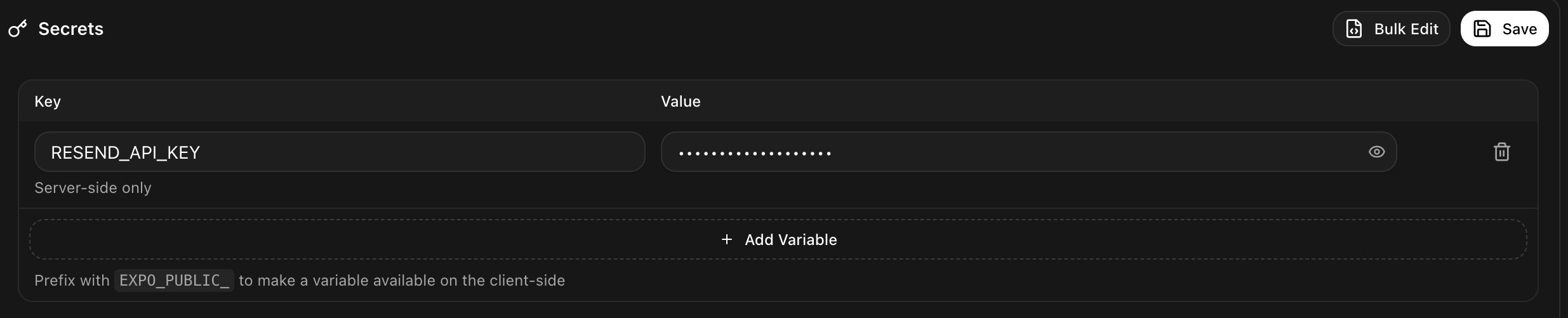
The Secrets editor. Values are hidden until you press the eye, and the label under each key says how far it travels.
1
Press Add Variable
A new row appears with a Key and a Value.
2
Type the name in capitals with underscores
RESEND_API_KEY, STRIPE_SECRET_KEY, OPENWEATHER_API_KEY. Use the exact name the provider’s documentation uses.3
Paste the value
Rork hides it straight away. The eye button reveals it when you need to check it.
4
Press Save
Rork stores the variable and rebuilds the parts of your app that need it.
KEY=value.
How far a variable travels
The label under each key is the important part of this page. It tells you who can read that value.
The rule that decides this is the name. A variable whose name starts with
EXPO_PUBLIC_ is sent to the app itself, and everything else stays server-side. The editor repeats the rule at the bottom: “Prefix with EXPO_PUBLIC_ to make a variable available on the client-side”.
Two examples make the split clear:
EXPO_PUBLIC_SUPABASE_URLis fine as a public value. It is an address, and it is protected by database rules.STRIPE_SECRET_KEYmust be Server-side only. It can move money.
When Rork asks you for a key
You usually do not open the Secrets editor at all. When a build needs a key, Rork stops and asks in chat, with one field per key and a short description of what each one is for. Paste the values and press Save & Continue, and the build carries on where it stopped. When Rork already knows the values, for example after an integration, the card asks you to confirm instead: Yes, set them.Who can see your keys
So an editor on your project can read your keys. Invite editors accordingly. See Share a project and work together.
A cloned project carries your variables over, except the keys Rork manages itself, which it mints fresh for the copy.
Rotate a key you leaked
If a key ends up somewhere public, changing it in Rork is not enough. Do it in this order:1
Revoke the key at the provider
Delete or rotate it in the provider’s own dashboard. That is what actually stops the key from working.
2
Create a new key
Copy the new value.
3
Update the variable in Rork
Same key name, new value, then Save.
4
Check where it was exposed
If it was in your code, ask Rork to remove it and to read the value from the variable instead.
FAQ
Should I paste my API key into the chat?
Should I paste my API key into the chat?
Prefer the Secrets editor, or the card Rork shows when it needs a key. Both keep the value out of the conversation.
Do secrets go to GitHub?
Do secrets go to GitHub?
No. They live with the project, not in your code, so they are not committed. Set them again in any environment you run the code yourself. See How to sync your project with GitHub.
Are secrets per project or per account?
Are secrets per project or per account?
Per project. A project with an iPhone app and a web app shares one set of variables.
I added a variable and the app still cannot see it.
I added a variable and the app still cannot see it.
Reload the preview first. If it is a native app, the value is baked in at build time, so it needs a new build. If the name is missing the
EXPO_PUBLIC_ prefix, the app cannot read it by design, and the call belongs on the server.Do I need my own OpenAI key to use AI in my app?
Do I need my own OpenAI key to use AI in my app?
Not necessarily. Rork Cloud gives your app models without your own provider keys. See What is Rork Cloud.
Where do Supabase keys go?
Where do Supabase keys go?
Connecting Supabase sets them for you and marks them as managed. See How to add a Supabase backend to Rork.
Next steps
Connect an API
Use a third party API with your new key.
Rork Cloud
A backend inside Rork, with server-side keys handled for you.
Share the project
Who can read your secrets, and who cannot.
Add payments
Set up in-app purchases with RevenueCat.