Rork reads your iOS build against the App Store Review Guidelines before Apple does, and reports each rejection risk with its guideline number, the evidence behind it, and a suggested fix.
The whole flow: open More → App Store → App Review, press Run, and read the report.
Apple’s review takes days, and a rejection costs you another round trip. The AI App Store Reviewer reads the build you are about to submit and tells you what a reviewer is likely to flag, before you send it.It checks five areas at once, the same five sections the App Store Review Guidelines use:
SafetyGuideline 1.x
PerformanceGuideline 2.x
BusinessGuideline 3.x
DesignGuideline 4.x
LegalGuideline 5.x
The reviewer is advisory. It never blocks a submission and it never promises an approval. Apple makes the final decision, and Apple’s own review still takes days.
In your project, open More → App Store and stay on the App Review tab. It is the first tab. The reviewer does not live in the publish menu.
2
Check the build in the panel header
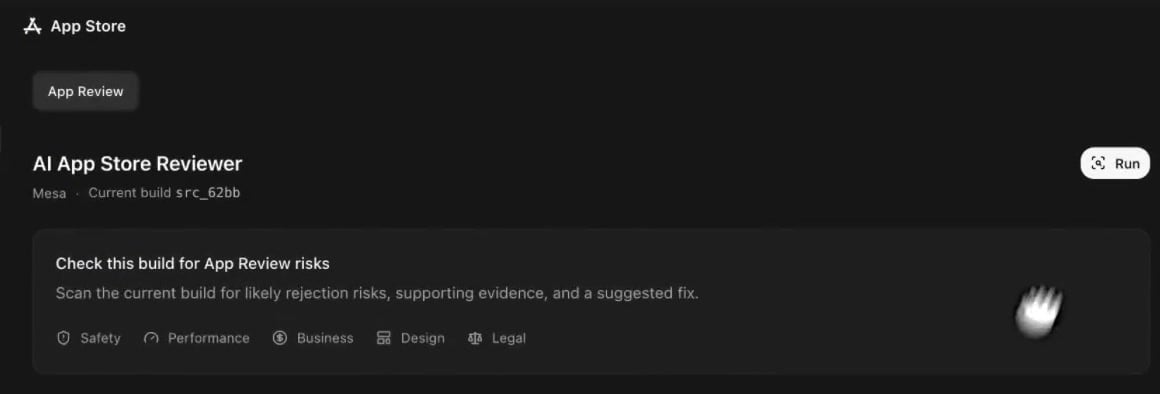
Under the title you see the app name and the build being reviewed, for example Current build src_62bb. Before the first run the panel lists the five areas it covers.
The panel before the first run, with the five review areas and the Run button
3
Press Run
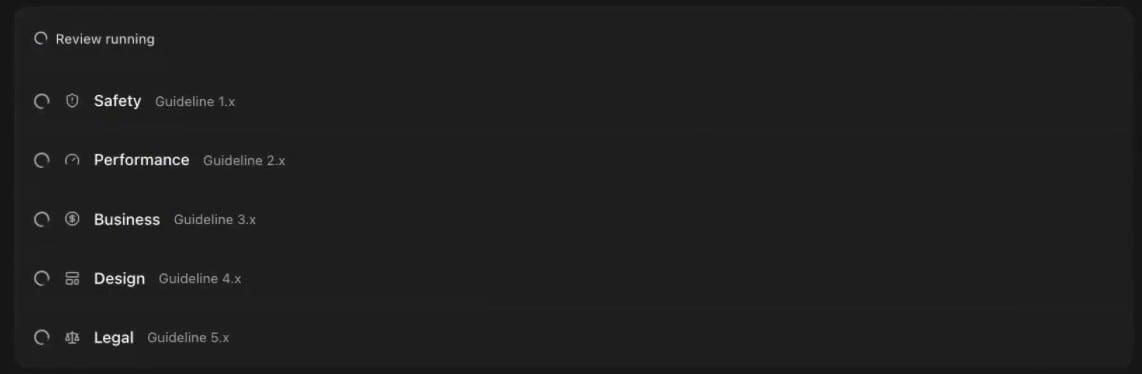
All five areas are checked at the same time. Run becomes Stop, which cancels the review. You can leave the tab and come back while it works.
All five areas run at once, and Stop cancels the review
4
Wait for the report
When the run ends, the header switches to the build it looked at, for example Reviewed build src_62bb, and how long ago the review finished.
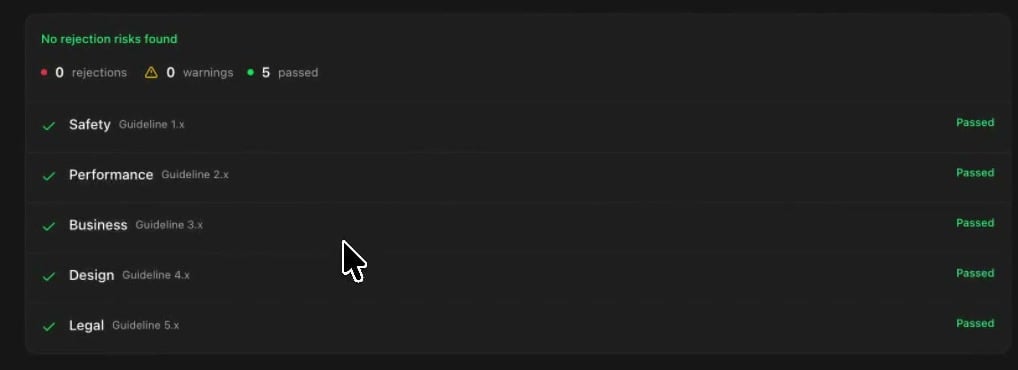
A finished report: counts on top, then one row per review area
The report has one row per review area, not one row per rule. Each row ends as Passed, a warning, a rejection, or Fixed.Above the rows you get the counts and a status line:
Status line
What it means
Rejection risks found
At least one finding looks likely to get the app rejected.
Warnings need review
No rejection risk, but something is worth checking.
No rejection risks found
Nothing was flagged.
Press a row to open it. Inside you get the guideline number, what was found, the evidence behind it, sometimes the file it lives in, and the suggested fix.Once the report is saved, the panel also shows an estimated outcome: Likely to pass, Likely rejection, or Outcome uncertain. Next to it the panel says “Apple makes the final decision.”
Treat the estimate as a prediction about your build, not a verdict. A clean report does not guarantee approval, and a rejection risk does not stop you from submitting.
Findings are not fixed for you. Ask Rork in chat to fix them, one finding at a time, and name the guideline:
The App Review report flagged guideline 5.1.1: the app has no way to delete an account. Add an in-app account deletion flow.
You can also ask Rork in chat to run the review for you. A review started from chat asks you what to do when it finds something: Cancel, or Fix warnings when there are warnings, or Done when there are none. Fix warnings lets Rork edit the app and check it again in the same turn. While that review waits for your answer, the App Store panel says the review is running in chat and asks you to answer there.A review started with the Run button reports and stops. It changes no code and asks you nothing.After Rork changes the app, run the review again so the report matches the code you are about to submit.
Rork keeps the last four reports. The newest one is the report in the panel, and the older ones sit under Previous reviews below it. Each entry shows the build it reviewed, its counts, and when it ran. Open one to see its findings again.When the code changes after a review, the panel adds a New build available badge next to the build id. The saved report now describes an older build, so run the review again before you submit.
Up to 40 reviews per day, counted across the account that pays for the project.
Six review runs per chat turn. After that the agent says so and asks you to finish the remaining fixes, then start a fresh review from the App Store panel.
Only iOS apps are reviewed. In a project with only Android or web apps, the panel asks you to add an app instead of showing a report.
The reviewer reads your project source, plus your App Store Connect readiness data when the app is connected to App Store Connect. Without that connection, the review is based on the source alone.
The reviewer does not submit your app. Submitting is still a separate step.
The tab lives in More → App Store, not in the publish menu.
Pressing Run opens a paywall
The message says “App Store reviews require a paid Rork subscription”. Any tier works, on the account that pays for the project. Buying credits does not unlock it.
Run does nothing and shows Could not start the App Store review
The most common cause is access: you need editor rights on the project, not viewer. Ask the project owner to change your role, then try again.
Run is greyed out
It stays disabled while the panel loads, while a review runs, and when the project has no build to review yet. Wait a moment, reload the page, and try again.
The panel asks me to add an app
“Add an Expo or Swift app to this project before running an App Store review” means the project has no iOS app. Add a Swift app: an existing Expo app is reviewed too, but Expo is no longer offered for new apps, see What happened to Expo?.
The review seems stuck
Press Stop, then Run again. If the run ended badly, the panel shows “Review could not complete” with the reason above the report. If it keeps failing, contact support with the project link and the time of the run.
The daily limit was reached
The message says “Daily App Store preflight review limit reached.” The count resets each day.