

in one place
Open any and keep going
on the go
Run natively on iPhone
from the Rork app
No laptop required
What you can do with the Rork Max app
Build apps from your phone
The complete Rork Max chat, redesigned for iPhone: plans, todos, questions, and build progress. Start a new app or open any app you’ve already built and continue whenever you want. All your apps, sessions, and their latest state are waiting right there, in the Apps tab. Each project shows whether it is Swift, Web, or both.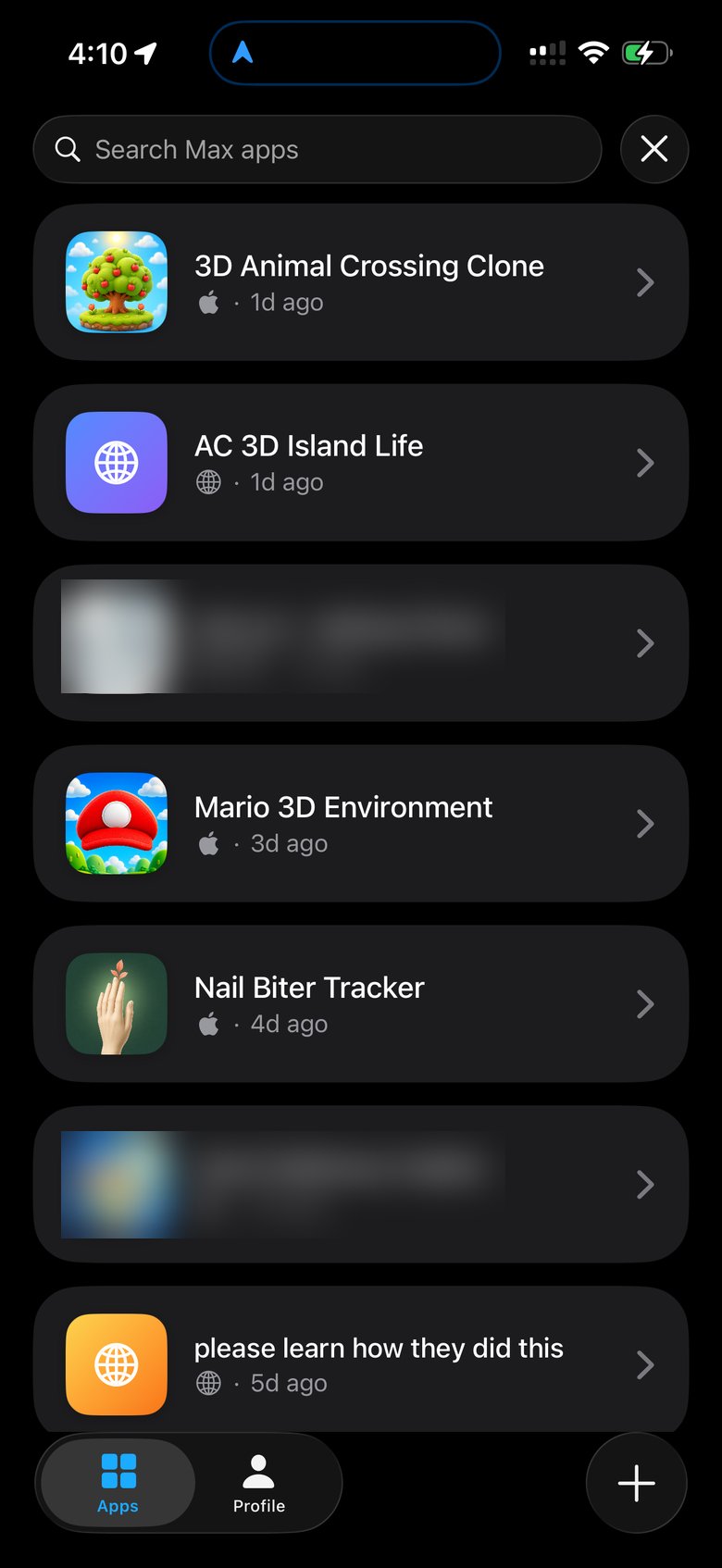
Tap + to start a new one.
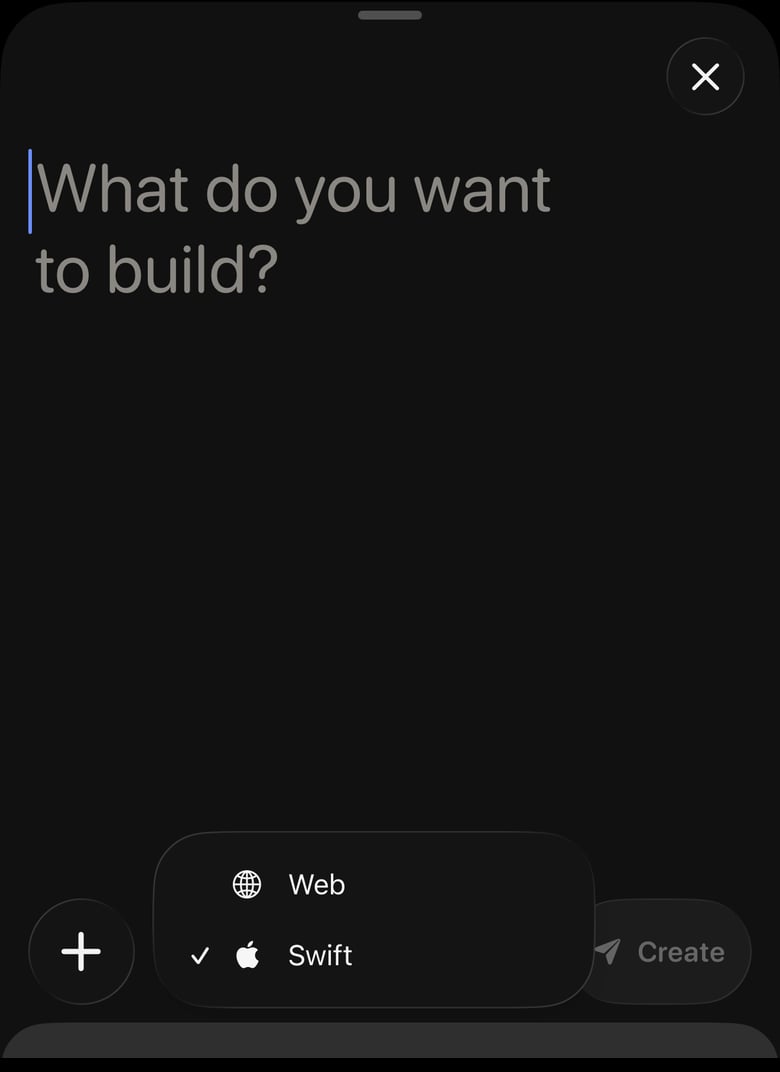
Create a new app as Swift or Web from the platform picker.
- Voice input: dictate your message instead of typing, then send it or edit it first.
- Images and annotations: attach photos, or grab a screenshot of the running app right from the chat and draw on it to point at exactly what you want changed.
- File uploads: attach documents straight from the Files app (specs, CSVs, designs) so the agent can work with them.
- Plan mode: have the agent propose a plan and review it before any code is written.
- Model picker: choose the AI model for each message, or leave it on Auto.
- Message queue: while the agent is working, keep sending follow-ups. They line up above the composer and run one after another. Tap a queued message to edit it, or tap X to remove it before it starts.
- Agent widgets: the agent can ask you questions, request API keys, generate images, sounds, and 3D models for your app, and show live build progress, all inside the chat.
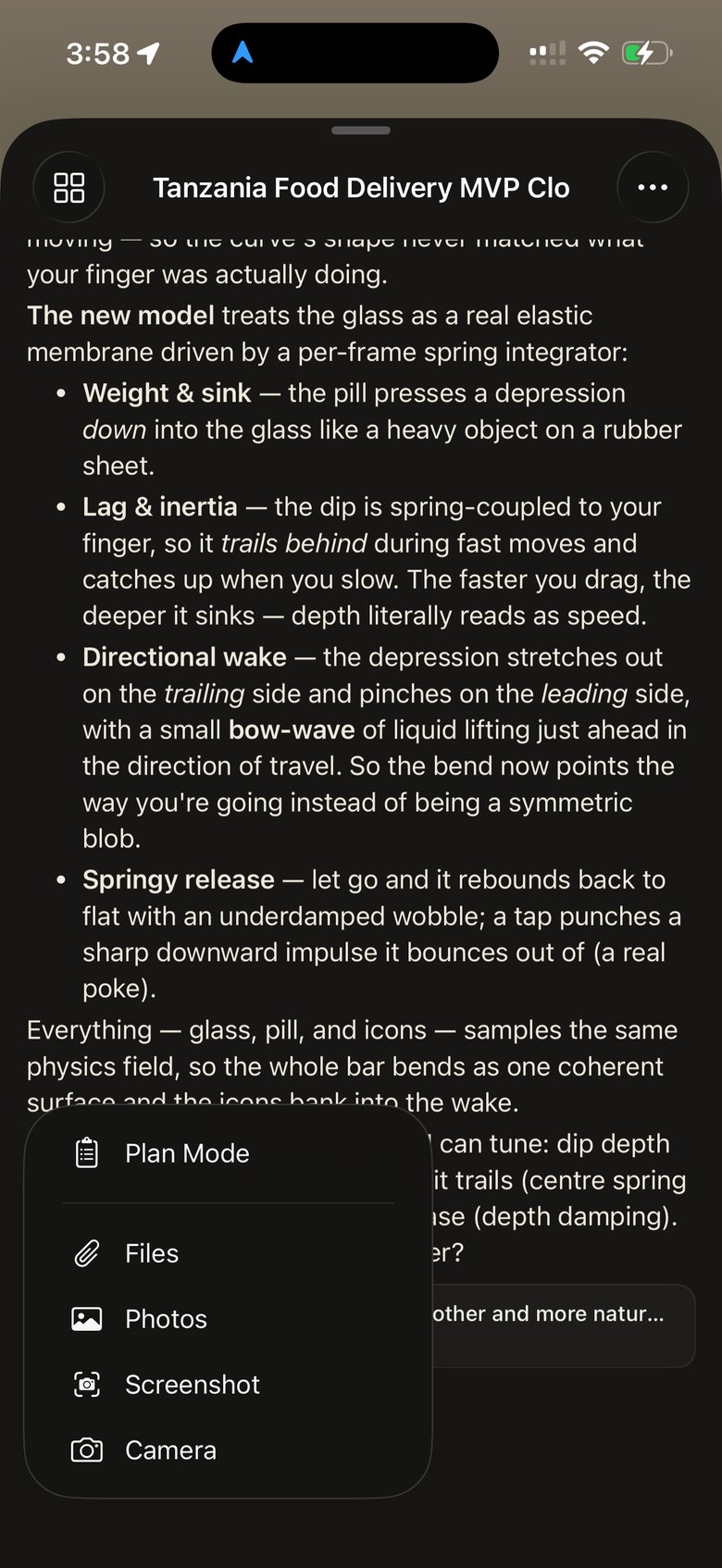
The + menu in chat: Plan Mode, Files, Photos, Screenshot, or Camera.
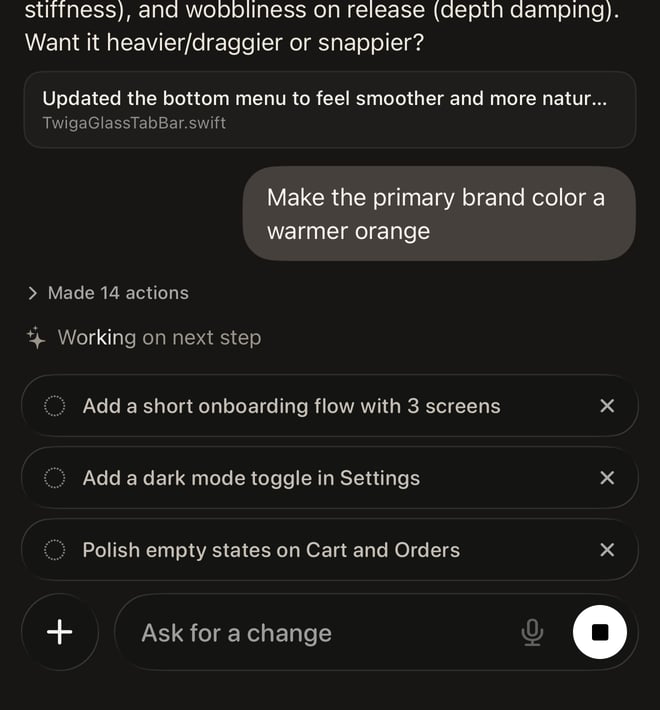
Queued messages wait while the agent works. Tap X to cancel one before it runs.
Browse your assets
Every asset in your project lives in one place: images, video, music, sound effects, voice, 3D models, and files. Open More in the top right of the chat to reach Project Actions, then choose Assets: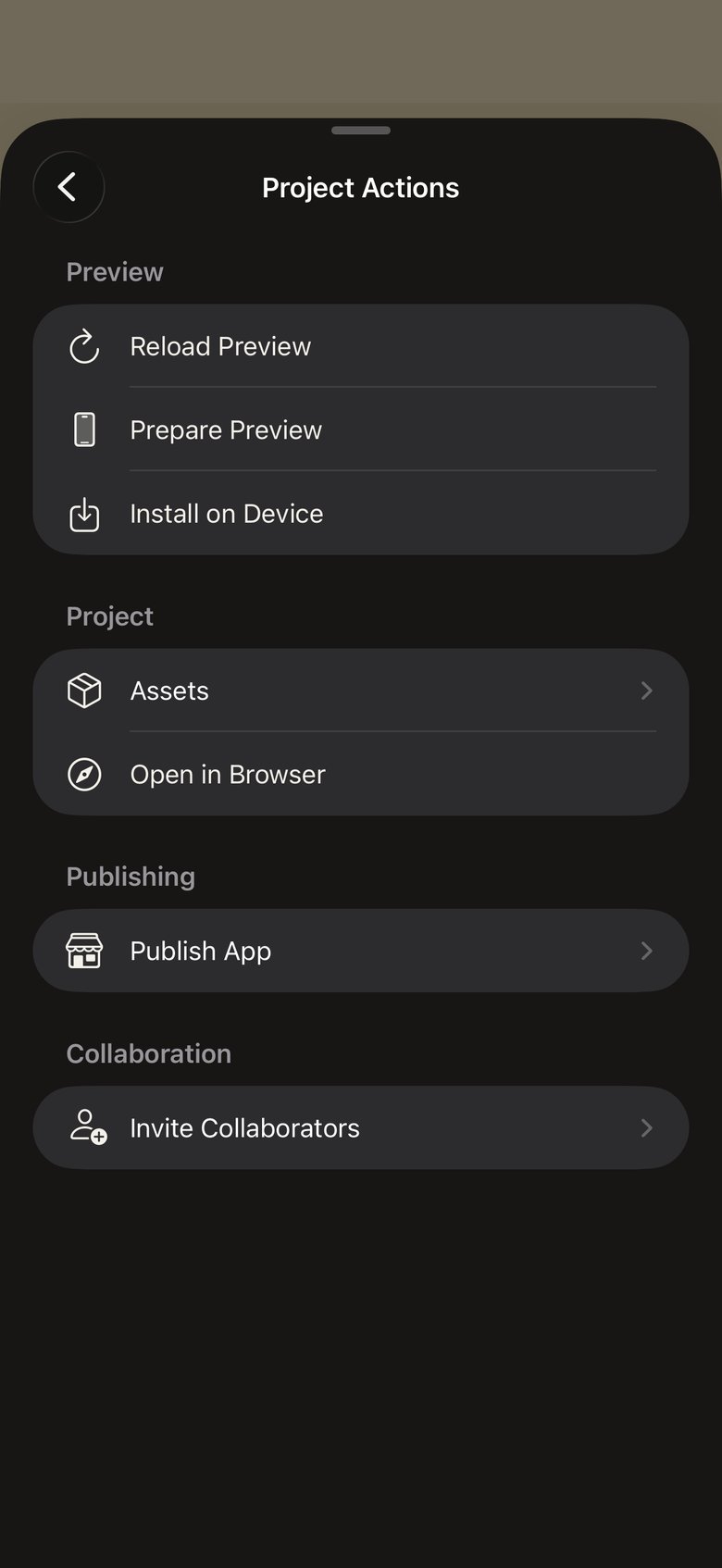
Open in Browser, Publish, and more.
in one place
and sound effects
and animations
Idle, Walk, and more
Manage your account and credits
Everything billing-related lives in the Profile tab, under Account & Billing:- See your plan and usage, and upgrade or change your subscription (subscription changes open on the web).
- Check build credits and cloud credits in one place.
- Auto Top-Up and payment method changes open securely in the browser and pick up right where you left off.
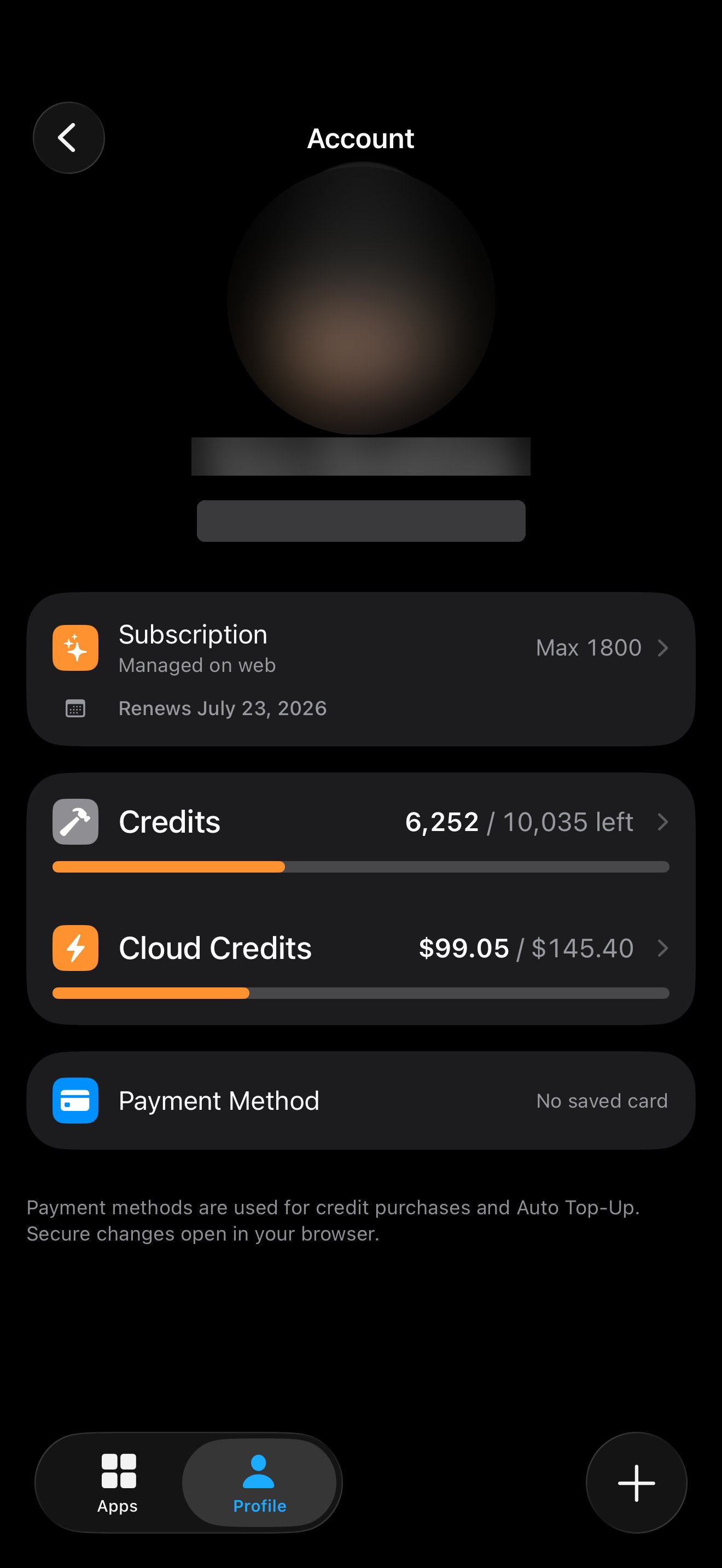
plan, credits, and payment method.
Preview natively, no TestFlight needed
Swift builds run natively inside the app. Full speed, real gestures, no streaming, no simulator. You’re testing the real thing, not a video feed of it. While your Swift app is running, a floating orange Rork button stays on top of it (drag it anywhere if it’s in the way):- Tap it to open the chat and keep iterating on your app.
- Press and hold it to leave the running app and get back to your list of apps.
brings back the chat.
Preview Web apps on your phone
Web projects preview inside Rork Max too. Open a Web app from the Apps tab, iterate in chat, and tap Reload Preview when you need a fresh load.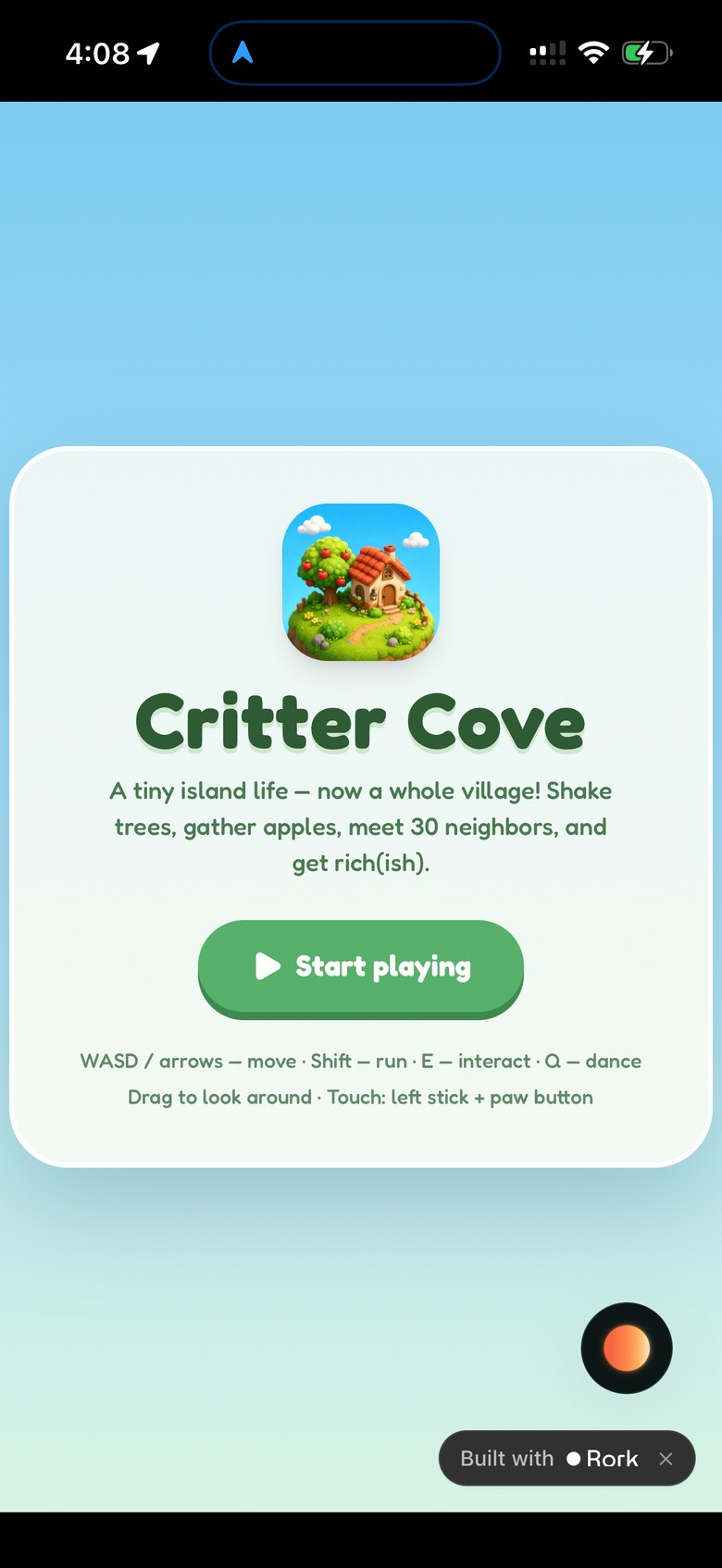
the Rork Max app

Reload, Assets, Browser
Install apps straight to your Home Screen
Rork Max can install the apps you build directly to your device. They land on your Home Screen as real iOS apps. Launch them like anything else and test native iOS features right away:your app lands on the Home Screen.
- Widgets
- Camera
- Dynamic Island and Live Activities
- Screen blocking and focus controls
Publish to the App Store from your phone
Open More → Publish App to reach App Store Submissions, or simply ask the agent in chat to publish your app. From the submissions hub you can start a new submission, track uploads, open TestFlight, and share a Beta Invite Link with testers.track builds, then publish in three steps.
How to install the Rork Max app
Rork Max runs the apps you build as real native code inside itself, which is why it can’t live on the App Store. Install it on your iPhone over USB from a Mac or a Windows PC. Open rork.com/ios/install on your computer. This is the same link for Mac and Windows. The page automatically detects your operating system and browser and shows the right installation steps:- Mac with Chrome or Edge: install directly in the browser, with no desktop app to download.
- Windows: download Rork Companion, sign in, connect your iPhone, and click Install Rork Max in Companion.
- Mac with Safari or Firefox: use Companion, or switch to Chrome or Edge for the browser installer.
Requirements
- An iPhone running iOS 18 or later (check in Settings → General → About)
- A Mac with Chrome or Edge, or Rork Companion on Windows or Mac, for the initial USB install. The Windows installer is x64
- A data USB cable, preferably the one that came with your iPhone or any MFi-certified cable (charge-only cables won’t work)
- A free or paid Apple Developer account. A free account lets you keep up to 3 sideloaded apps installed at a time; a paid membership removes that limit
- Access to the Rork Max iPhone app, which is rolling out to selected accounts and is not tied to a particular plan. Swift builds are available on every Rork plan and spend credits: see pricing
Frequently asked questions
Which subscription do I need to use the Rork Max app?
Which subscription do I need to use the Rork Max app?
Does it work only on iPhone?
Does it work only on iPhone?
Do I need a Mac or a Windows PC?
Do I need a Mac or a Windows PC?
Do I need to install anything on my computer?
Do I need to install anything on my computer?
Is it safe to sign in with my Apple Account?
Is it safe to sign in with my Apple Account?
Do I need a paid Apple Developer account?
Do I need a paid Apple Developer account?
Do I need an original cable?
Do I need an original cable?
What happened to Rork Companion?
What happened to Rork Companion?
Can I really install full apps to my iPhone from Rork Max?
Can I really install full apps to my iPhone from Rork Max?
Can I build Web apps in the Rork Max app?
Can I build Web apps in the Rork Max app?
Can it run only Swift apps?
Can it run only Swift apps?
Can I publish to the App Store from my phone?
Can I publish to the App Store from my phone?
How do updates work?
How do updates work?
Why do I see multiple Rork Max apps on my iPhone?
Why do I see multiple Rork Max apps on my iPhone?
I'm not receiving the SMS verification code from Apple
I'm not receiving the SMS verification code from Apple
The app won't launch after installing
The app won't launch after installing
How do I use it after installation?
How do I use it after installation?