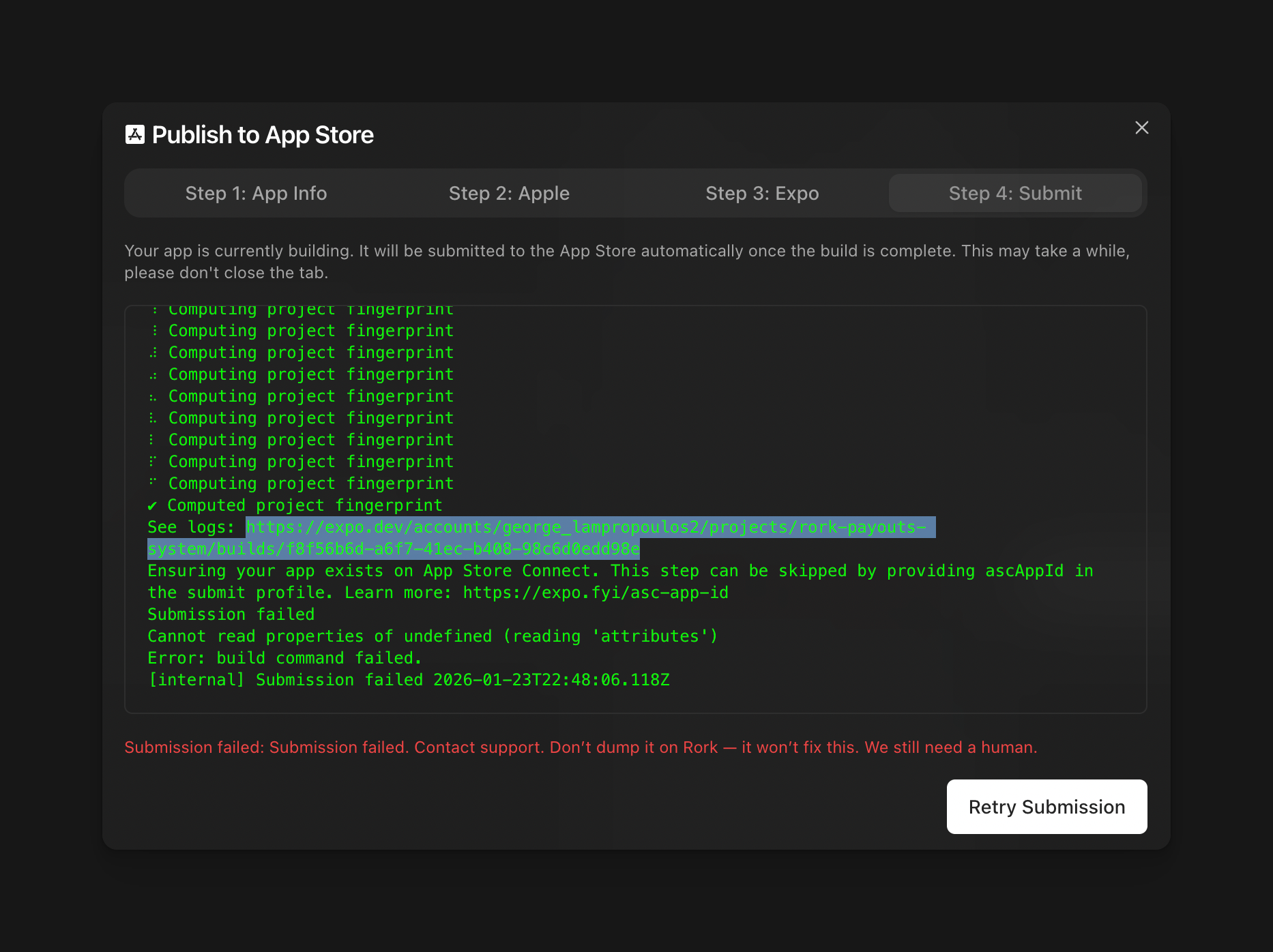
 Copy the link where it says see logs. Then you should see either your build building, your build failed during the building process, or your build is ready to be downloaded, but it's not available in App Store Connect. If you see your build ready to download, here are the steps to getting it on the App Store Connect from Expo.
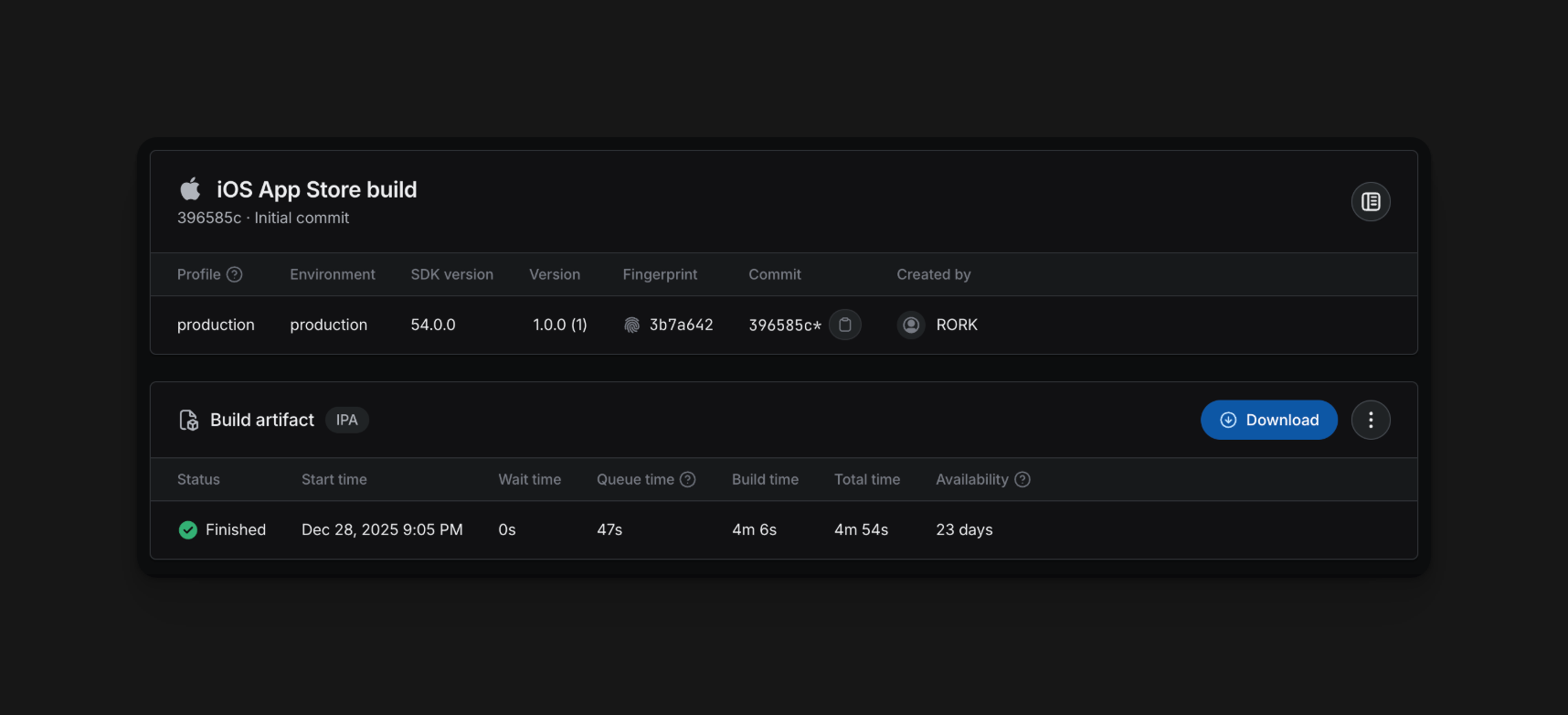 If you can see your build in Expo, but don't know how to get to App Store, it is a super easy fix.
First, you have to create your app in the App Store:
If you can see your build in Expo, but don't know how to get to App Store, it is a super easy fix.
First, you have to create your app in the App Store:
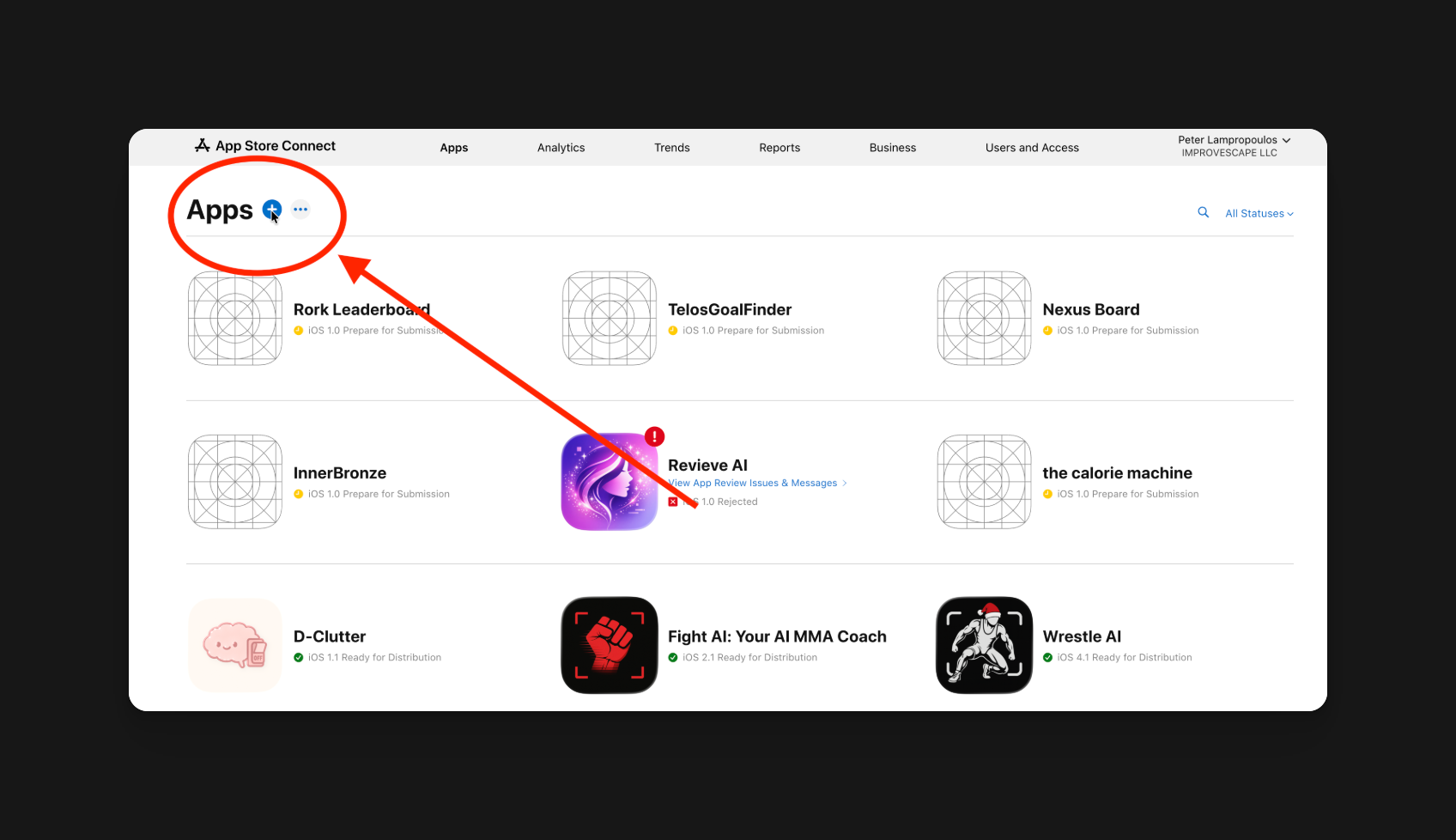 Create the app, then download Transporter:
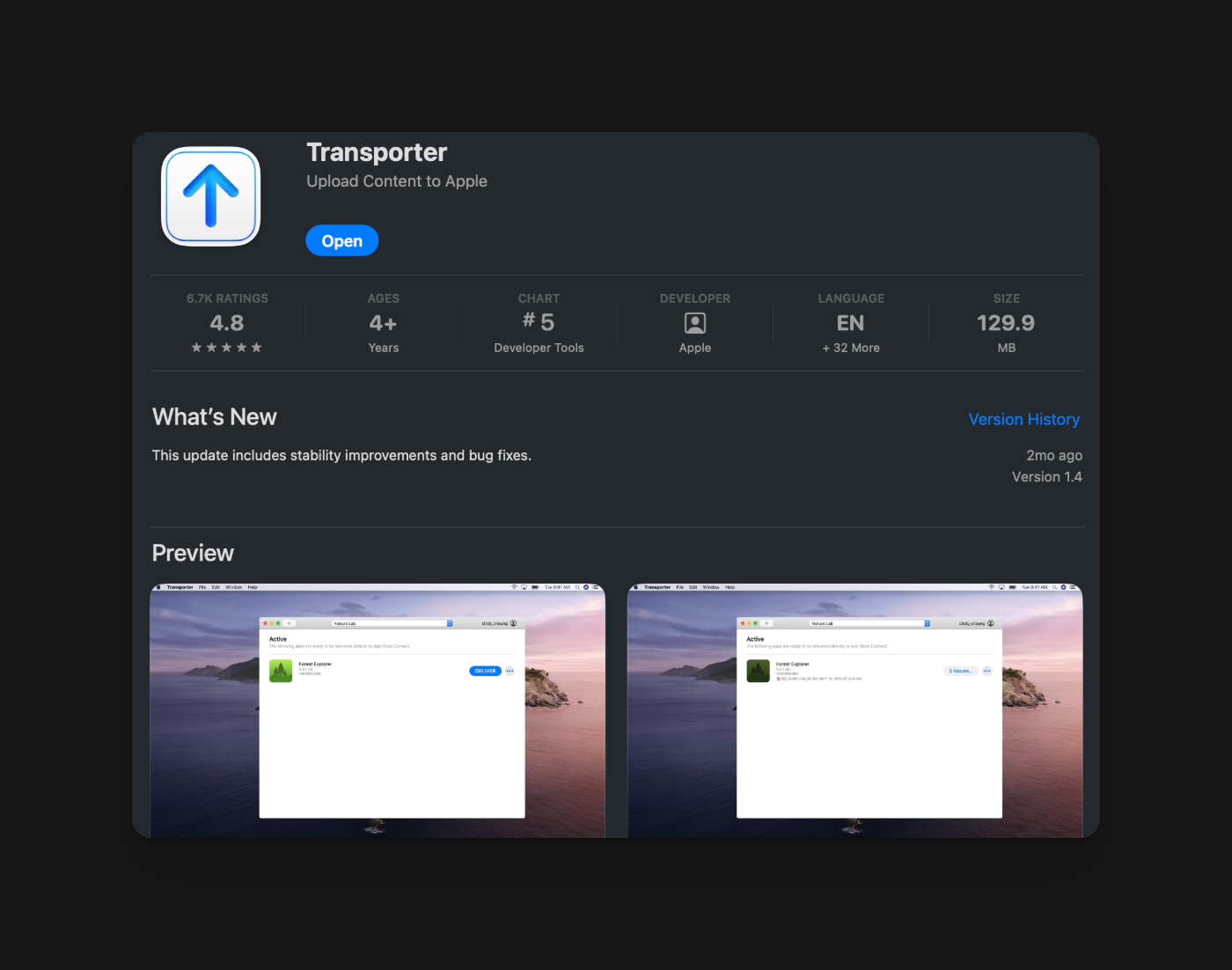 Once you download this app, download the IPA from Expo. Then drag and drop your IPA into the transporter.
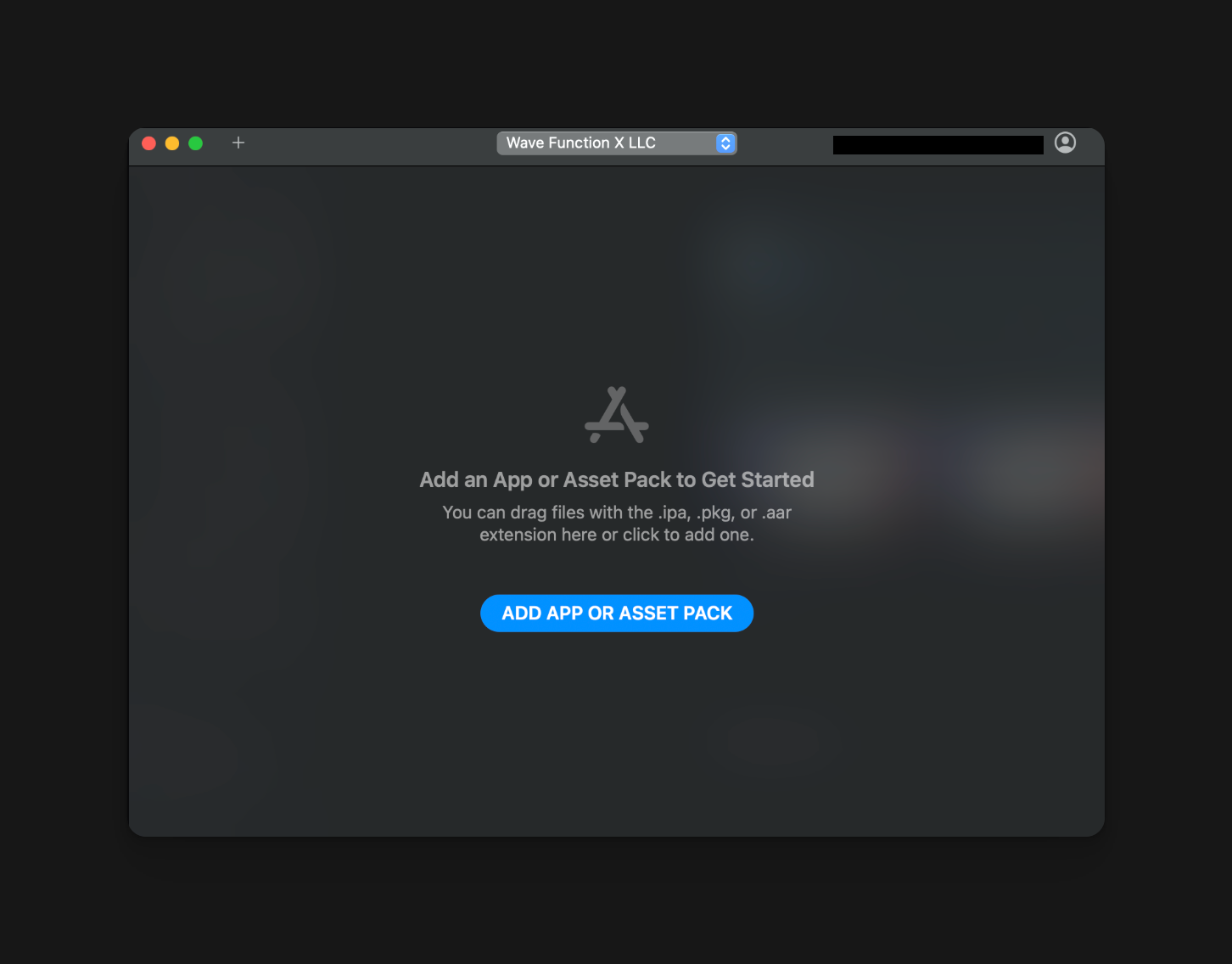 After that, hit deliver, and then your build should be available in App Store Connect.
## Prebuild error
If you encounter a **prebuild error** during an Expo or EAS build, this usually means the underlying Expo configuration failed before native code was generated.
### How to Resolve a Prebuild Error
1. **Open the Expo / EAS build logs**
* In the Expo Dashboard or your terminal, locate the full prebuild error output.
* Expand the logs until you see the complete error message.
2. **Copy the entire error log**
* Include all lines related to the failure (do not truncate).
* The more complete the log, the faster the issue can be resolved.
3. **Paste the error log into Rork**
* Provide the log directly to Rork and ask him to fix the prebuild issue.
* Rork uses the exact error output to identify missing configuration, invalid fields, or dependency conflicts.
4. **Apply the suggested fix and rebuild**
* Rerun the build after the fix is applied.
* If the build fails again, repeat the process with the new error output.
### Why This Works
Expo prebuild errors are highly specific to the configuration state. Passing the **exact build output** allows Rork to reason over the same information Expo is using, resulting in faster and more accurate fixes.
In most cases, repeating this loop resolves the issue within one or two iterations.
### Common Causes of Prebuild Errors
* Invalid or missing fields in `app.json`
* iOS permission keys are missing from `Info.plist`
* Conflicting or unsupported Expo plugins
* Dependency version mismatches
### Tip:
Always paste **full logs**, not summaries. Partial logs can hide the root cause and slow resolution.
## Testflight Bugs
There are two common Testflight issues:
1. The app will instantly crash once you open it
2. The AI functionality will not work inside Rork.
### Issue #1
First click share:
After that, hit deliver, and then your build should be available in App Store Connect.
## Prebuild error
If you encounter a **prebuild error** during an Expo or EAS build, this usually means the underlying Expo configuration failed before native code was generated.
### How to Resolve a Prebuild Error
1. **Open the Expo / EAS build logs**
* In the Expo Dashboard or your terminal, locate the full prebuild error output.
* Expand the logs until you see the complete error message.
2. **Copy the entire error log**
* Include all lines related to the failure (do not truncate).
* The more complete the log, the faster the issue can be resolved.
3. **Paste the error log into Rork**
* Provide the log directly to Rork and ask him to fix the prebuild issue.
* Rork uses the exact error output to identify missing configuration, invalid fields, or dependency conflicts.
4. **Apply the suggested fix and rebuild**
* Rerun the build after the fix is applied.
* If the build fails again, repeat the process with the new error output.
### Why This Works
Expo prebuild errors are highly specific to the configuration state. Passing the **exact build output** allows Rork to reason over the same information Expo is using, resulting in faster and more accurate fixes.
In most cases, repeating this loop resolves the issue within one or two iterations.
### Common Causes of Prebuild Errors
* Invalid or missing fields in `app.json`
* iOS permission keys are missing from `Info.plist`
* Conflicting or unsupported Expo plugins
* Dependency version mismatches
### Tip:
Always paste **full logs**, not summaries. Partial logs can hide the root cause and slow resolution.
## Testflight Bugs
There are two common Testflight issues:
1. The app will instantly crash once you open it
2. The AI functionality will not work inside Rork.
### Issue #1
First click share:
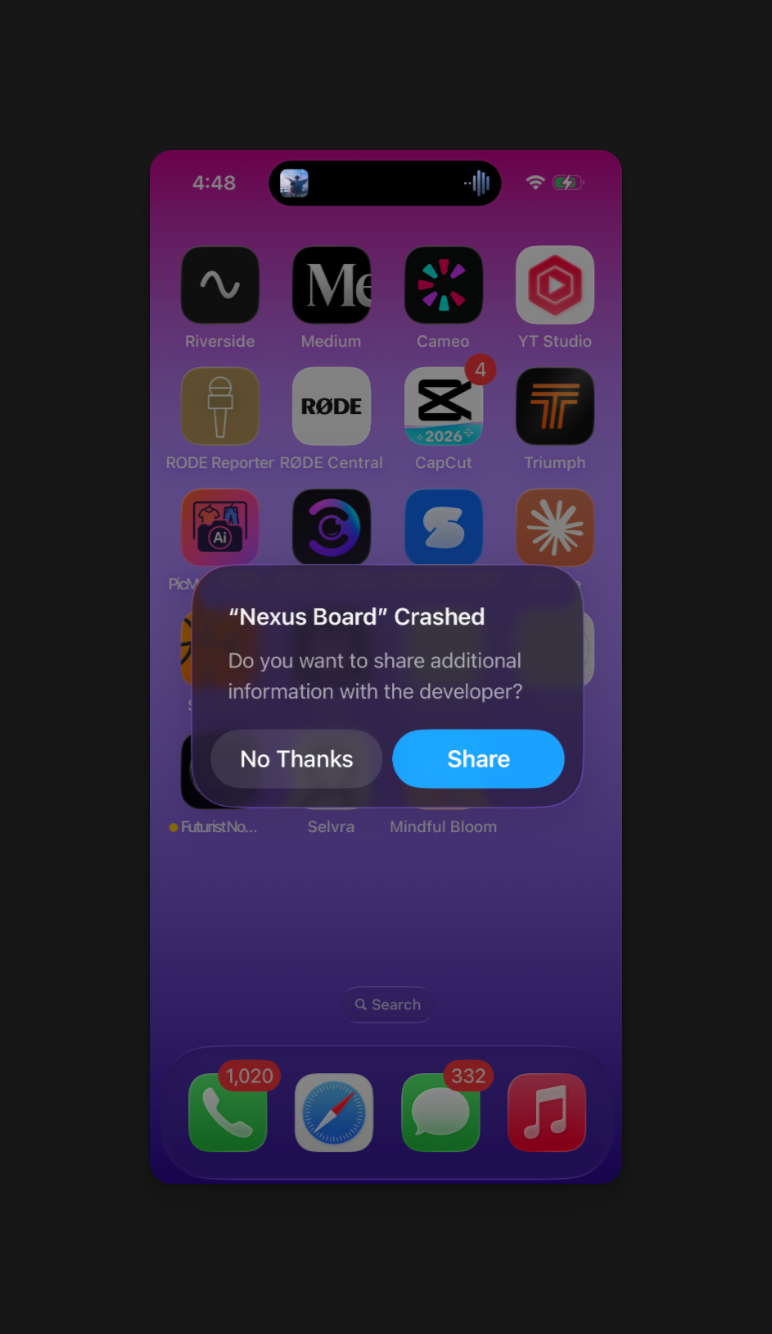 Copy the Crash logs from App Store Connect and paste them into Rork, telling it to fix it. If that doesn't work, go to XCode
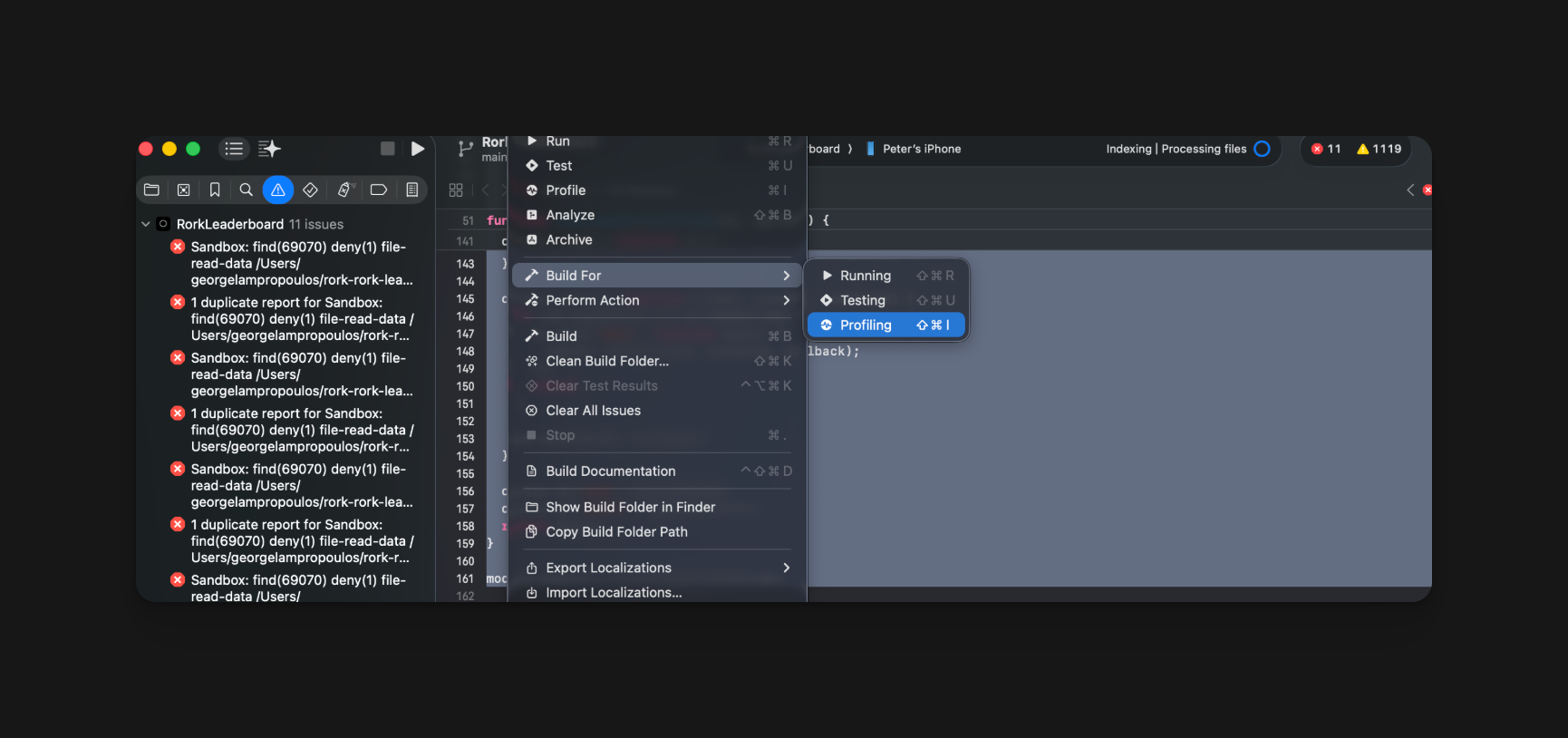 Check the logs in either Xcode or VS Code after running yarn start and run it through ChatGPT or Rork till the issue is resolved.