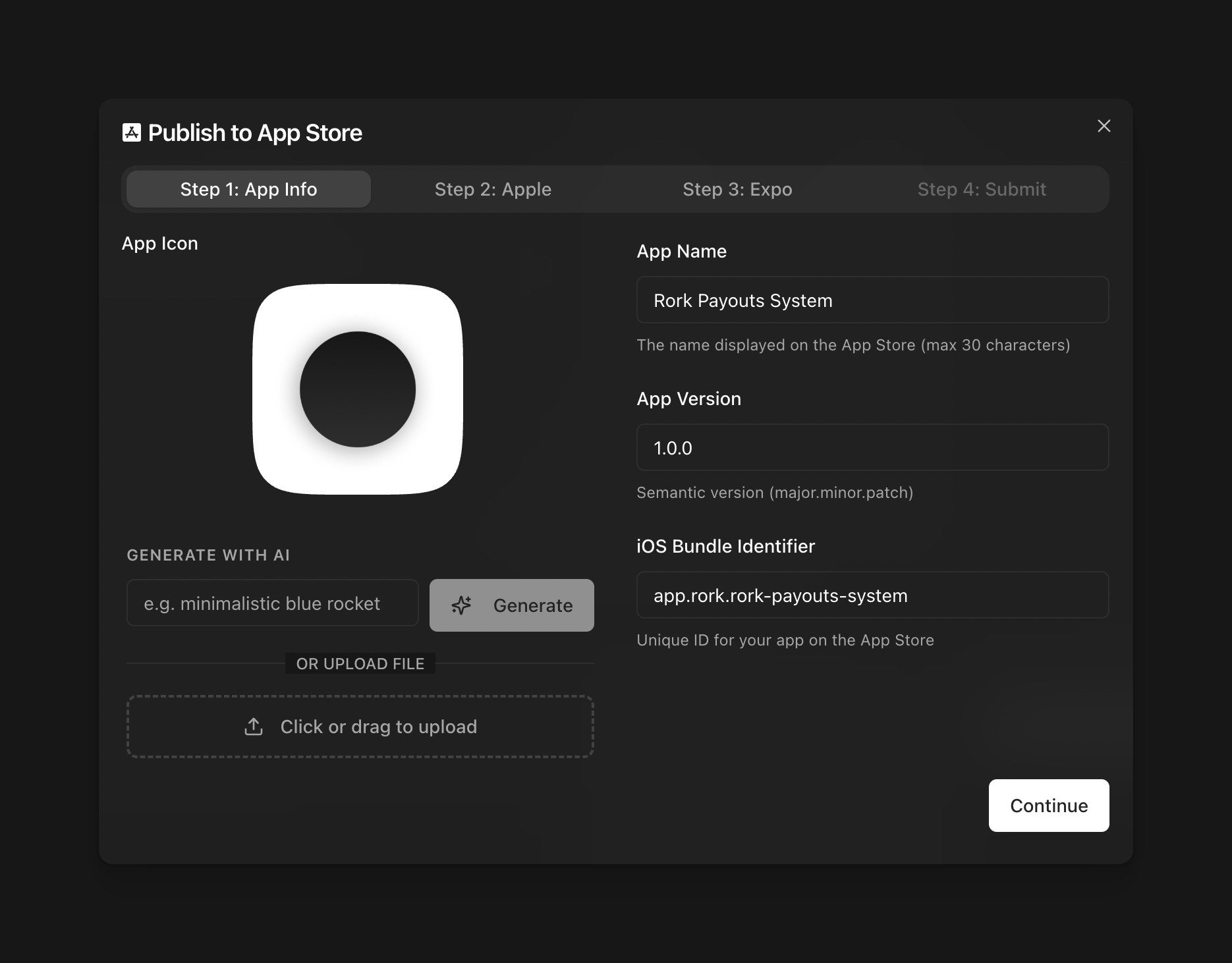
 Inside your app, we need to update your App Icon, Name, and Variables before we submit it to the App Store. Inside your project, click on the title on the top left of your project. This will open a window with your Project Settings.
Please update your **Project Name, bundle identifier, and App Icon** to whichever one you prefer. Once finished, **save your changes.**
**Generate a new App Icon directly in Rork**
You can ask your Rork editor to generate an App Icon for you, and it will integrate it for you automatically.
### 2. Press Publish to App Store
Press **Publish to App Store**. Another window will open up.
[*Remember, if you haven't set up an Apple Developer account. Check out our guide.*](/store-guides/apple-developer-account)
Inside your app, we need to update your App Icon, Name, and Variables before we submit it to the App Store. Inside your project, click on the title on the top left of your project. This will open a window with your Project Settings.
Please update your **Project Name, bundle identifier, and App Icon** to whichever one you prefer. Once finished, **save your changes.**
**Generate a new App Icon directly in Rork**
You can ask your Rork editor to generate an App Icon for you, and it will integrate it for you automatically.
### 2. Press Publish to App Store
Press **Publish to App Store**. Another window will open up.
[*Remember, if you haven't set up an Apple Developer account. Check out our guide.*](/store-guides/apple-developer-account)
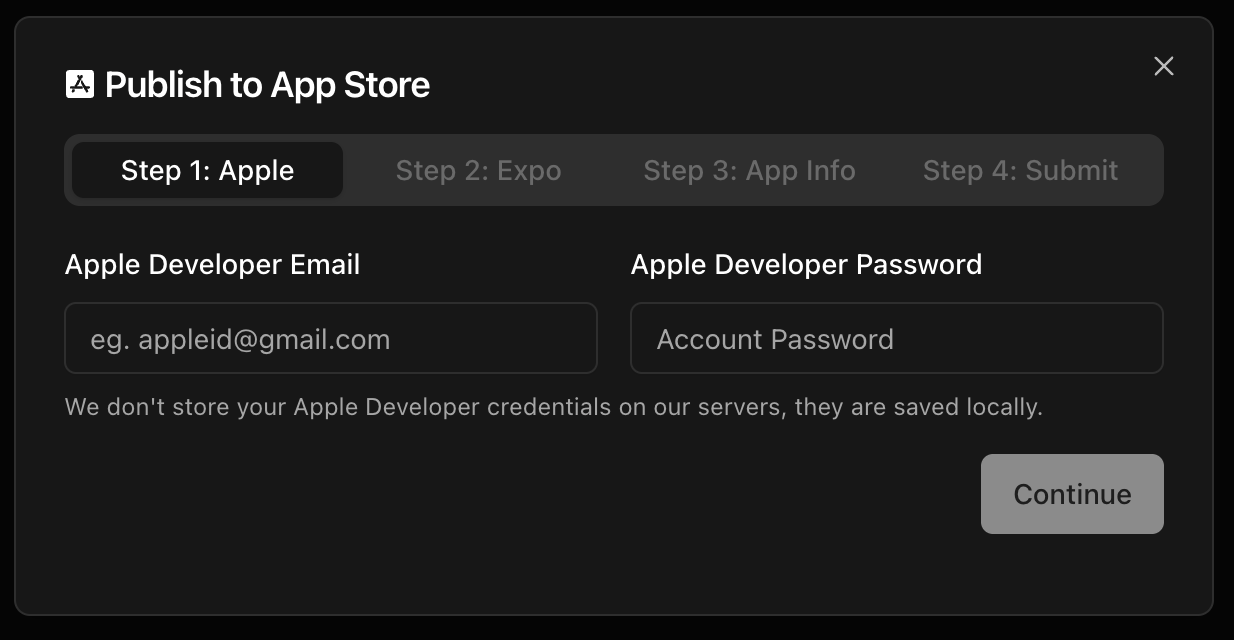 Once you've logged in, you will need to enter your Expo Token.
To get an Expo Token, first click on the **Expo Settings link** in the modal and **sign in/create an expo account.**
Once you've logged in, you will need to enter your Expo Token.
To get an Expo Token, first click on the **Expo Settings link** in the modal and **sign in/create an expo account.**
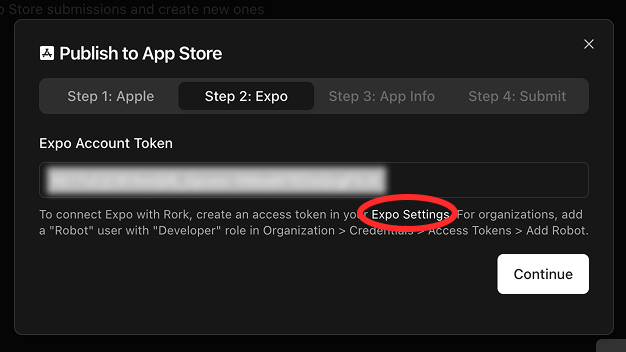
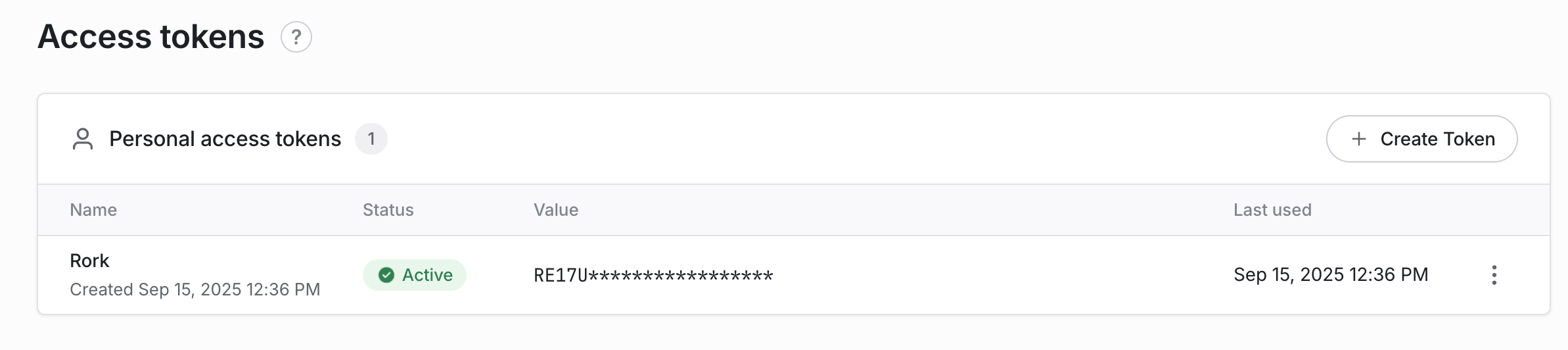
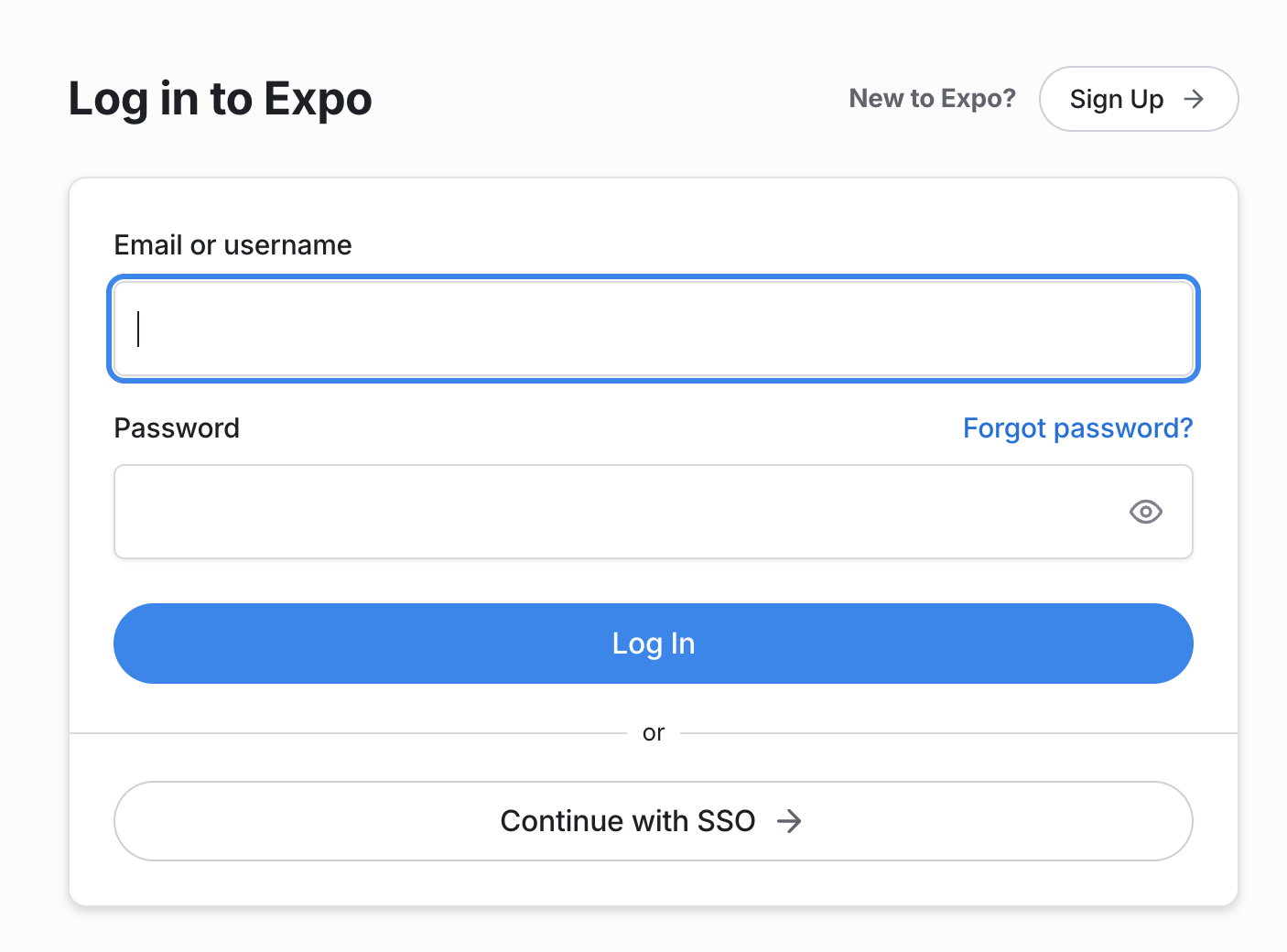 **Create a new token and name it Rork to keep it organized. Enter this in the Rork modal.**
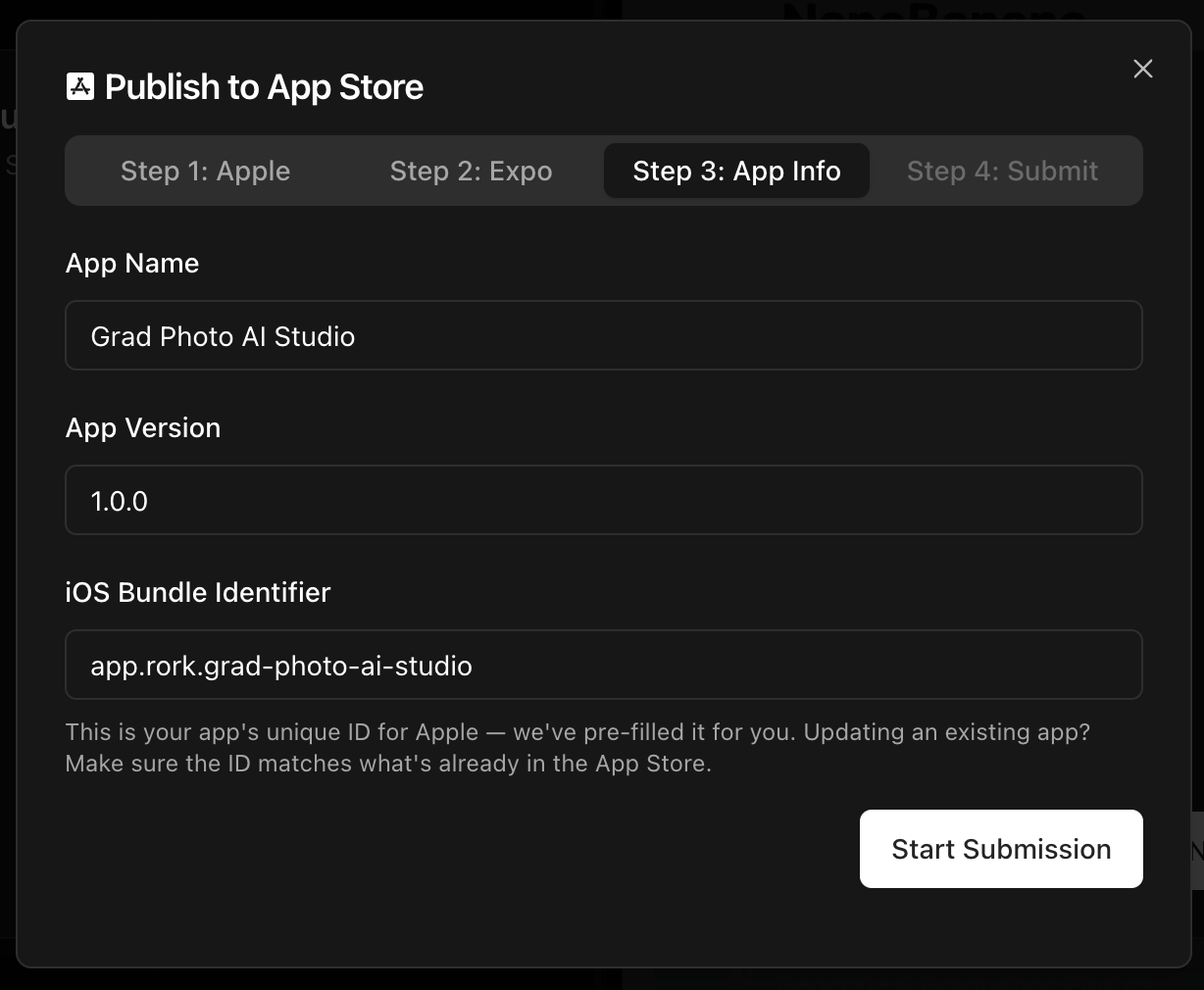
 **You should not have to do anything at this point since we already updated our names earlier. Start Submission.**
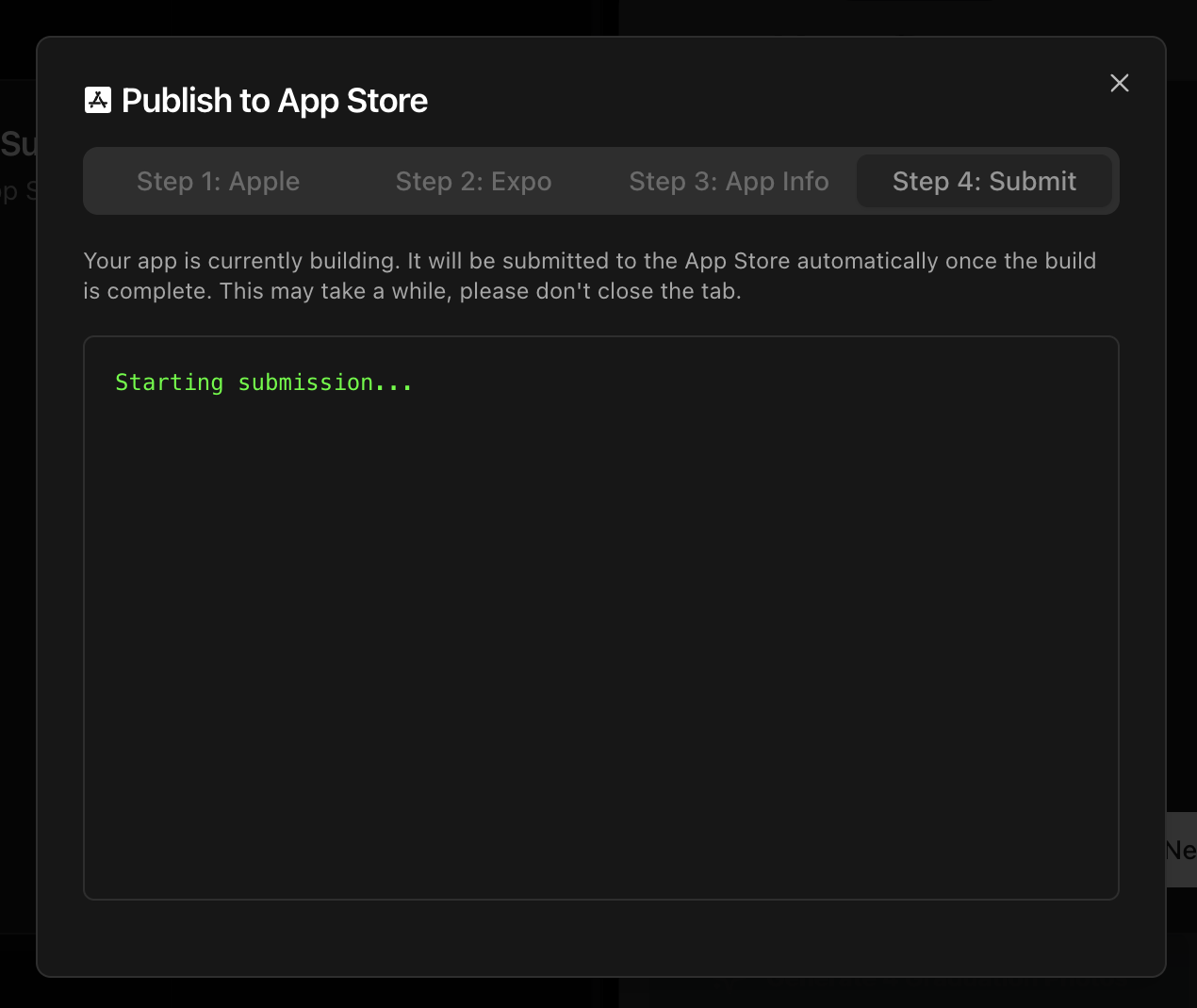
 **Stay on this page while the app builds and submits. There will be a point where Apple asks for a code through one of your signed-in devices. Please have that ready to enter into Rork when asked.**
 **When the app submits, you will see it show up on App Store Connect Apps Dashboard.**
[Click this link to get to it quickly](https://appstoreconnect.apple.com)
### Congrats! You have successfully submitted your app to the App Store
From this point, just follow all the instructions inside your app in App Store Connect to finish entering your [Product Page](https://developer.apple.com/app-store/product-page/), then you can finally submit to the App Store!
You will have an app in the App Store in no time! Good luck and tweet us your app link! [@rork\_app](https://x.com/rork_app)
**When the app submits, you will see it show up on App Store Connect Apps Dashboard.**
[Click this link to get to it quickly](https://appstoreconnect.apple.com)
### Congrats! You have successfully submitted your app to the App Store
From this point, just follow all the instructions inside your app in App Store Connect to finish entering your [Product Page](https://developer.apple.com/app-store/product-page/), then you can finally submit to the App Store!
You will have an app in the App Store in no time! Good luck and tweet us your app link! [@rork\_app](https://x.com/rork_app)