> ## Documentation Index
> Fetch the complete documentation index at: https://docs.rork.com/llms.txt
> Use this file to discover all available pages before exploring further.

# Reply to App Store reviews

> Your App Store ratings and written reviews arrive inside the Rork project. Rork tells you when a new review lands, and the agent drafts and posts your public developer response after you approve it.

export const CtaBanner = () => <div style={{
  display: "flex",
  alignItems: "center",
  justifyContent: "space-between",
  gap: "24px",
  flexWrap: "wrap",
  margin: "40px 0 8px",
  padding: "22px 28px",
  borderRadius: "16px",
  background: "linear-gradient(135deg,rgba(249,115,22,0.10),rgba(255,255,255,0.03),rgba(249,115,22,0.06))",
  border: "1px solid rgba(255,255,255,0.08)"
}}>
    <div>
      <div style={{
  fontSize: "19px",
  fontWeight: 700,
  color: "#fff",
  letterSpacing: "-0.3px",
  lineHeight: 1.3
}}>
        Build your app with Rork today.
      </div>
      <div style={{
  fontSize: "14px",
  color: "rgba(255,255,255,0.6)",
  marginTop: "4px",
  lineHeight: 1.5
}}>
        Ship iOS, Android, and web apps by chatting with AI.
      </div>
    </div>
    <a href="https://rork.com?utm_source=docs&amp;utm_medium=referral&amp;utm_campaign=docs-cta&amp;utm_content=cta-banner" onClick={tagCtaLink} style={{
  flexShrink: 0,
  display: "inline-block",
  padding: "10px 24px",
  background: "linear-gradient(135deg,#fff,#f0f0f0)",
  color: "#000",
  fontSize: "14px",
  fontWeight: 600,
  borderRadius: "100px",
  textDecoration: "none",
  whiteSpace: "nowrap"
}}>
      Try Rork for Free
    </a>
  </div>;

Once your app is live, people rate it and write about it. Those reviews arrive in your Rork project, next to the build that shipped. You read them there, and the agent writes the public reply for you. Apple calls that reply a developer response, and it shows under the review on the App Store.

You do not open App Store Connect for this. Rork already holds the App Store Connect access from your first submission, so the reviews and the replies both run through the project.

## Where the reviews live

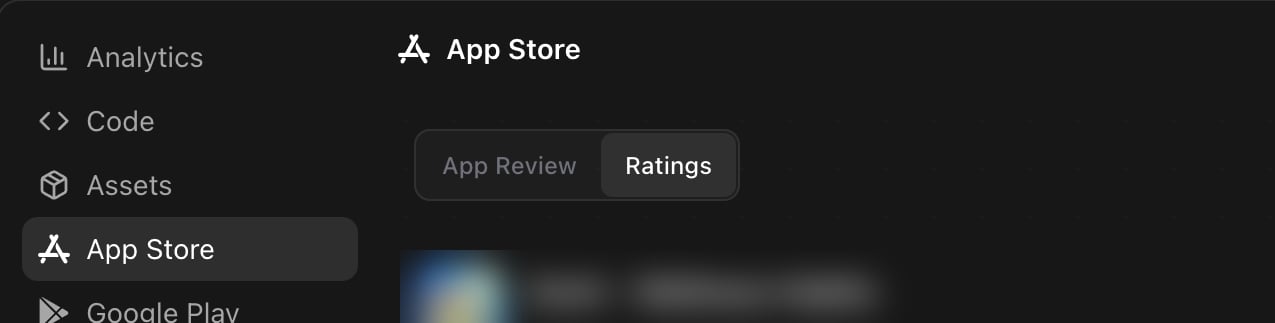
Open **More** in the project, then **App Store**. The section has two tabs: **App Review** for your submissions, and **Ratings** for what customers say.

<Frame caption="More, then App Store. The Ratings tab holds the customer reviews.">
  <img src="https://mintcdn.com/rork/sN-zRk9HwARbwo8E/images/app-store/reviews-where.png?fit=max&auto=format&n=sN-zRk9HwARbwo8E&q=85&s=a0824ca6fd84b97057b772b066b5f960" alt="The Rork project sidebar with App Store selected, and the App Review and Ratings tabs above the review list" width="1275" height="323" data-path="images/app-store/reviews-where.png" />
</Frame>

**Ratings** appears only when the app is live on the App Store. Before that the panel says **Ratings aren't available yet**, and adds that they show up after the app is published.

## Read the numbers first

The top of the tab summarises the account: **Average rating** out of 5, the number of total ratings, and a **Rating breakdown** from 5 stars down to 1. **View on App Store** opens your public listing.

Three counters follow, and the third one is the one to watch:

<Frame caption="Written reviews, New this week, and Needs response, with the filters underneath.">
  <img src="https://mintcdn.com/rork/sN-zRk9HwARbwo8E/images/app-store/reviews-counters.png?fit=max&auto=format&n=sN-zRk9HwARbwo8E&q=85&s=33ea6ea476bea746f1459cd50dc1d676" alt="Three counters reading Written reviews, New this week, and Needs response, above the All ratings, All countries, and All responses filters" width="2048" height="353" data-path="images/app-store/reviews-counters.png" />
</Frame>

| Counter             | What it counts                             |
| ------------------- | ------------------------------------------ |
| **Written reviews** | Reviews with text, not plain star ratings. |
| **New this week**   | Reviews from the last seven days.          |
| **Needs response**  | Reviews with no developer response yet.    |

## Find the reviews that need an answer

Three filters sit above the list. Set the response state to **Needs response** and you see only the open ones.

| Filter         | Options                                                      |
| -------------- | ------------------------------------------------------------ |
| Rating         | **All ratings**, or one value from **5 stars** to **1 star** |
| Country        | **All countries**, or one store territory                    |
| Response state | **All responses**, **Needs response**, **Responded**         |

**Refresh reviews** pulls the list again from App Store Connect. The list shows 25 reviews at a time, so use **Previous** and **Next** for older ones. When a filter matches nothing the panel says **No matching reviews**, and suggests changing a filter.

Each row carries the review title, the stars, the reviewer nickname, the date, and the country, then the text. After you answer, the row keeps a **Your response** block with your reply, its state, and the date it changed.

## Get told when a review arrives

Rork checks App Store Connect for you and files a notification called **App Store review** when a new one lands. The notification quotes the review and names the reviewer and the country. A review of 1 or 2 stars is marked as a warning, so a bad rating does not sit unread for a week.

Press **View review** on the notification. Rork opens the project on the **Ratings** tab and scrolls to that exact review.

## Reply with the agent

You write nothing by hand. Ask in the chat, and the agent handles the App Store side.

<Steps>
  <Step title="Ask for the open reviews">
    ```
    Show me the App Store reviews that need a response
    ```

    The agent lists each review with its rating, title, text, reviewer nickname, country, and date, so you judge the case before any reply exists.
  </Step>

  <Step title="Ask for drafts">
    ```
    Draft replies for the 1-star reviews from this week. Do not post them yet.
    ```

    The agent writes a short reply per review and shows you the exact text.
  </Step>

  <Step title="Approve the exact text">
    A developer response is public, so nothing is posted until you say yes. Change the wording in the chat until it reads the way you want.
  </Step>

  <Step title="Let the agent post it">
    ```
    Post that reply
    ```

    The agent publishes the response and reports back its state. The review then shows **Your response** in the list.
  </Step>
</Steps>

<Note>
  Ask for drafts only, and the agent stops after showing them. That is the safe way to see what it would say before you trust it with the store.
</Note>

## Answer many reviews at once

Several reviews often say the same thing, for example that a paywall arrives too early. One reply text can cover all of them.

```
The 1-star reviews all complain about the paywall. Write one reply that fits them
all, show me the list, then post it.
```

The agent groups the reviews under one response text, shows you the plan, and runs it dry first. Only after that does it post, and it skips any review that already has a response. If a review fails, the agent names it and says why.

## What makes a good response

The agent follows the rules Apple reviewers and readers expect, and it helps to know them, because you approve the text:

* Short, specific, and about the feedback in that review.
* No promotional copy, no discount codes, no internal links.
* No private customer data, and no blame.
* It never asks the person to change their rating.
* It promises a fix, a version, a refund, or a date only when that is true.

## What this cannot do

* Ratings arrive only after the app is live on the App Store. TestFlight feedback is separate, see [TestFlight: put your app on real phones](/store-guides/testflight-beta-testers).
* Apple allows one developer response per review. Rork treats a review that has one as handled, so say so plainly when you want an answer replaced.
* The reply is public. Anyone reading your listing sees it under the review.
* This tab covers the App Store. Google Play reviews stay in Play Console.
* A project with no App Store submission has no reviews to read, and the **Ratings** tab stays hidden.

## FAQ

<AccordionGroup>
  <Accordion title="Why is the Ratings tab missing?">
    The app is not live on the App Store yet. Submit it and pass review first, see [Publish Your App to the Apple App Store](/store-guides/publish-app-store).
  </Accordion>

  <Accordion title="Can Rork post a reply without asking me?">
    No. The agent shows the exact response text and the review it targets, then waits for your approval.
  </Accordion>

  <Accordion title="Do I need App Store Connect open in another tab?">
    No. Rork uses the App Store Connect access from your submission, so reading reviews and posting replies both happen in the project.
  </Accordion>

  <Accordion title="How fast does a new review show up?">
    Rork syncs from App Store Connect on a schedule and notifies you when a review lands. Press **Refresh reviews** when you want the list pulled again right now.
  </Accordion>

  <Accordion title="Can I answer reviews in a different language?">
    Yes. Ask for the reply in the language of the review. Say which language, and the agent drafts it there.
  </Accordion>

  <Accordion title="What about Google Play reviews?">
    They are not in this tab. Answer those in Play Console. Rork does handle the Play release itself, see [How to publish your Rork app to Google Play Store](/submitting-to-play-store/creating-the-aab-file).
  </Accordion>

  <Accordion title="A review reports a real bug. What now?">
    Paste it into the chat and ask for the fix. The agent reads your code, changes it, and you ship a new build, see [Publish Your App to the Apple App Store](/store-guides/publish-app-store). Mention the fix in the reply only after the build is out.
  </Accordion>
</AccordionGroup>

## Next steps

<CardGroup cols={2}>
  <Card icon="upload" href="/store-guides/publish-app-store" title="Publish to the App Store">
    The submission flow that gives Rork its App Store access.
  </Card>

  <Card icon="shield-check" href="/ai-app-store-reviewer" title="AI App Store Reviewer">
    Catch the rejection risks before Apple does.
  </Card>

  <Card icon="mobile" href="/store-guides/testflight-beta-testers" title="TestFlight testers">
    Collect feedback before the public sees it.
  </Card>

  <Card icon="chart-line" href="/features/analytics" title="Project analytics">
    Installs and revenue next to the reviews.
  </Card>
</CardGroup>

<CtaBanner />
