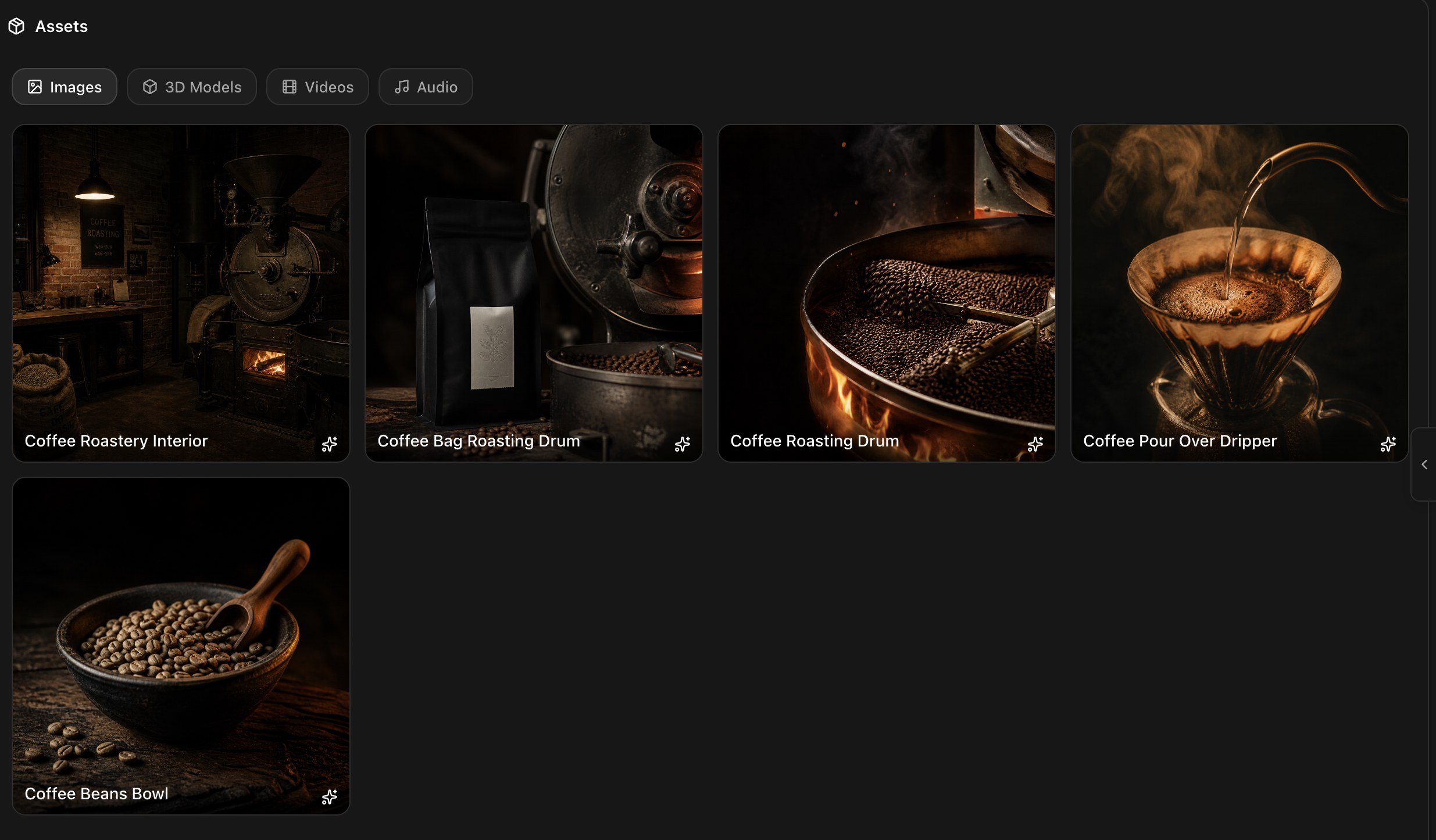
 The filters are **Images**, **3D Models**, **Videos**, **Audio**, and **Other** for files like PDFs. Each card offers:
* **Use in Chat**, which attaches that asset to your next message
* **Remove**, which deletes it from the project
* The card itself, which opens the asset full size
The filters are **Images**, **3D Models**, **Videos**, **Audio**, and **Other** for files like PDFs. Each card offers:
* **Use in Chat**, which attaches that asset to your next message
* **Remove**, which deletes it from the project
* The card itself, which opens the asset full size
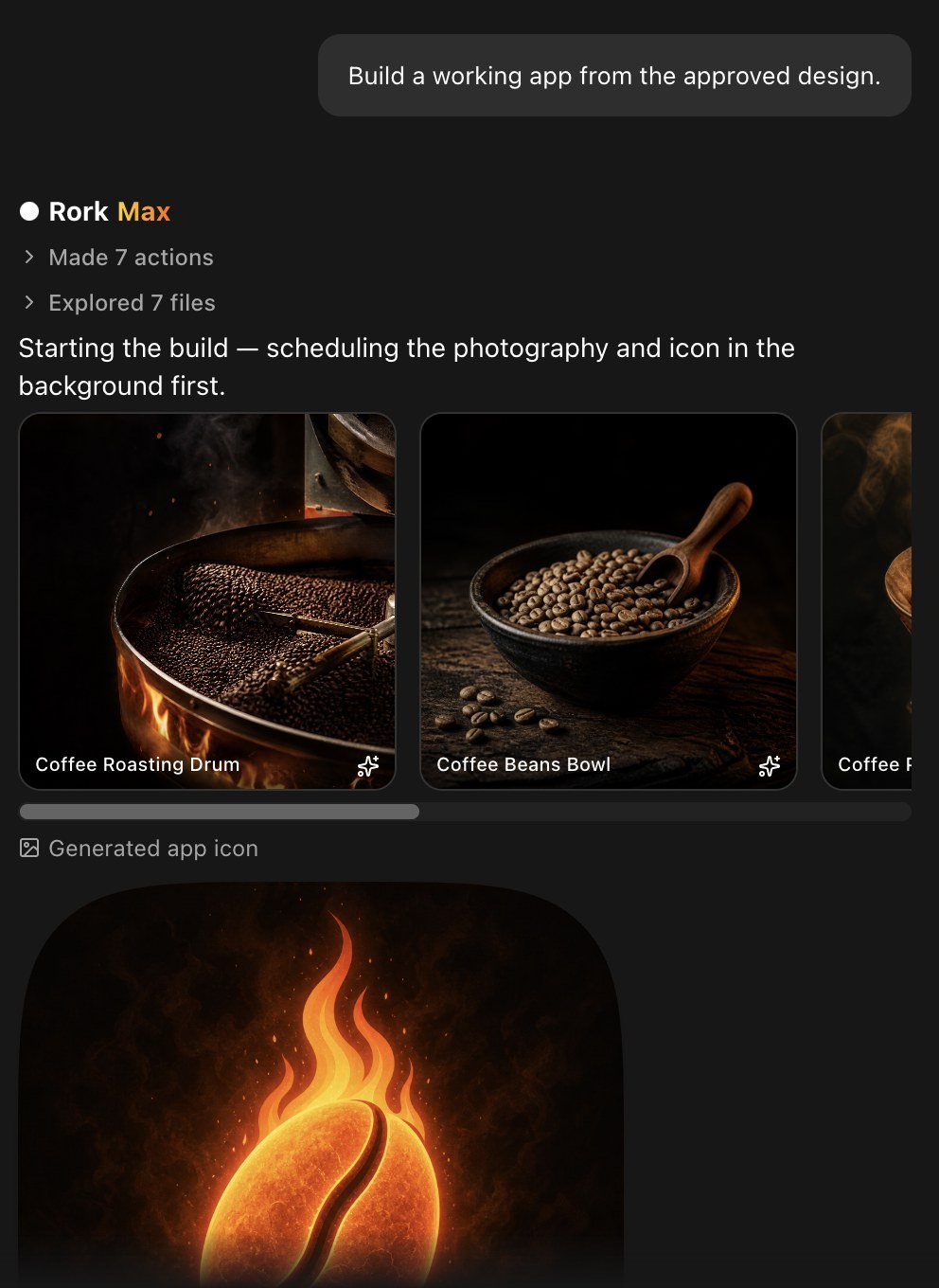 Rork generates in three shapes: square, portrait, and landscape. Say what the picture is for and it picks a sensible one:
```
Generate a landscape hero photo of a fire-lit roasting drum, dark and smoky
```
Images work the other way round too. Attach a photo and ask Rork to build a feature around generating from it, which is how photo filter apps, avatar apps, and "turn my selfie into X" apps get made. There is a full walkthrough in [the NanoBanana image app tutorial](/quick-start-examples/nano-banana-image-app).
## Your app icon
The app icon is generated the same way:
```
Generate an app icon: an ember on a dark background, no text
```
Rork writes it into the right place for each platform, so an iPhone build, an Android build, and a web app all pick it up. The icon you approve is the icon that goes to the App Store.
## Video
Ask for video and Rork generates it, then places it in the screen:
```
Add a looping background video of coffee beans falling into the roaster
```
Video generation goes further than a prompt. Rork can start from your text, from a still image, from a reference clip, or edit a video it already made. Video is the most expensive kind of media to generate, so describe the shot you want before you ask for it.
## Audio and voice
Rork generates four kinds of sound:
| Kind | Use it for |
| ----------------- | ----------------------------------------------- |
| **Music** | Background loops, menu music in a game |
| **Sound effects** | Taps, wins, notifications, whooshes |
| **Voice** | A narrator, an onboarding voice, an audio guide |
| **Dialogue** | Two or more speakers in a scene |
```
Add a short success sound when the user finishes a workout
```
## 3D models
Rork generates 3D models for games, product viewers, and playful onboarding. It asks before it spends the credits, with a card that shows what it plans to make and what it will cost:
* **Yes, make the 3D model** starts the work
* **No, and tell Rork what to do differently** lets you correct the idea first
If you leave the card alone it goes ahead after about a minute and a half. Models come out in the formats iPhone, Android, and web apps can all use, and Rork bundles them into the app for you.
```
Add a spinning 3D coffee bag on the product page that users can drag to rotate
```
## Bring your own files
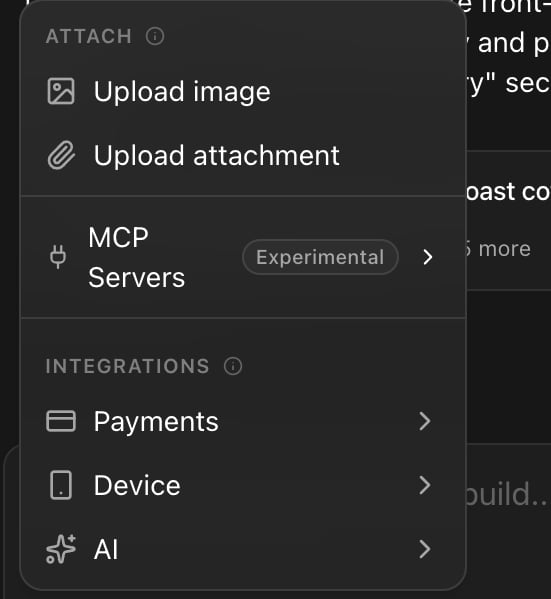
You do not have to generate everything. Use **+ → Upload image** in the composer, or drop files onto the chat. Rork reads photos, screenshots, PDFs, video, audio, and 3D models, and anything you upload lands in Assets.
Rork generates in three shapes: square, portrait, and landscape. Say what the picture is for and it picks a sensible one:
```
Generate a landscape hero photo of a fire-lit roasting drum, dark and smoky
```
Images work the other way round too. Attach a photo and ask Rork to build a feature around generating from it, which is how photo filter apps, avatar apps, and "turn my selfie into X" apps get made. There is a full walkthrough in [the NanoBanana image app tutorial](/quick-start-examples/nano-banana-image-app).
## Your app icon
The app icon is generated the same way:
```
Generate an app icon: an ember on a dark background, no text
```
Rork writes it into the right place for each platform, so an iPhone build, an Android build, and a web app all pick it up. The icon you approve is the icon that goes to the App Store.
## Video
Ask for video and Rork generates it, then places it in the screen:
```
Add a looping background video of coffee beans falling into the roaster
```
Video generation goes further than a prompt. Rork can start from your text, from a still image, from a reference clip, or edit a video it already made. Video is the most expensive kind of media to generate, so describe the shot you want before you ask for it.
## Audio and voice
Rork generates four kinds of sound:
| Kind | Use it for |
| ----------------- | ----------------------------------------------- |
| **Music** | Background loops, menu music in a game |
| **Sound effects** | Taps, wins, notifications, whooshes |
| **Voice** | A narrator, an onboarding voice, an audio guide |
| **Dialogue** | Two or more speakers in a scene |
```
Add a short success sound when the user finishes a workout
```
## 3D models
Rork generates 3D models for games, product viewers, and playful onboarding. It asks before it spends the credits, with a card that shows what it plans to make and what it will cost:
* **Yes, make the 3D model** starts the work
* **No, and tell Rork what to do differently** lets you correct the idea first
If you leave the card alone it goes ahead after about a minute and a half. Models come out in the formats iPhone, Android, and web apps can all use, and Rork bundles them into the app for you.
```
Add a spinning 3D coffee bag on the product page that users can drag to rotate
```
## Bring your own files
You do not have to generate everything. Use **+ → Upload image** in the composer, or drop files onto the chat. Rork reads photos, screenshots, PDFs, video, audio, and 3D models, and anything you upload lands in Assets.
 Free accounts upload files up to **10MB**. Paid plans go up to **5GB**, which is what video needs.
A screenshot is often better than a paragraph. Show Rork the design you want instead of describing it.
## What it costs
Generating media spends **build credits**, the same balance as your normal messages. Bigger media costs more: an image is cheap, a 3D model is a few credits, and video is the most expensive of them.
Two habits keep the bill sensible:
1. Generate at the end, once the layout is settled. Placeholder boxes are free to move around.
2. Reuse from Assets with **Use in Chat** instead of generating a near-duplicate.
See [Build credits vs Cloud credits](/billing/build-credits-vs-cloud-credits) for how the balances work, and open the **⋯** menu under any answer to see what that message actually cost.
Free accounts upload files up to **10MB**. Paid plans go up to **5GB**, which is what video needs.
A screenshot is often better than a paragraph. Show Rork the design you want instead of describing it.
## What it costs
Generating media spends **build credits**, the same balance as your normal messages. Bigger media costs more: an image is cheap, a 3D model is a few credits, and video is the most expensive of them.
Two habits keep the bill sensible:
1. Generate at the end, once the layout is settled. Placeholder boxes are free to move around.
2. Reuse from Assets with **Use in Chat** instead of generating a near-duplicate.
See [Build credits vs Cloud credits](/billing/build-credits-vs-cloud-credits) for how the balances work, and open the **⋯** menu under any answer to see what that message actually cost.