> ## Documentation Index
> Fetch the complete documentation index at: https://docs.rork.com/llms.txt
> Use this file to discover all available pages before exploring further.

# Connecting an API to Rork

> API's are great because they essentially allow your apps to do anything without you needing to do it.

export const CtaBanner = () => <div style={{
  display: "flex",
  alignItems: "center",
  justifyContent: "space-between",
  gap: "24px",
  flexWrap: "wrap",
  margin: "40px 0 8px",
  padding: "22px 28px",
  borderRadius: "16px",
  background: "linear-gradient(135deg,rgba(249,115,22,0.10),rgba(255,255,255,0.03),rgba(249,115,22,0.06))",
  border: "1px solid rgba(255,255,255,0.08)"
}}>
    <div>
      <div style={{
  fontSize: "19px",
  fontWeight: 700,
  color: "#fff",
  letterSpacing: "-0.3px",
  lineHeight: 1.3
}}>
        Build your app with Rork today.
      </div>
      <div style={{
  fontSize: "14px",
  color: "rgba(255,255,255,0.6)",
  marginTop: "4px",
  lineHeight: 1.5
}}>
        Ship iOS, Android, and web apps by chatting with AI.
      </div>
    </div>
    <a href="https://rork.com" style={{
  flexShrink: 0,
  display: "inline-block",
  padding: "10px 24px",
  background: "linear-gradient(135deg,#fff,#f0f0f0)",
  color: "#000",
  fontSize: "14px",
  fontWeight: 600,
  borderRadius: "100px",
  textDecoration: "none",
  whiteSpace: "nowrap"
}}>
      Try Rork for Free
    </a>
  </div>;

## **Two main ways to connect an API to Rork**

\
**Environment Variables:**\
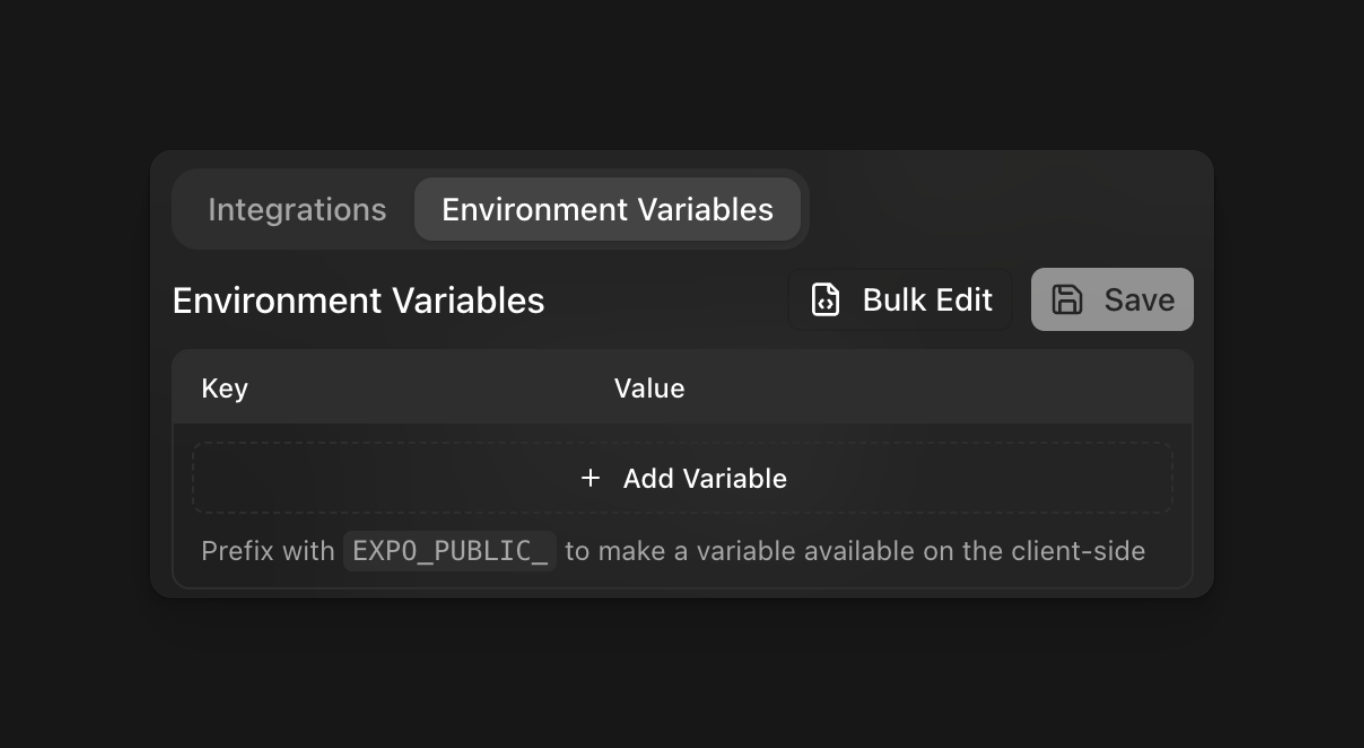
Environment Variables are Rorks native support for API's without needing to connect to a backend like Supabase. It allows the users to just enter in thier api keys and get instant access to the api.

<img src="https://mintcdn.com/rork/XAd9xDfEL-Qsssvv/images/image-99.png?fit=max&auto=format&n=XAd9xDfEL-Qsssvv&q=85&s=258125405a711ae938bd441276a93e59" alt="Image" width="1364" height="748" data-path="images/image-99.png" />

All you have to do is click add variable, enter a name for the key describing your api, then add a value, which is your api key.\
\
After that prompt Rork to use the edge function.
<Tip>
  Tip: attach documentation from the api provider for the best results
</Tip>

\
\
**Supaabase Edge Function:**\
\
Connect Supabase:\
Provide Rork with the prompt saying connect "Supabase to the app" and including the Project URL and Public Anon key.

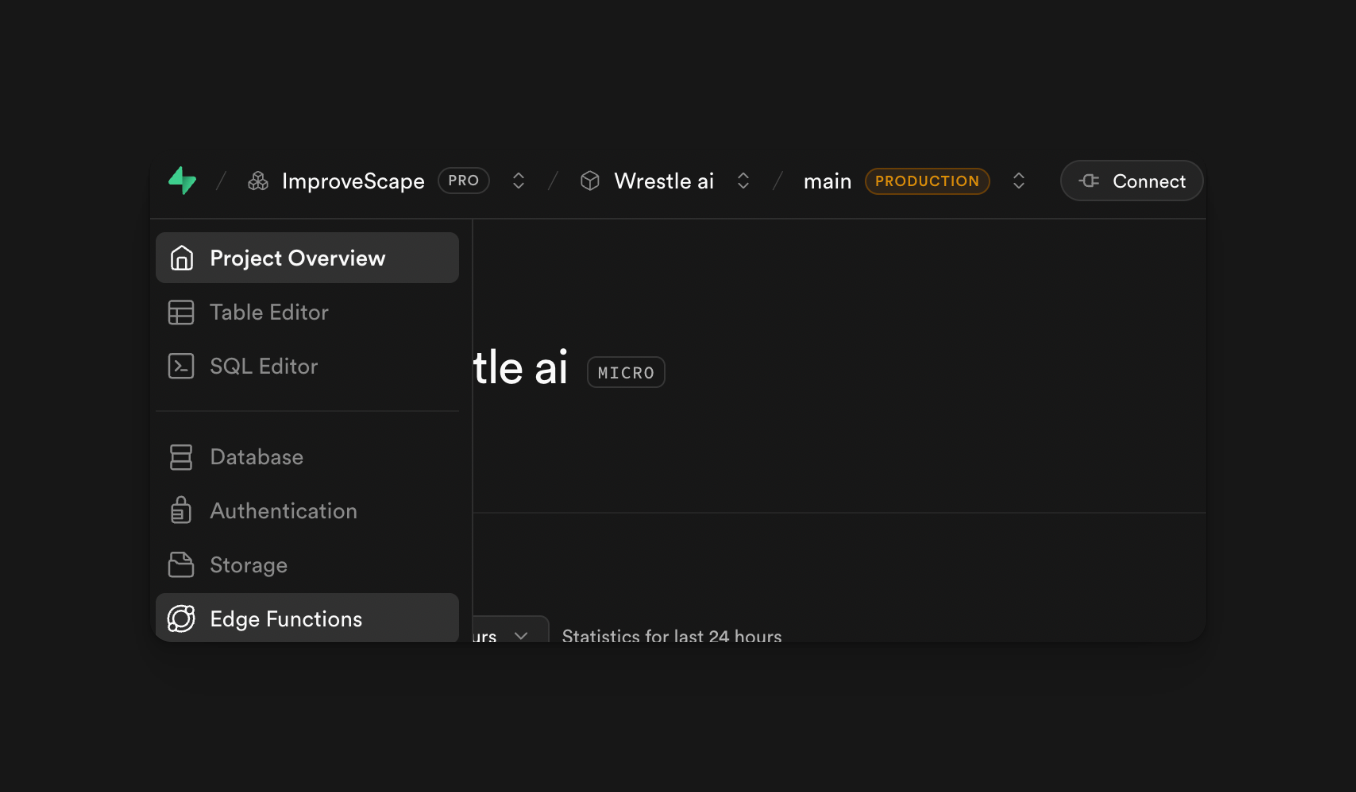
Then navigate to edge functions:

<img src="https://mintcdn.com/rork/eGOVUlAt0PiTHAGK/images/image-100.png?fit=max&auto=format&n=eGOVUlAt0PiTHAGK&q=85&s=25c78f95168cc5662d57e01e1938fb24" alt="Image" width="1356" height="792" data-path="images/image-100.png" />

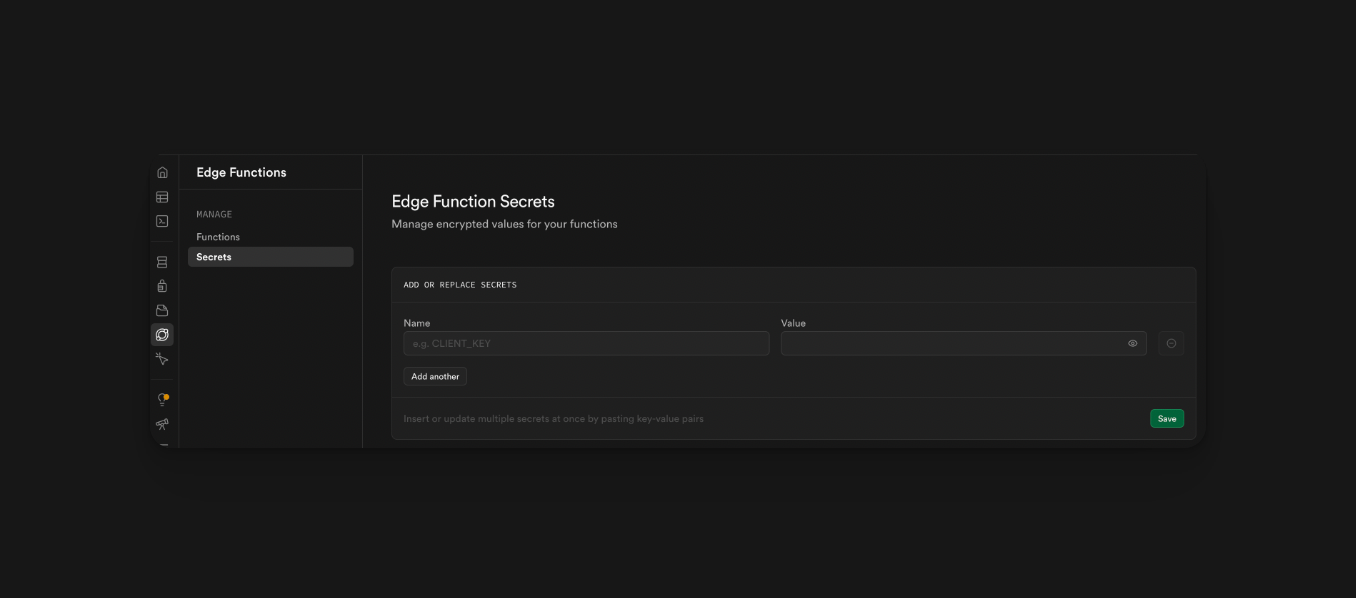
Once in the edge function, click secret. Then name your secret and add your api key in the value.
<img src="https://mintcdn.com/rork/eGOVUlAt0PiTHAGK/images/image-101.png?fit=max&auto=format&n=eGOVUlAt0PiTHAGK&q=85&s=acd1cc71de98177e3211c087d7990255" alt="Image" width="1356" height="598" data-path="images/image-101.png" />

Then copy and paste the name of your secret into Rork or ChatGPT with the prompt: "I want my app to achieve X task using this API. This is the name of my secret (insert name), make me an edge function code for this API". \
\
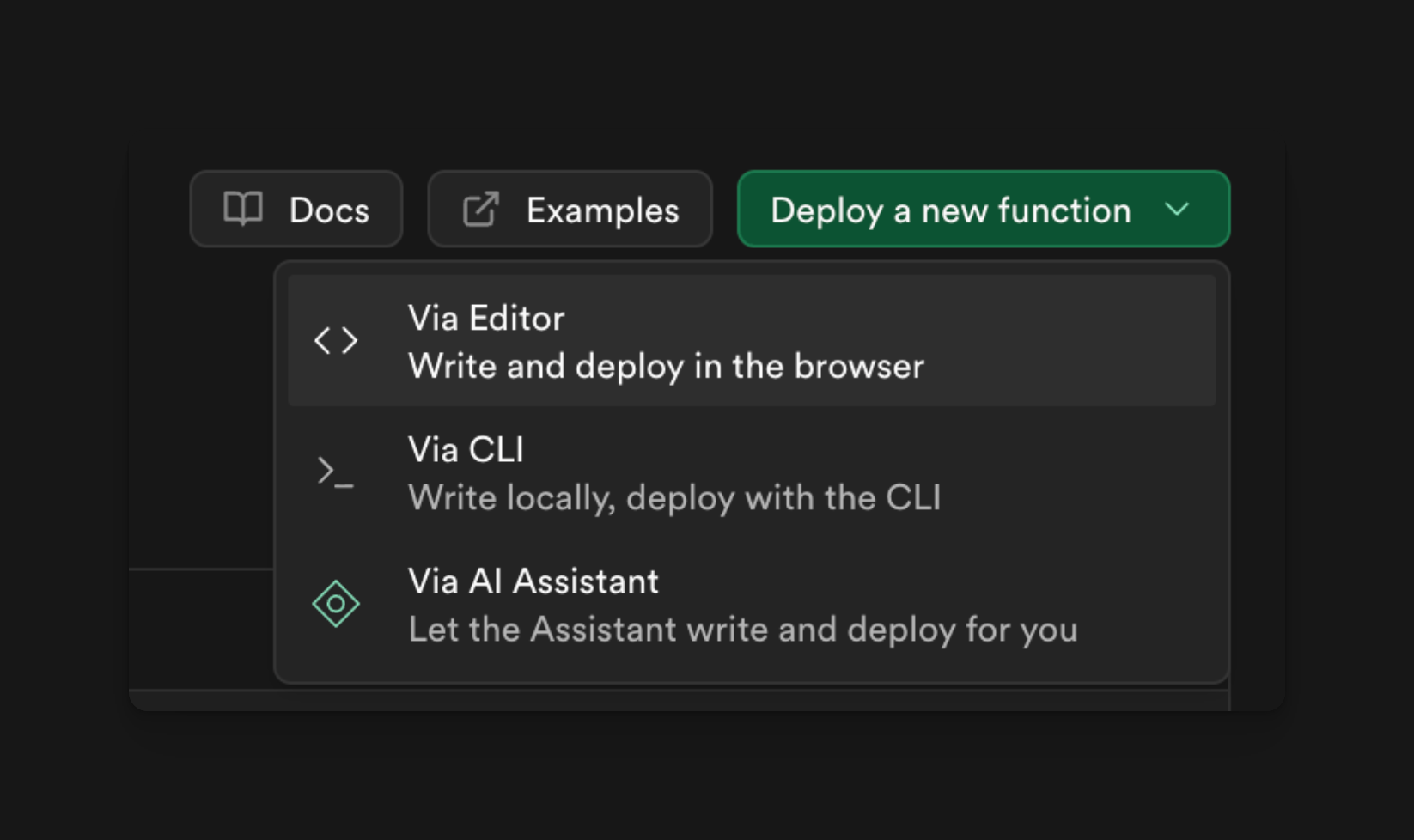
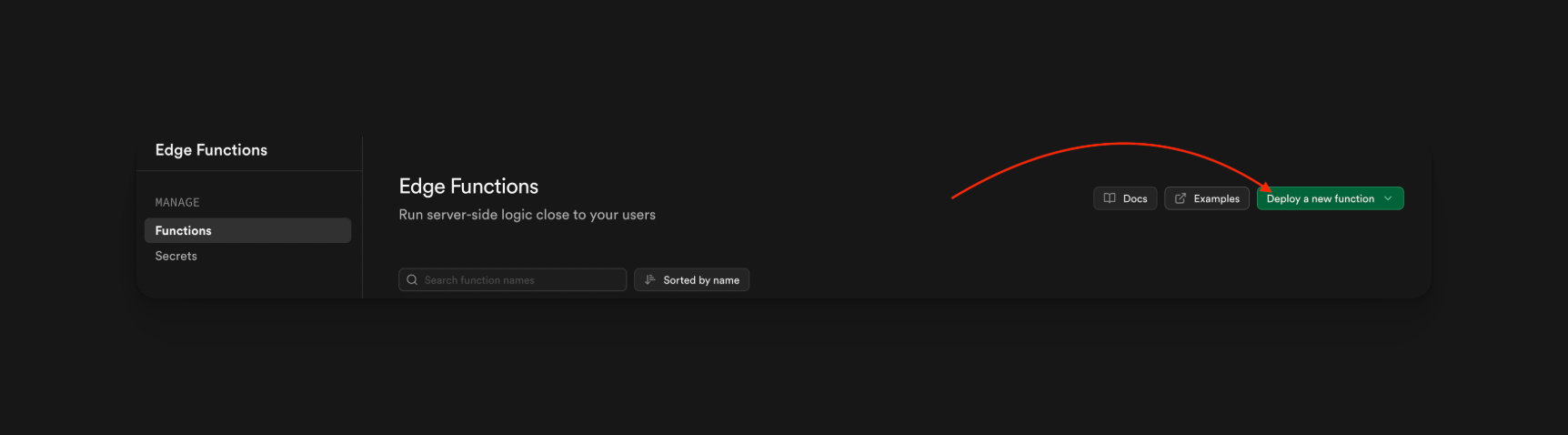
Then, in Supabase, click Deploy New Function:
<img src="https://mintcdn.com/rork/eGOVUlAt0PiTHAGK/images/image-102.png?fit=max&auto=format&n=eGOVUlAt0PiTHAGK&q=85&s=f78178a673fd063fe392f8e20a45354e" alt="Image" width="1724" height="478" data-path="images/image-102.png" />

Then click editor:

<img src="https://mintcdn.com/rork/eGOVUlAt0PiTHAGK/images/image-103.png?fit=max&auto=format&n=eGOVUlAt0PiTHAGK&q=85&s=c6af478c841e3d7c07508309ca1b2c1e" alt="Image" width="1646" height="978" data-path="images/image-103.png" />

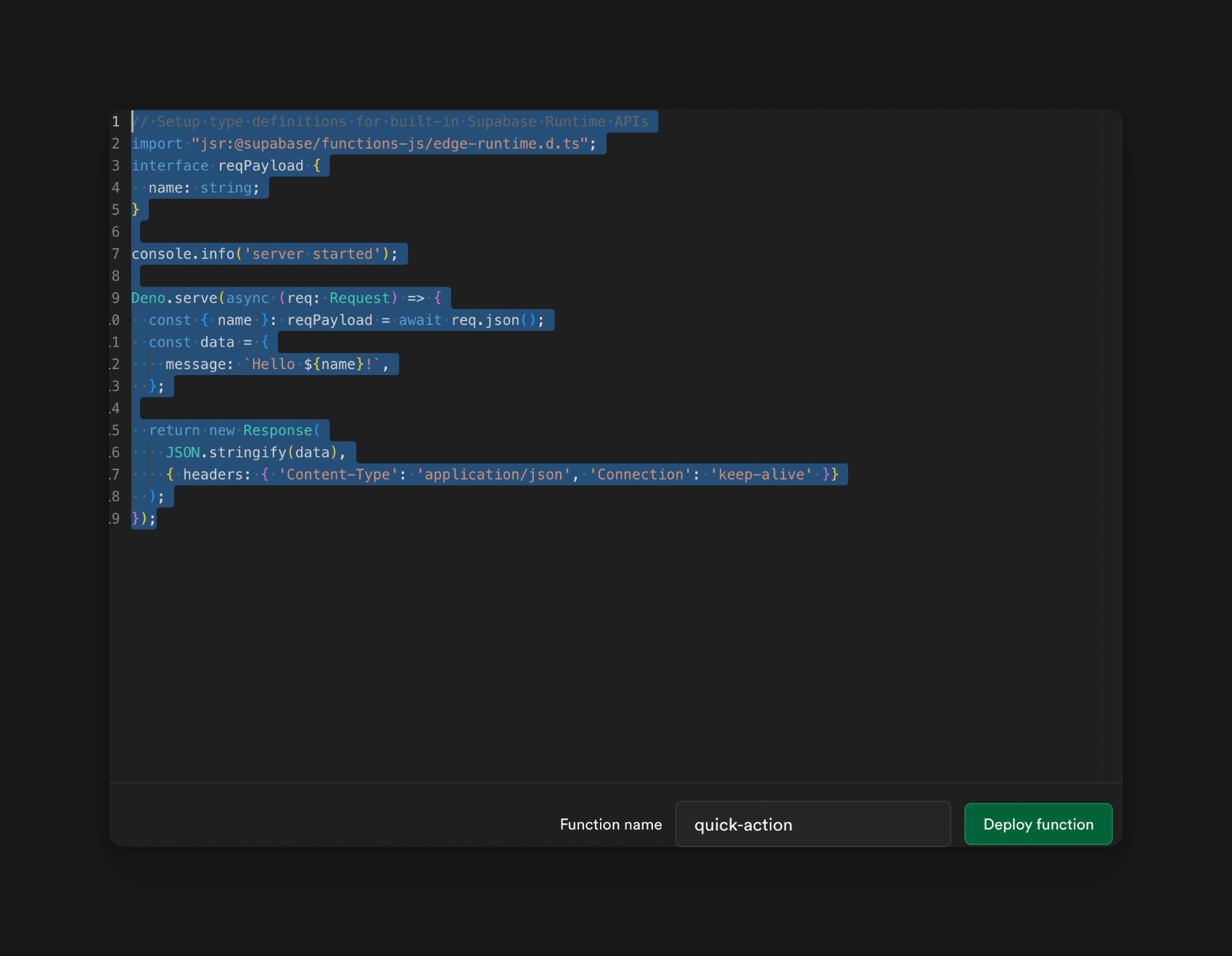
Then delete the previous code:

<img src="https://mintcdn.com/rork/eGOVUlAt0PiTHAGK/images/image-104.png?fit=max&auto=format&n=eGOVUlAt0PiTHAGK&q=85&s=561865c2675e18ec8a7c783848536b56" alt="Image" width="1698" height="1318" data-path="images/image-104.png" />

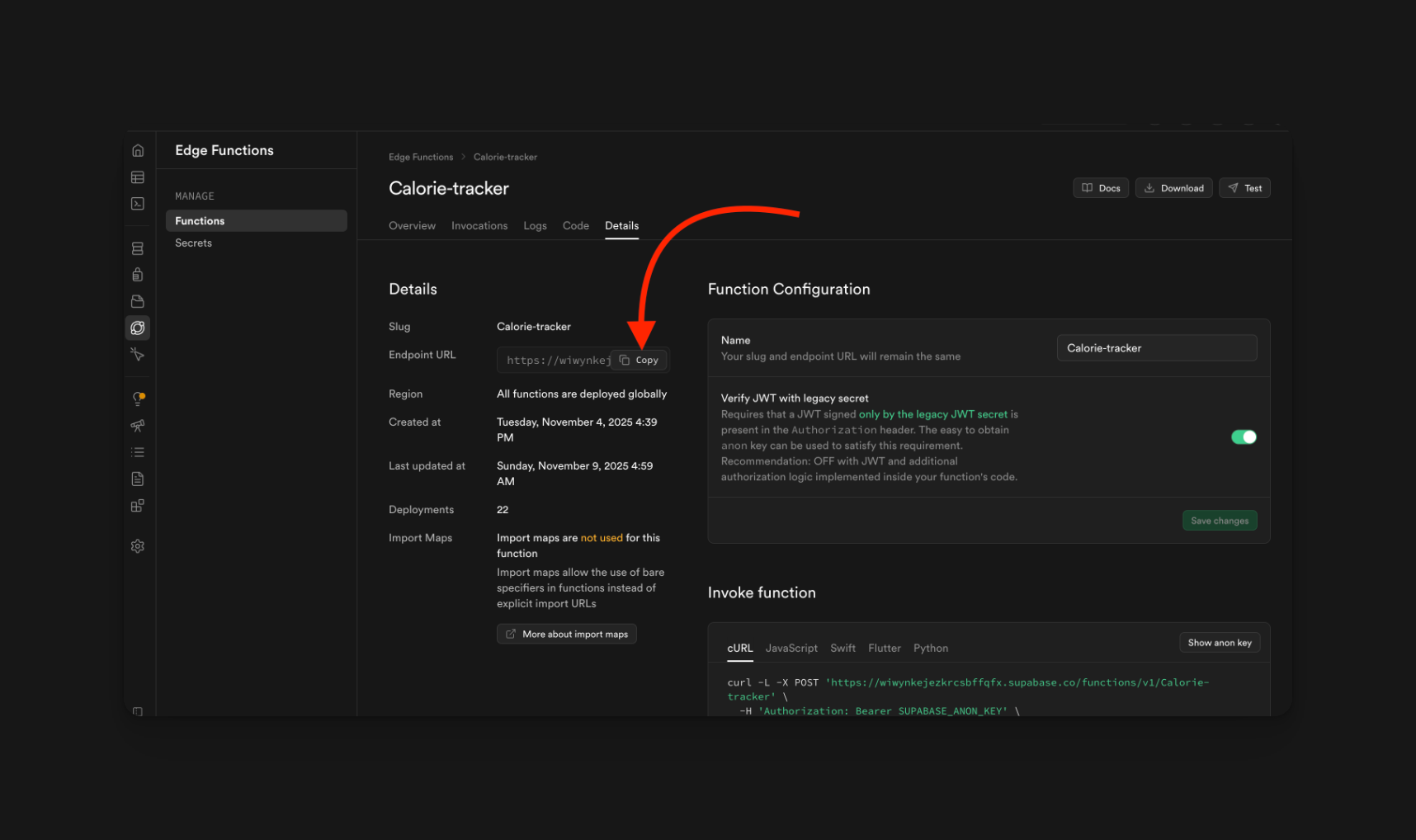
Paste in your code from ChatGPT or Rork, then hit the deploy function. After that, copy your endpoint URL and paste it into Rork with the prompt "Use this Edge Function to achieve X task by sending or requesting X data: \<insert endpoint link here>"
<img src="https://mintcdn.com/rork/eGOVUlAt0PiTHAGK/images/image-105.png?fit=max&auto=format&n=eGOVUlAt0PiTHAGK&q=85&s=0b61d5f777bc837162400c20fb3c01bc" alt="Image" width="1716" height="1018" data-path="images/image-105.png" />

\
**Troubleshooting:**\
This method requires a lot more trial and error:

* Data is not being parsed, keep reprompting till it works.
* Edge function keeps failing; you may need to rewrite it a few times.
* Invalid api key, you mistyped the api key, or you need to redeploy your edge function.

<CtaBanner />