> ## Documentation Index
> Fetch the complete documentation index at: https://docs.rork.com/llms.txt
> Use this file to discover all available pages before exploring further.

# Development

> Preview changes locally to update your docs

export const CtaBanner = () => <div style={{
  display: "flex",
  alignItems: "center",
  justifyContent: "space-between",
  gap: "24px",
  flexWrap: "wrap",
  margin: "40px 0 8px",
  padding: "22px 28px",
  borderRadius: "16px",
  background: "linear-gradient(135deg,rgba(249,115,22,0.10),rgba(255,255,255,0.03),rgba(249,115,22,0.06))",
  border: "1px solid rgba(255,255,255,0.08)"
}}>
    <div>
      <div style={{
  fontSize: "19px",
  fontWeight: 700,
  color: "#fff",
  letterSpacing: "-0.3px",
  lineHeight: 1.3
}}>
        Build your app with Rork today.
      </div>
      <div style={{
  fontSize: "14px",
  color: "rgba(255,255,255,0.6)",
  marginTop: "4px",
  lineHeight: 1.5
}}>
        Ship iOS, Android, and web apps by chatting with AI.
      </div>
    </div>
    <a href="https://rork.com" style={{
  flexShrink: 0,
  display: "inline-block",
  padding: "10px 24px",
  background: "linear-gradient(135deg,#fff,#f0f0f0)",
  color: "#000",
  fontSize: "14px",
  fontWeight: 600,
  borderRadius: "100px",
  textDecoration: "none",
  whiteSpace: "nowrap"
}}>
      Try Rork for Free
    </a>
  </div>;

<Info>
  **Prerequisites**:

  * Node.js version 19 or higher
  * A docs repository with a `docs.json` file
</Info>

Follow these steps to install and run Mintlify on your operating system.

<Steps>
  <Step title="Install the Mintlify CLI">
    ```bash theme={null}
    npm i -g mint
    ```
  </Step>

  <Step title="Preview locally">
    Navigate to your docs directory where your `docs.json` file is located, and run the following command:

    ```bash theme={null}
    mint dev
    ```

    A local preview of your documentation will be available at `http://localhost:3000`.
  </Step>
</Steps>

## Custom ports

By default, Mintlify uses port 3000. You can customize the port Mintlify runs on by using the `--port` flag. For example, to run Mintlify on port 3333, use this command:

```bash theme={null}
mint dev --port 3333
```

If you attempt to run Mintlify on a port that's already in use, it will use the next available port:

```md theme={null}
Port 3000 is already in use. Trying 3001 instead.
```

## Mintlify versions

Please note that each CLI release is associated with a specific version of Mintlify. If your local preview does not align with the production version, please update the CLI:

```bash theme={null}
npm mint update
```

## Validating links

The CLI can assist with validating links in your documentation. To identify any broken links, use the following command:

```bash theme={null}
mint broken-links
```

## Deployment

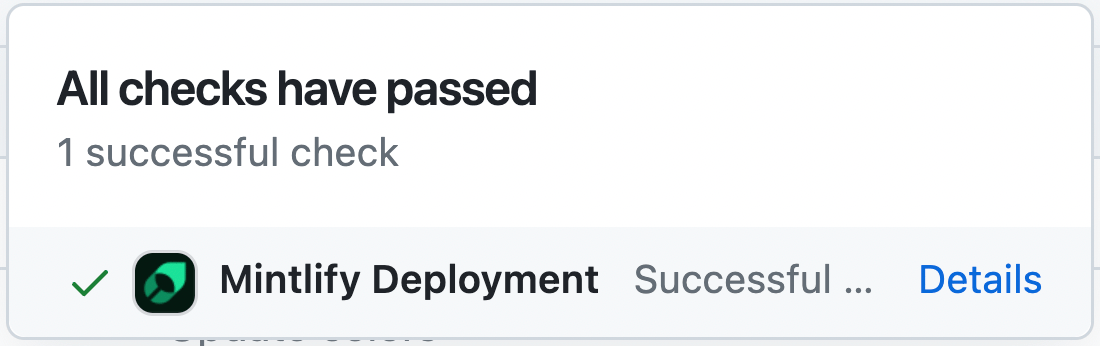
If the deployment is successful, you should see the following:

<Frame>
  <img src="https://mintcdn.com/rork/9VuqzB7uQmWJkJqD/images/checks-passed.png?fit=max&auto=format&n=9VuqzB7uQmWJkJqD&q=85&s=c60f8131140049c0a8216549b7c34d3f" alt="Screenshot of a deployment confirmation message that says All checks have passed." style={{ borderRadius: '0.5rem' }} width="1100" height="346" data-path="images/checks-passed.png" />
</Frame>

## Code formatting

We suggest using extensions on your IDE to recognize and format MDX. If you're a VSCode user, consider the [MDX VSCode extension](https://marketplace.visualstudio.com/items?itemName=unifiedjs.vscode-mdx) for syntax highlighting, and [Prettier](https://marketplace.visualstudio.com/items?itemName=esbenp.prettier-vscode) for code formatting.

## Troubleshooting

<AccordionGroup>
  <Accordion title="Error: Could not load the &#x22;sharp&#x22; module using the darwin-arm64 runtime">
    This may be due to an outdated version of node. Try the following:

    1. Remove the currently-installed version of the CLI: `npm remove -g mint`
    2. Upgrade to Node v19 or higher.
    3. Reinstall the CLI: `npm i -g mint`
  </Accordion>

  <Accordion title="Issue: Encountering an unknown error">
    Solution: Go to the root of your device and delete the `~/.mintlify` folder. Then run `mint dev` again.
  </Accordion>
</AccordionGroup>

Curious about what changed in the latest CLI version? Check out the [CLI changelog](https://www.npmjs.com/package/mintlify?activeTab=versions).

<CtaBanner />
