> ## Documentation Index
> Fetch the complete documentation index at: https://docs.rork.com/llms.txt
> Use this file to discover all available pages before exploring further.

# Share a project and work together

> Invite people to view or edit your Rork project, leave comments for each other, see who is online, and clone a project into a fresh copy you can change freely.

export const CtaBanner = () => <div style={{
  display: "flex",
  alignItems: "center",
  justifyContent: "space-between",
  gap: "24px",
  flexWrap: "wrap",
  margin: "40px 0 8px",
  padding: "22px 28px",
  borderRadius: "16px",
  background: "linear-gradient(135deg,rgba(249,115,22,0.10),rgba(255,255,255,0.03),rgba(249,115,22,0.06))",
  border: "1px solid rgba(255,255,255,0.08)"
}}>
    <div>
      <div style={{
  fontSize: "19px",
  fontWeight: 700,
  color: "#fff",
  letterSpacing: "-0.3px",
  lineHeight: 1.3
}}>
        Build your app with Rork today.
      </div>
      <div style={{
  fontSize: "14px",
  color: "rgba(255,255,255,0.6)",
  marginTop: "4px",
  lineHeight: 1.5
}}>
        Ship iOS, Android, and web apps by chatting with AI.
      </div>
    </div>
    <a href="https://rork.com?utm_source=docs&amp;utm_medium=referral&amp;utm_campaign=docs-cta&amp;utm_content=cta-banner" onClick={tagCtaLink} style={{
  flexShrink: 0,
  display: "inline-block",
  padding: "10px 24px",
  background: "linear-gradient(135deg,#fff,#f0f0f0)",
  color: "#000",
  fontSize: "14px",
  fontWeight: 600,
  borderRadius: "100px",
  textDecoration: "none",
  whiteSpace: "nowrap"
}}>
      Try Rork for Free
    </a>
  </div>;

A Rork project can hold more than one person. You invite a co-founder, a designer, or a client, and they open the same chat and the same live preview that you see.

There are two ways to bring somebody in, and they are not the same thing:

* **Invite** them into your project. One project, one chat, everyone edits the same app.
* **Clone** the project. They get their own copy, and your version keeps working exactly as it did.

## Invite someone to your project

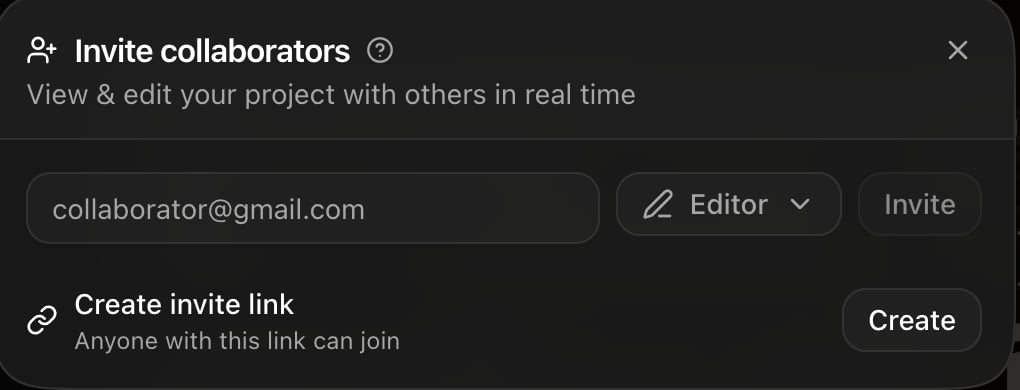
Press the invite button in the project header, next to **Publish**.

<Frame caption="The invite dialog: an email invite on top, a shareable link below.">
  <img src="https://mintcdn.com/rork/wazWVatNruwoHCrq/images/collaborate/invite.png?fit=max&auto=format&n=wazWVatNruwoHCrq&q=85&s=fd6de4b427d2f04d782f958e2edea721" alt="The Rork Invite collaborators dialog with an email field, an Editor role picker, an Invite button, and a Create invite link row" width="1020" height="390" data-path="images/collaborate/invite.png" />
</Frame>

You have two routes:

* **By email.** Type the address, choose the role, press **Invite**. Rork emails them a link titled "You're invited to collaborate on a Rork project." That invite expires after 7 days.
* **By link.** Press **Create** under **Create invite link**. Anyone who opens that link can join, so treat it like a password. Links last a year.

Whoever accepts has to sign in to Rork first. After that they land straight in the project.

## Editor or Viewer

Rork has exactly two roles.
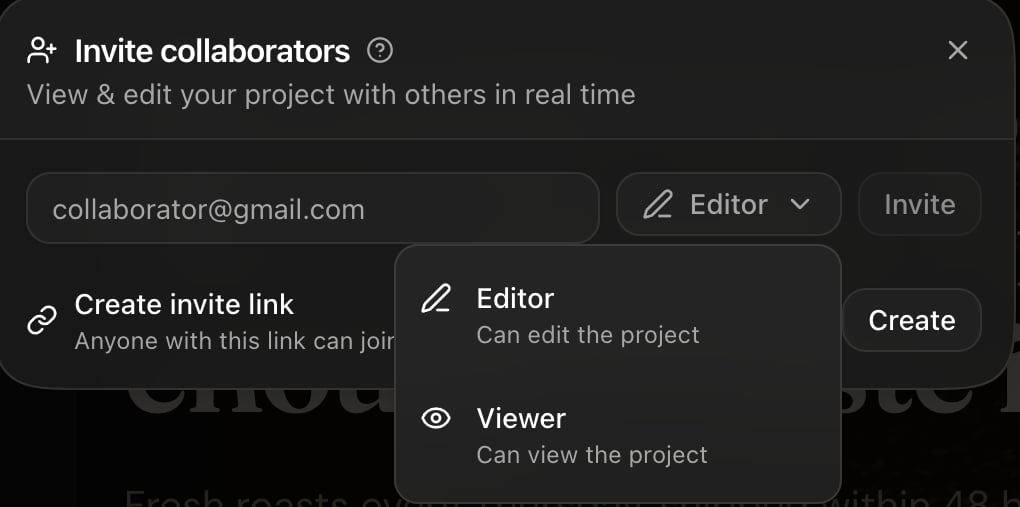
<Frame caption="Editor can change the app. Viewer can only look at it.">
  <img src="https://mintcdn.com/rork/wazWVatNruwoHCrq/images/collaborate/roles.png?fit=max&auto=format&n=wazWVatNruwoHCrq&q=85&s=02e4e7add8fce090a399650771fbb262" alt="The role picker in the Rork invite dialog showing Editor, can edit the project, and Viewer, can view the project" width="1020" height="507" data-path="images/collaborate/roles.png" />
</Frame>

|                                  | Editor | Viewer |
| -------------------------------- | ------ | ------ |
| Read the chat and the preview    | Yes    | Yes    |
| Send messages to the agent       | Yes    | No     |
| Edit code and secrets            | Yes    | No     |
| Publish and submit to the stores | Yes    | No     |
| Invite other people              | Yes    | No     |
| Leave comments                   | Yes    | Yes    |
| Clone the project                | Yes    | Yes    |

A viewer sees a note in the composer instead of a send button: "You have view-only access to this project". Give clients and stakeholders **Viewer**, and give teammates **Editor**.

To change somebody later, open the invite dialog and use their row: **Set as Editor**, **Set as Viewer**, or **Remove**. If you were invited and want out, the same menu offers **Leave project**.
<Warning>
  Collaborators spend the project owner's credits. The dialog says so: "Collaborators will use credits from the project owner's workspace". Every message an editor sends comes out of your balance, so invite editors deliberately. See [Build credits vs Cloud credits](/billing/build-credits-vs-cloud-credits).
</Warning>

## See who is in the project

The project header shows a row of avatars: the owner first, then the collaborators. A green ring means that person is in the project right now, and a dimmed avatar means they are away. Hover an avatar to see who it is and whether they are the owner or a collaborator.

Two people can work in the same project at the same time. Only one message runs at a time, so agree who is driving before you both start typing.

## Leave notes for each other

Once a project has collaborators, the header gains a **Comments** button. The panel is titled **Comments**, with the line "Leave notes for your collaborators".

Use comments for the things that are not instructions to the agent: "the price on the pricing card is wrong", "client approved the hero". Comments live beside the project, not inside the chat, so they do not confuse the agent.

<Note>
  Comments do not send an email or a push notification. Tell your teammate where to look, or check the panel when you open the project.
</Note>

## Clone a project

Cloning makes an independent copy. Use it to try a risky direction, to start a second app from a good base, or to hand someone a version they can break.

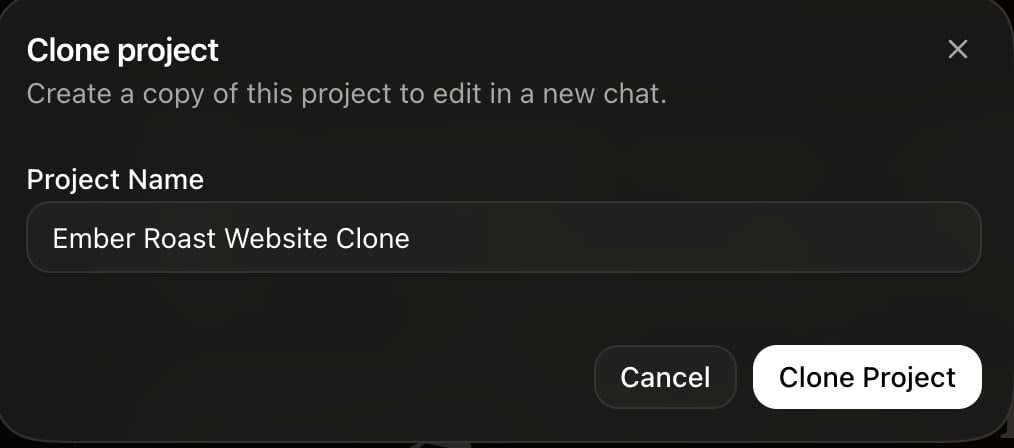
Open the **⋯** menu in the project header and choose **Clone project**.

<Frame caption="Name the copy, then press Clone Project. Rork opens it in a new chat.">
  <img src="https://mintcdn.com/rork/wazWVatNruwoHCrq/images/collaborate/clone.png?fit=max&auto=format&n=wazWVatNruwoHCrq&q=85&s=a1c06d53d84743718c135bda033e3831" alt="The Clone project dialog in Rork with a Project Name field prefilled as Ember Roast Website Clone, and Cancel and Clone Project buttons" width="1014" height="448" data-path="images/collaborate/clone.png" />
</Frame>

What the copy contains:

* All the code, and the chat history behind it
* The assets: generated images, video, audio, and 3D models
* Your environment variables, except the keys Rork manages itself, which it mints fresh

What the copy does not share:

* Nothing you do in the copy touches the original, and nothing in the original reaches the copy
* A published web address stays with the original project. Publish the copy separately to give it one

Anyone with access to a project can clone it, viewers included. A clone always belongs to the person who made it.

## Find projects other people shared with you

Open the sidebar on [rork.com](https://rork.com) and use **Shared with you**. It lists the projects you were invited to, separately from **My Projects**.

## Are my projects private?

Yes. Every Rork project is private. The project address only opens for the owner and the people invited, and a stranger with the URL gets nothing.

Publishing is a separate decision. A published web app is public on purpose, and it does not expose your chat, your code, or your secrets. See [Rork Web](/web/rork-web).

## FAQ

<AccordionGroup>
  <Accordion title="Does a collaborator need their own paid plan?">
    No. They need a Rork account. The work runs on the project owner's credits.
  </Accordion>

  <Accordion title="Can I share a project without letting anyone change it?">
    Yes, invite them as **Viewer**. To show the app rather than the project, publish it to the web and send that address instead.
  </Accordion>

  <Accordion title="How do I stop someone from having access?">
    Open the invite dialog and press **Remove** on their row. An invite link you no longer want can be deleted the same way.
  </Accordion>

  <Accordion title="Can a collaborator revert my work?">
    An editor can, yes. Every version stays in the chat, so ask them which answer they reverted to. See [Undo a change and go back a version](/features/undo-and-history).
  </Accordion>

  <Accordion title="Can two people build different features at once?">
    Not in one project. One agent runs one message at a time. Split the work into two projects, or take turns and keep the other person on Viewer.
  </Accordion>

  <Accordion title="Can I hand a project over to someone else?">
    Clone is the practical route today: they clone it, and their copy is theirs. For a real ownership transfer, write to [team@rorkai.com](mailto:team@rorkai.com).
  </Accordion>
</AccordionGroup>

## Next steps

<CardGroup cols={2}>
  <Card icon="rotate-left" href="/features/undo-and-history" title="Undo and history">
    Go back to any earlier version of the project.
  </Card>

  <Card icon="key" href="/features/secrets" title="Keys and secrets">
    Who can see your API keys, and who cannot.
  </Card>

  <Card icon="github" href="/tutorials/how-to-connect-github" title="Sync with GitHub">
    Give a developer the code in a normal repository.
  </Card>

  <Card icon="credit-card" href="/billing/build-credits-vs-cloud-credits" title="Credits">
    Whose balance pays for a collaborator's messages.
  </Card>
</CardGroup>

<CtaBanner />
